
Writeback
Included in every planPreview
Power BI shows the numbers. Now people can add theirs.
Budgets, targets, forecasts and comments, entered right in the portal where your reports already are. The data lands in your own database and flows back into Power BI.
30-day free trial of the Embedsy Portal. Prefer a live walkthrough? Book a free demo.
The numbers people type in live everywhere else
Budgets live in spreadsheets
Targets and forecasts are typed into Excel files, emailed around and copied into the model by hand.
Reports can't take input
Power BI reports only read data. A comment, a correction or a new target has nowhere to go.
A data entry app is a project
A separate app means a database, logins and permissions to build and look after, often for a table with five columns.
Data entry, inside the portal
The portal already knows who your users are and which roles they have. Writeback uses the same roles, so the people who read a report can be the people who fill in its targets.
Tables in a few clicks
Create a table and choose its columns: numbers, dates, text, dropdown lists and formatted text. It is ready for input straight away.
Access per role, down to the row
Share each table with the roles that should fill it in. People can view or edit all rows, or only the rows they added.
Stored in your own Azure
The data is written to the Azure SQL database of your Embedsy installation, in your own Azure subscription.
Straight into Power BI
A read-only login and a ready query bring each table into Power BI. Every row records who added it and when.
What teams use it for
- Budgets, forecasts and targets per store, region or customer
- Comments and explanations on the numbers in a report
- Mapping and grouping tables the source system doesn't have
- Manual adjustments and corrections, with a record of who made them
From empty table to report
Create the table
Name it, add the columns you need and a short description for each, so people know what goes where.
Share it
Pick the roles and what each may do. The table appears in their menu under Data Entry.
Connect Power BI
Create a read-only user, paste the query into Power BI and relate the table to your model.
Column types, access levels, editing in the grid and connecting Power BI, step by step. See the full setup walkthrough →
What it looks like
Writeback in 30 seconds
Create a table, share it with roles, let people fill it in and load it into Power BI.
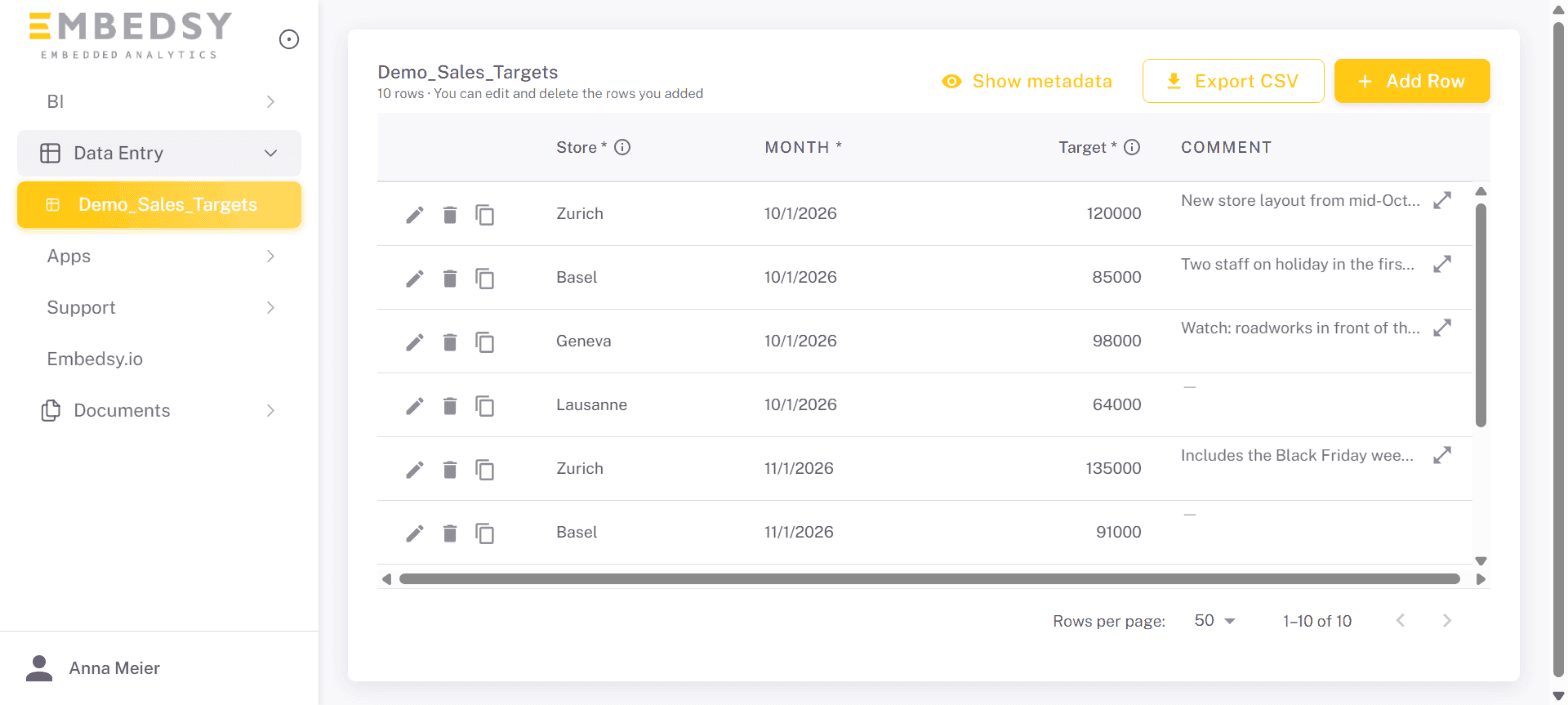
In the menu, next to the reports
Each shared table has its own entry under Data Entry. People add, edit, copy and export rows in a grid.
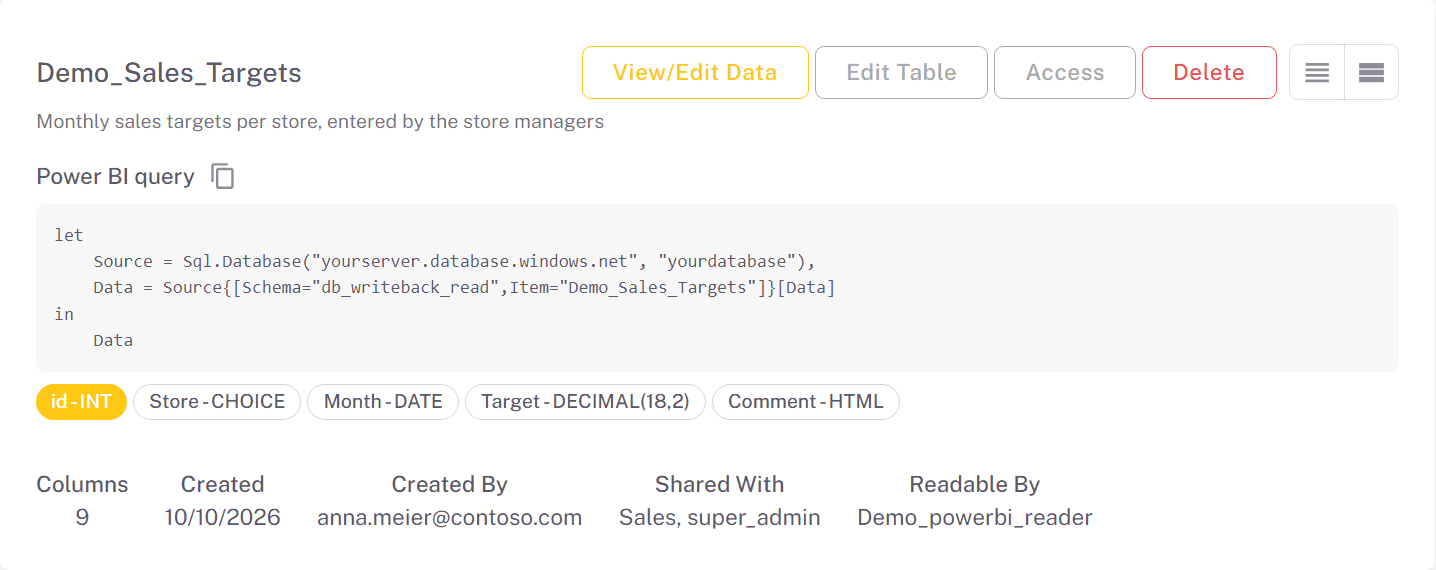
Ready for Power BI
Each table shows who it is shared with, who can read it, and a query to paste into Power BI.
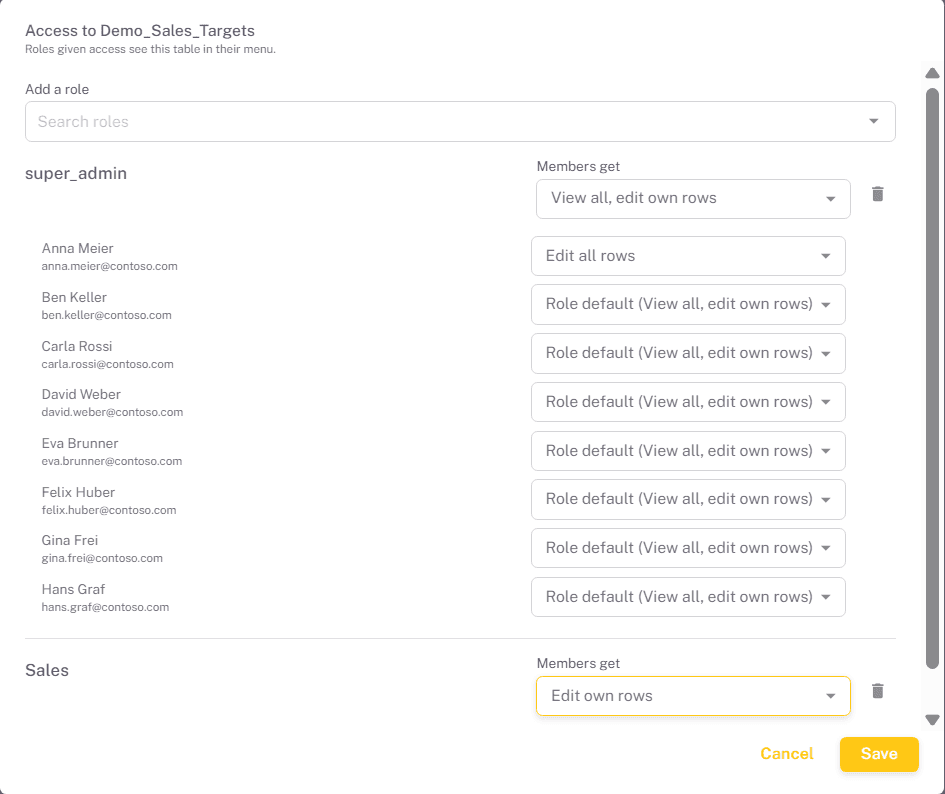
You decide who sees what
Give each role its own level, and individual people a different one where they need it.
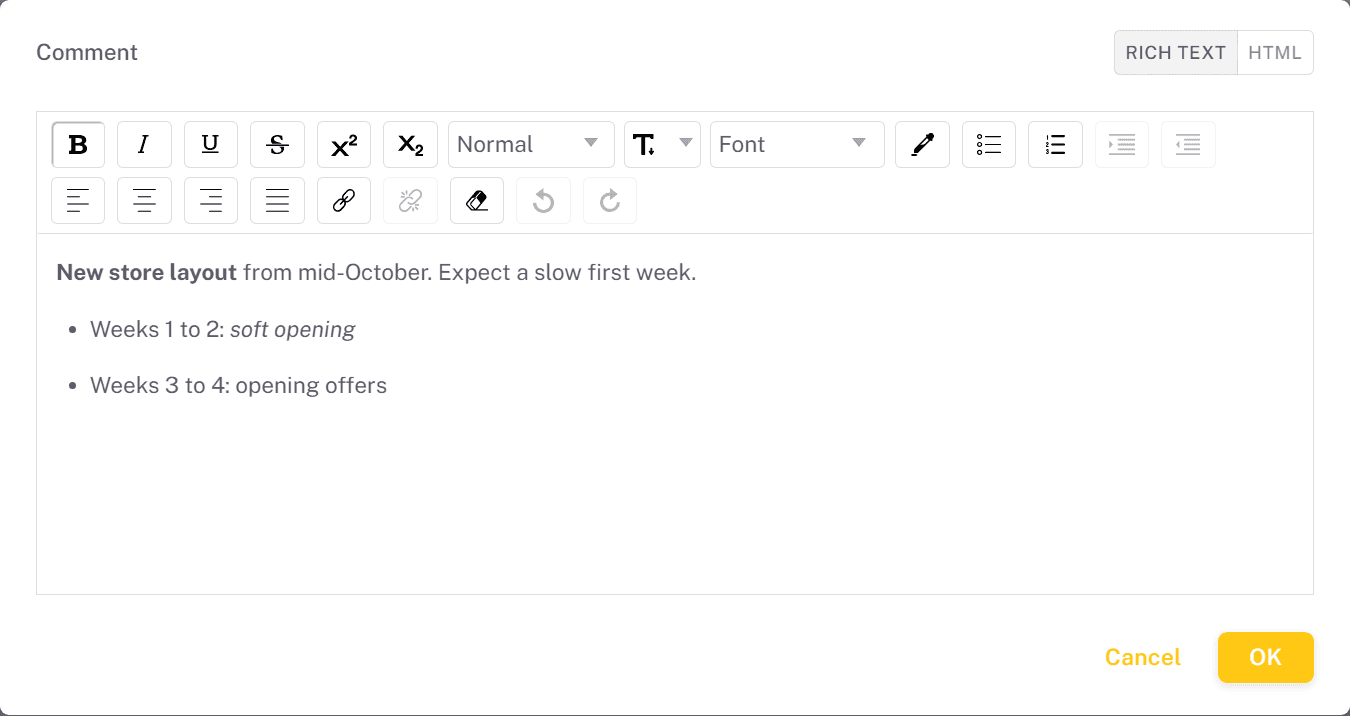
Comments with formatting
Rich text columns take bold text, lists and links, for comments that explain the numbers.
Step by step in four short videos
Create a data entry table, share it with roles, enter data and load it into Power BI. About a minute each.
Included in every plan
Writeback is part of the Embedsy Portal, not a paid add-on. Every plan has it, including the free trial. It is a preview feature that an admin switches on, and it keeps improving. See what the plans cost. Need a form with your own layout and logic instead of a table? Embedsy Studio builds those.
Learn more
Comparing PowerApps, custom visuals and translytical task flows? Read how writeback in Power BI compares.
Let your users write back.
Reports and the numbers behind them, in one portal, in your own environment.
Prefer a live walkthrough? Book a free demo