
How to manage Microsoft Fabric or Power BI Embedded Capacities in the Embedsy Portal.
The Embedsy Portal works with a Microsoft Fabric capacity, a Power BI Embedded capacity or a Fabric free trial. With a paid capacity, the portal can pause the capacity while nobody is using reports and resume it when someone needs it, which can reduce the cost considerably. A schedule keeps the capacity running at set times, so background work such as semantic model refreshes isn't interrupted.
Embedsy is not responsible for costs charged for Azure Resources. We highly recommend setting up budgets and cost control in Azure.
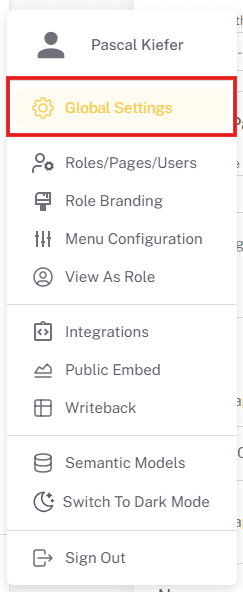
Open Global Settings from the user menu at the bottom of the portal navigation. The settings described here are in its Capacity section, which only super admins see. Click Save Changes after any change.
Fabric Free Trial Capacity
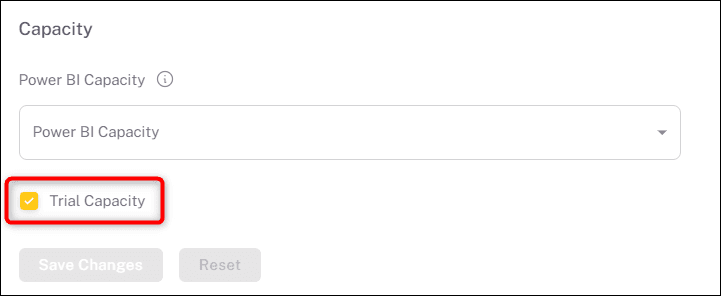
If the portal's workspaces run on a Fabric free trial, check Trial Capacity. The portal then doesn't manage the capacity, so the management options below are hidden. Selecting a paid capacity from the drop-down clears the checkbox again. Either a capacity or Trial Capacity is required to save.
Selecting a paid Fabric or Power BI Embedded Capacity
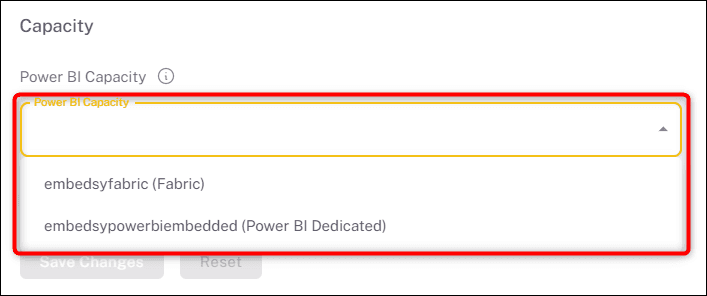
From the Power BI Capacity drop-down, select the capacity that should be used with the Embedsy Portal. Each entry shows its type: Fabric or Power BI Dedicated (Power BI Embedded).
If the drop-down shows "There are no capacities available", the portal can't see your capacities in Azure. Follow the steps described in this documentation.
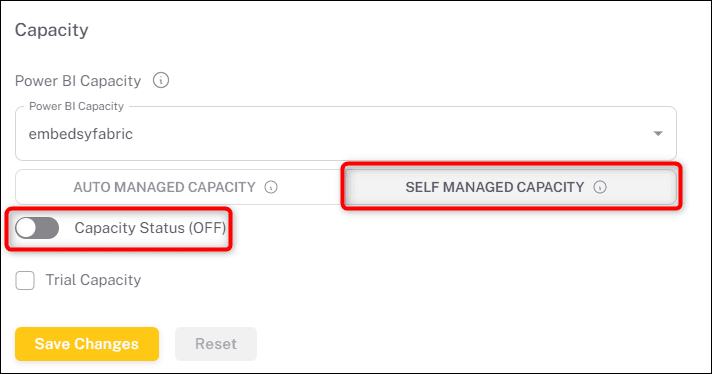
Once a capacity is selected, choose how it is managed: Auto Managed Capacity (selected by default) pauses and resumes it based on report activity; Self Managed Capacity leaves starting and pausing to you. Admins see the current state at the bottom of the portal navigation: Capacity On, Capacity Starting, Capacity Stopping, Capacity Suspended or Capacity Unknown.
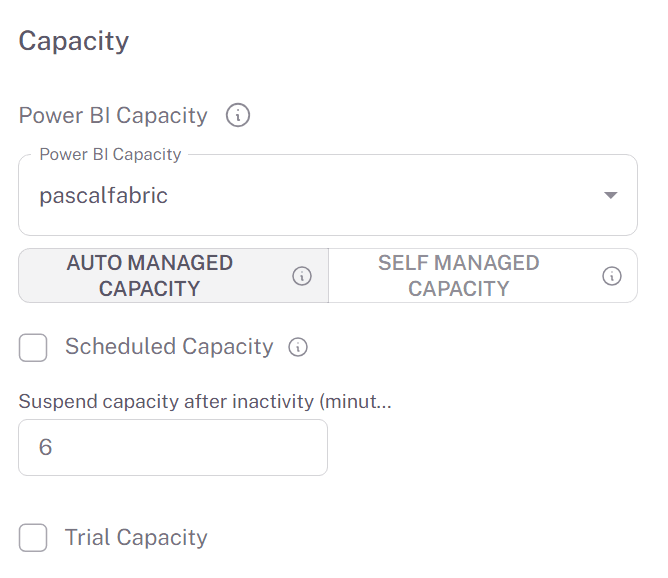
Auto Managed Capacity
A pay-as-you-go capacity is billed only while it runs, so the time it spends paused is time you don't pay for. Reserved capacities are paid for either way and cannot be paused.
What starts the capacity
- A signed-in user opens the portal or a report. The report waits until the capacity is ready and then loads.
- A scheduled report email is due.
- A Scheduled Capacity window begins (see below).
What keeps the capacity running
Only interaction with an embedded Power BI report counts as activity: loading a report, switching report pages, clicking a visual or button, selecting data, and applying filters or bookmarks. For paginated reports, only loading the report counts. Being signed in, or working on other pages such as Studio apps, websites, PDFs or the settings, does not keep the capacity running.
Suspend capacity after inactivity (minutes) decides how long the capacity keeps running after the last report activity. It defaults to 10 minutes; the minimum is 5. A short value saves the most; a longer one avoids starting and pausing repeatedly during the working day. A user who comes back after the capacity was paused starts it again with their next report interaction.
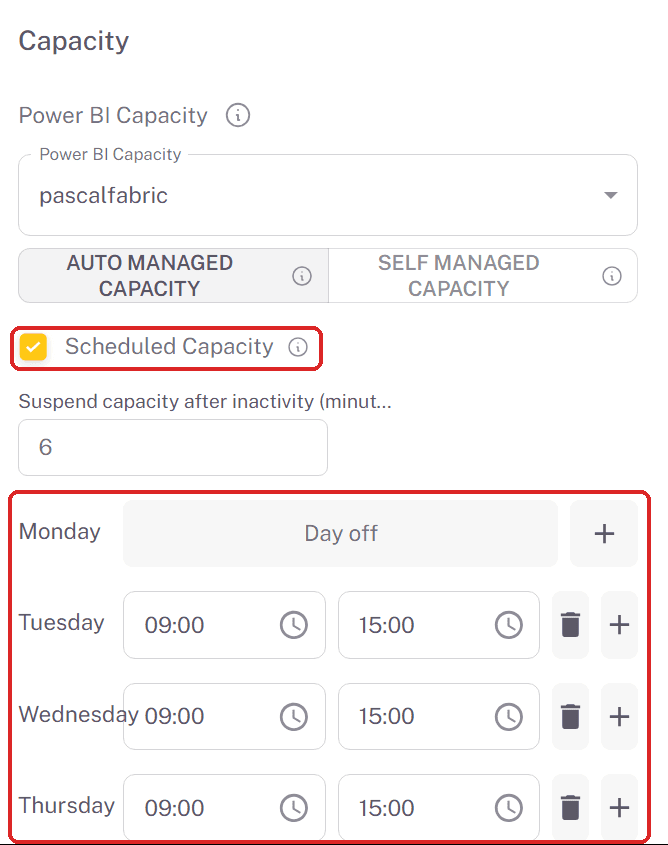
Scheduled Capacity
Data refreshes and other background work need a running capacity, and nobody is using a report to start it for them. Check Scheduled Capacity and give each day of the week a start and an end time. The capacity starts at the start time and stays on until the end time; after that, it pauses unless someone is still active. Use the + button to add another window to a day and the bin to remove one. A day without a window shows Day off: on that day the capacity only runs when the activity described above starts it. Each window's start must be earlier than its end, and windows on the same day must not overlap.
All times are in UTC.
Self Managed Capacity
With Self Managed Capacity the portal never starts or pauses the capacity on its own. Use the Capacity Status switch to start or pause it by hand (it acts immediately, without Save Changes), or leave it running 24/7. Please note that reserved capacities can't be paused.