


Configuring Google Authentication for the Embedsy Portal
With Google sign-in, users log in to the Embedsy Portal with their Google account. You create an OAuth client in Google Cloud and enter its client ID in the portal. A super admin has to do the portal part.
Step 1: Create an OAuth client in Google Cloud
- Open the Google Cloud Console and create a project or select an existing one.
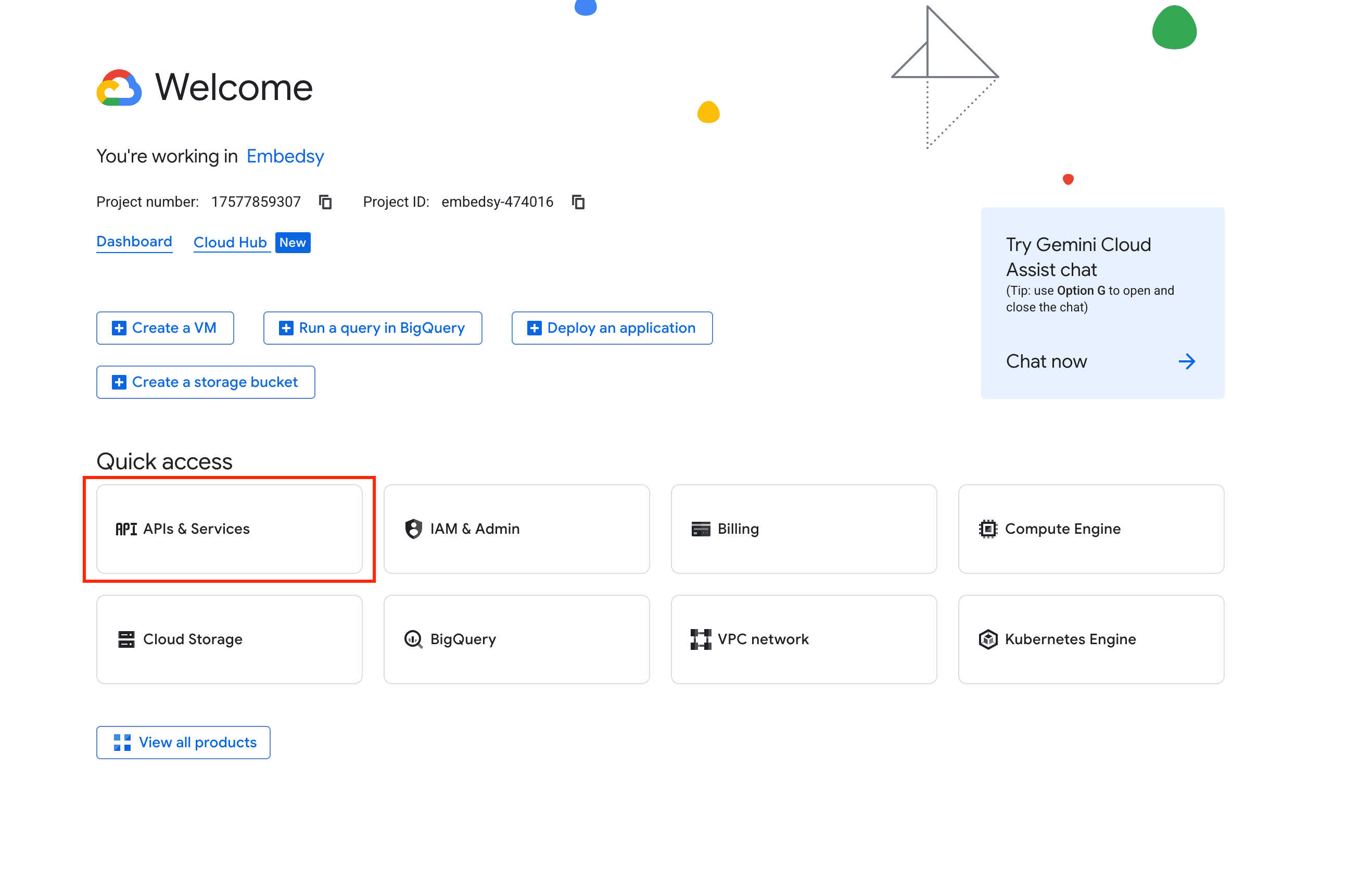
- Go to APIs & Services.
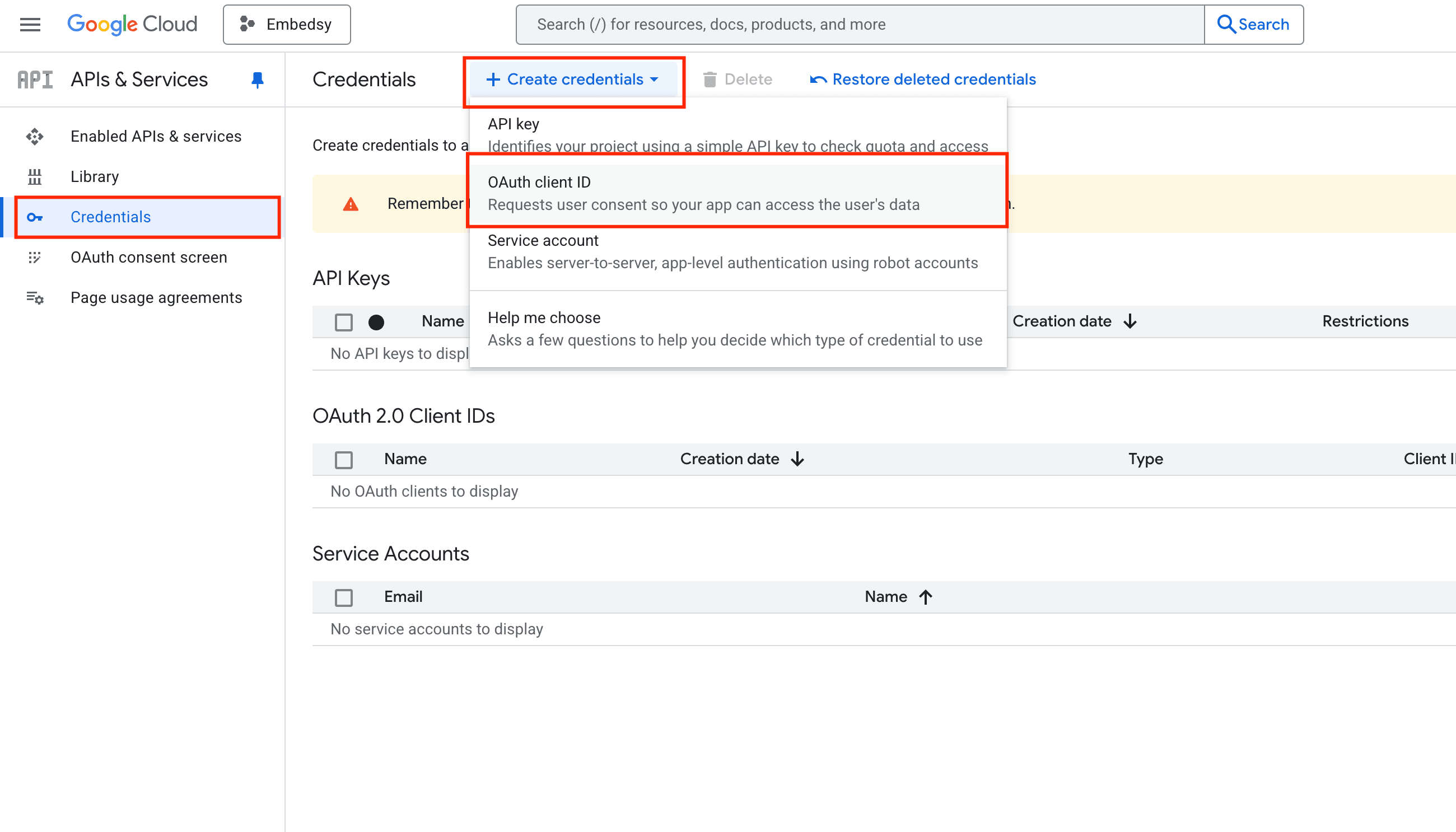
- Open Credentials and choose Create credentials > OAuth client ID. If Google asks you to configure the consent screen first, do that (see Step 3) and come back.
Step 2: Configure the client
- Application type: Web application.
- Name: any name; users don't see it.
- Authorized JavaScript origins: the address of your portal, for example
https://portal.yourcompany.com, withhttps://and without a path or trailing slash. Add one entry for each address the portal is reached at. - Authorized redirect URIs: leave empty. The portal opens Google sign-in in a pop-up and needs no redirect.
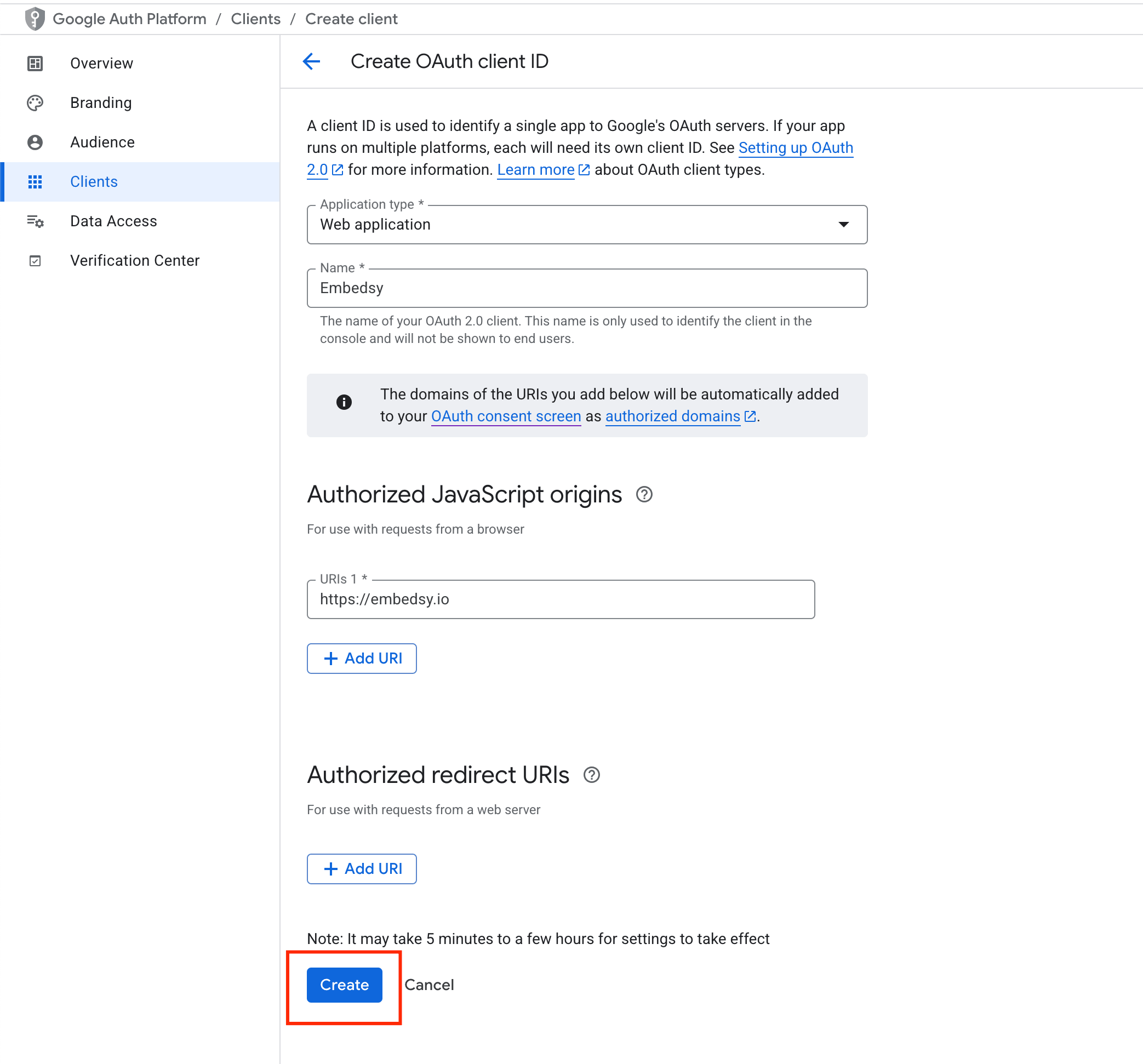
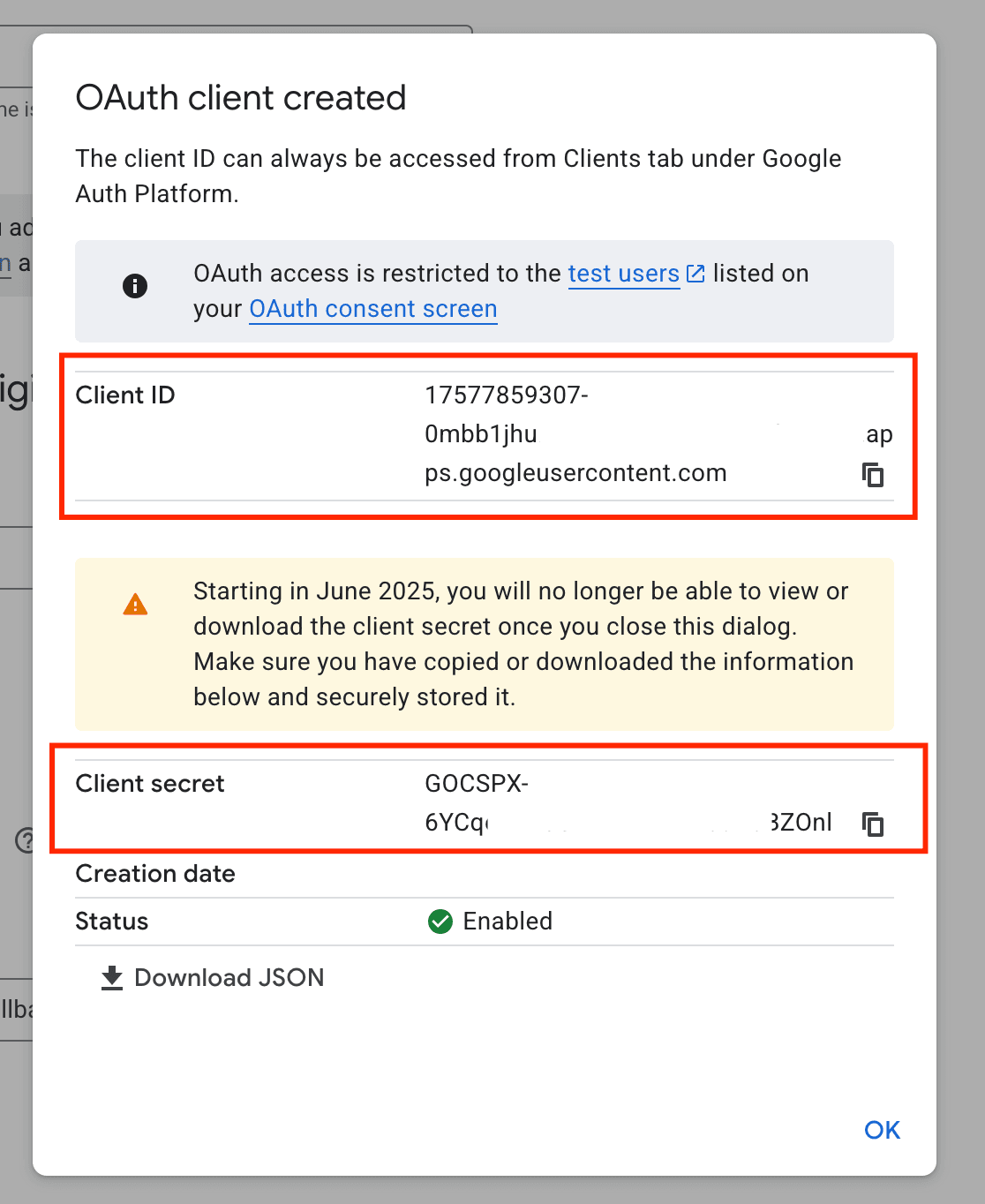
Click Create and copy the Client ID. The portal doesn't use the client secret. Google notes that new settings can take from five minutes to a few hours to take effect.
Step 3: Open the consent screen to your users
While the app's audience in Google is in testing, only the test users listed there can sign in. Before you go live, publish the app in the Audience settings of the OAuth consent screen, or add every user as a test user.
Step 4: Configure the Embedsy Portal
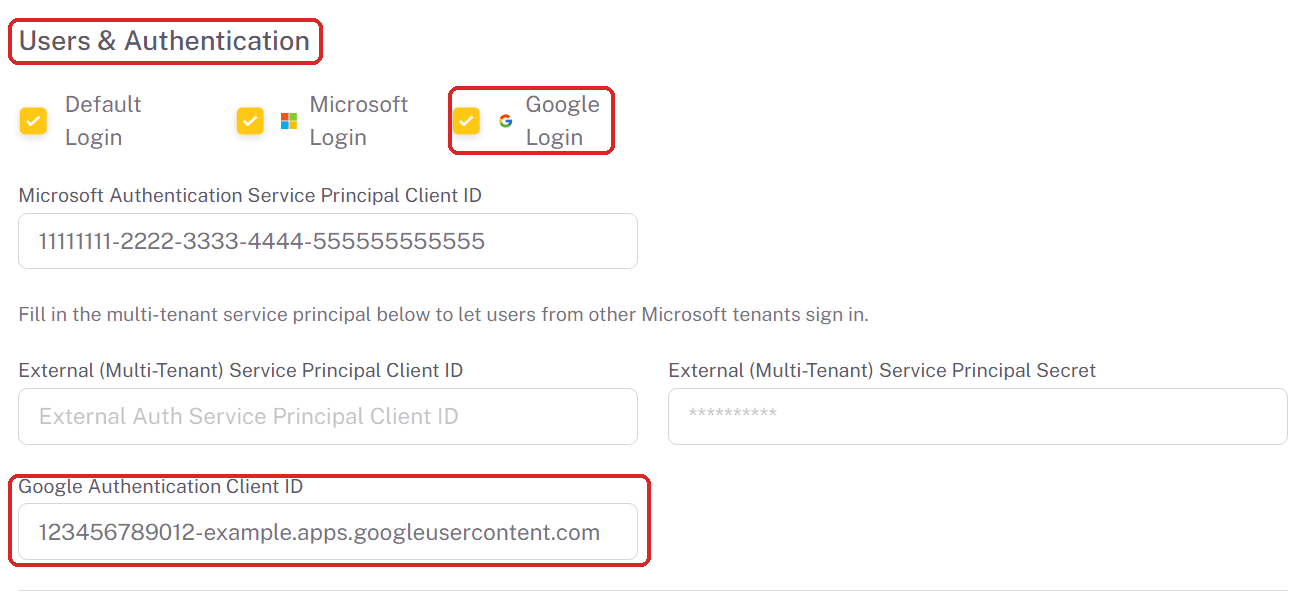
- Open the user menu at the bottom of the navigation and click Global Settings.
- In Users & Authentication, check Google Login.
- Paste the client ID into Google Authentication Client ID.
- Click Save Changes at the bottom of the page. The portal won't save while Google Login is checked and the client ID is empty.
Anyone with a Google account can then sign in. Someone who signs in for the first time gets a portal account with the guest role, so give the guest role only pages that anyone may see. To give a person a role before their first sign-in, add their Google email address in Roles/Pages/Users.
The other sign-in options are described in Global Settings.
Step 5: Test the sign-in
- Sign out of the portal.
- On the login page, click Log in with Google.
- Choose your Google account. You are signed in to the portal.
Troubleshooting
- No Log in with Google button: check that Google Login is checked and the client ID is saved in Global Settings, then reload the login page.
- Google reports an origin or redirect error: the portal address is missing from Authorized JavaScript origins, or differs from it, for example http instead of https or a different subdomain.
- Access blocked for some users: the app is still in testing in Google and the user is not a test user (Step 3).