
How to define the sort order and groups of menu items.
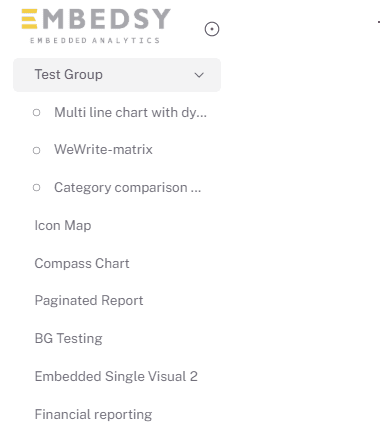
The Embedsy portal allows you to configure the sorting order of groups and items in the navigation menu.
Menu configuration settings
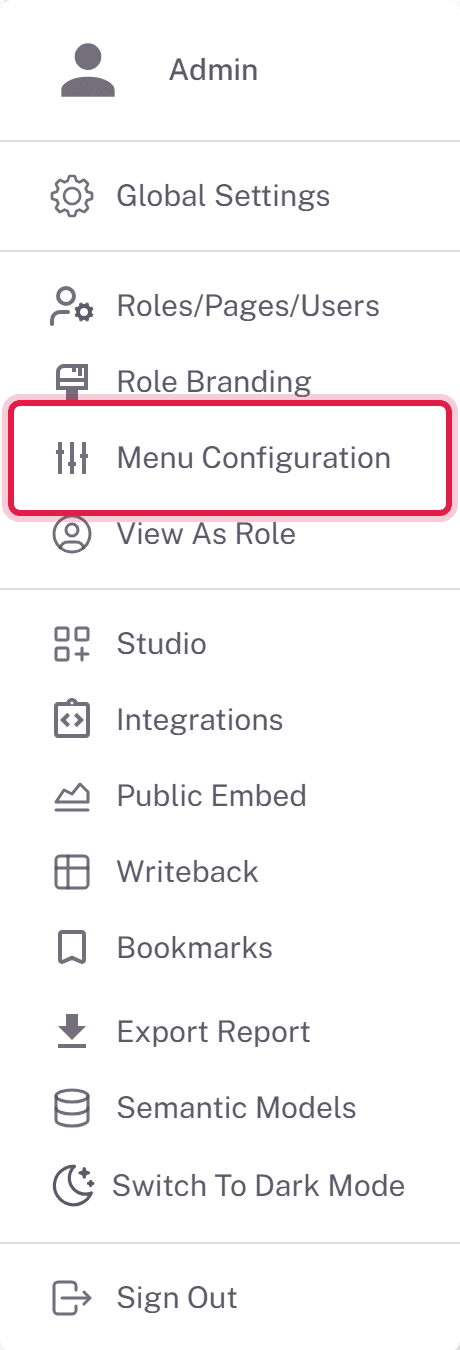
Click the profile icon in the bottom left corner, then select Menu Configuration.
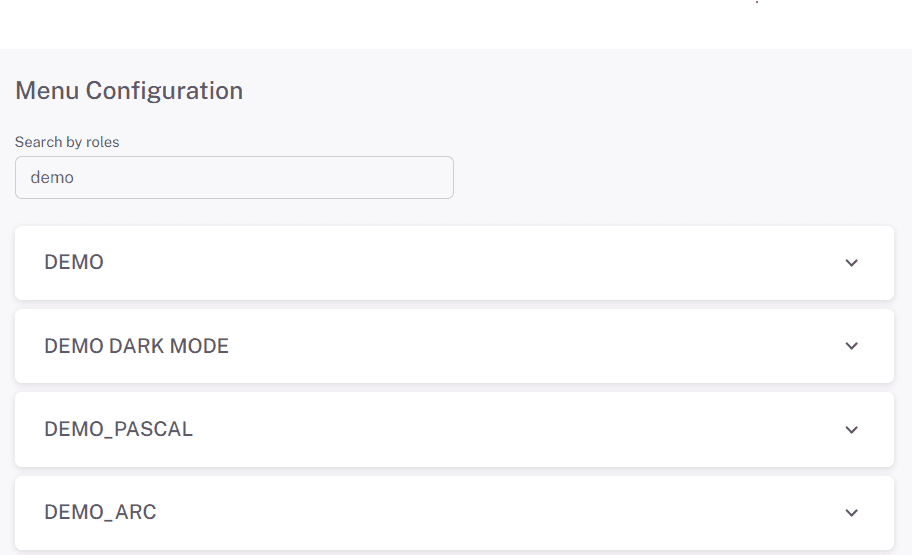
On this page, you'll see accordion-style blocks where you can configure menus for each role. You can also use the search to find the roles you need.
Menu configuration for a role
For each role, there is the ability to add groups and place current pages within groups, with the ability to sort the order. When you delete a group, the pages become ungrouped. The group name can be edited by clicking the "Edit" button. This will show an input field for the name, which must be unique.
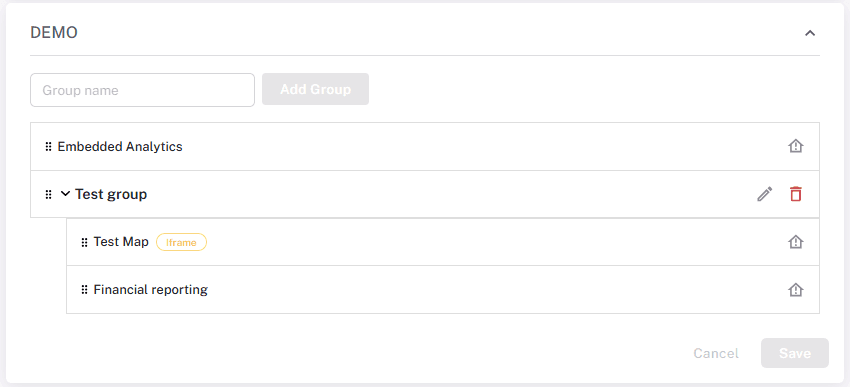
The changes are applied after clicking the save button. After saving, the navigation changes and no page reload is required.
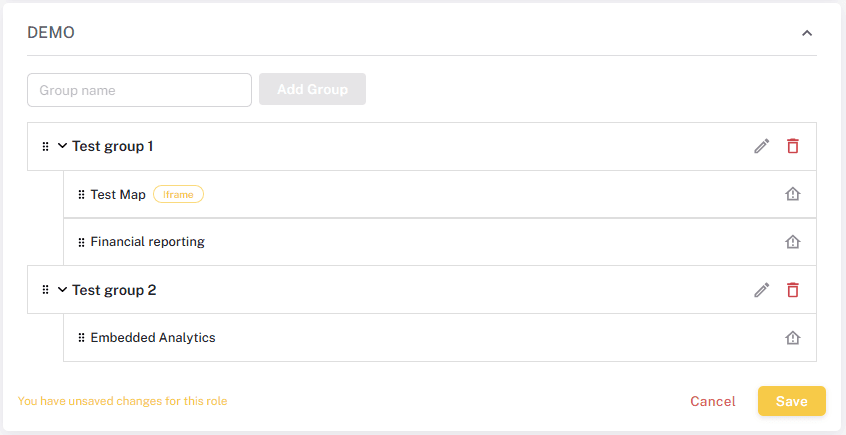
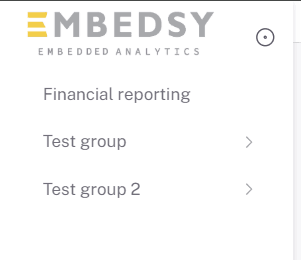
Once a page is added to a role, it is added to the bottom of the navigation menu list.
Documents and Data Entry sections
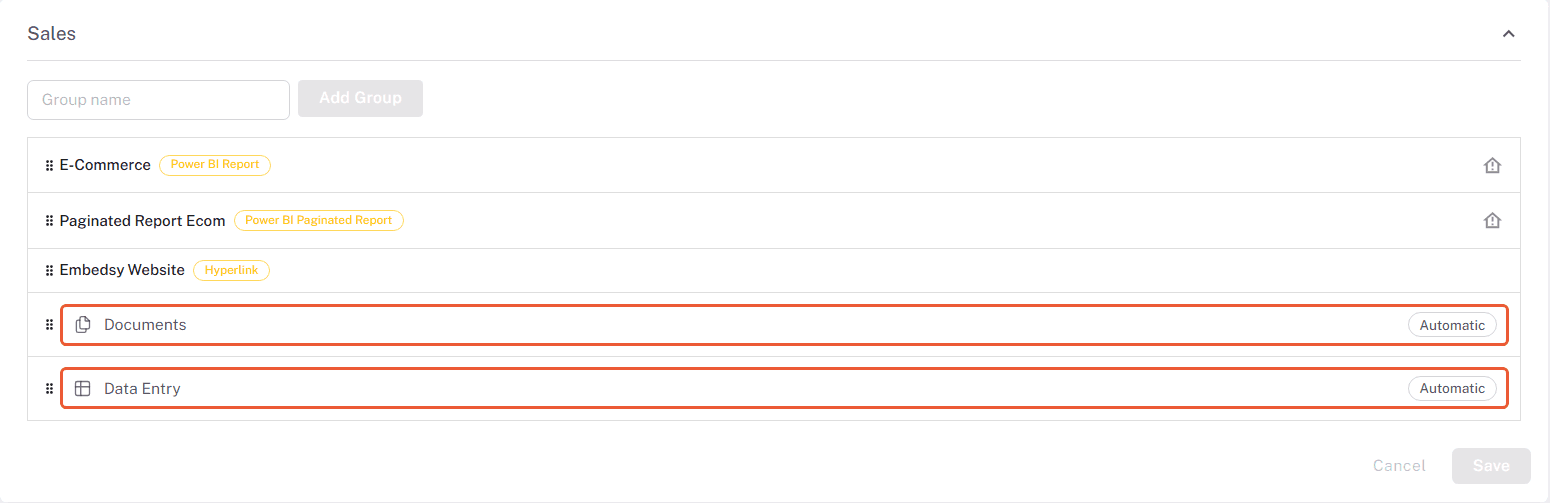
Two sections of the menu fill themselves: Documents lists the document folders a role can open, and Data Entry lists the writeback tables shared with the role. A role that has folders or tables shows a Documents or Data Entry card in its menu configuration, marked Automatic.
Drag the card to where the section should appear in the role's menu and save. Only the position is set here: what the section contains follows the folder and table access, and the section appears in the menu only while the role has something in it. Until you place it, the section appears at the end of the menu.
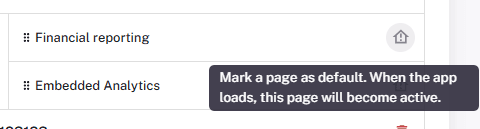
Configure the default page
There is also the ability to select the page that will be active when the application is initialized and when the user goes to the portal/dashboard page.