


How to export reports to PDF, PowerPoint or images (PNG).
The Embedsy Portal can export reports to PDF, PowerPoint and PNG. Admins decide which roles may export.
Exporting a report
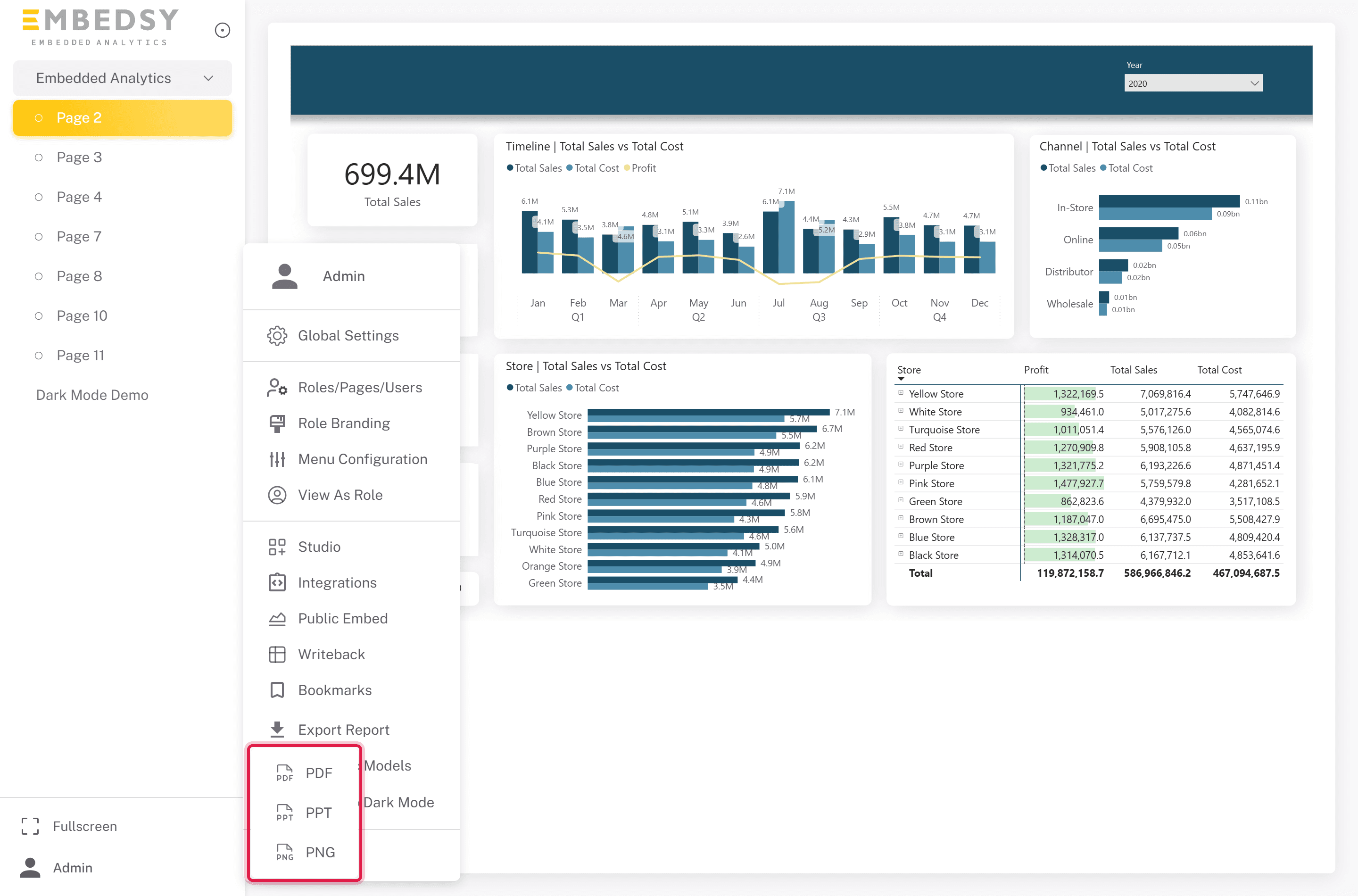
- Open the report, then click your profile icon at the bottom of the navigation on the left.
- Click Export Report and choose PDF, PPT (PowerPoint) or PNG.
- Wait for Export completed successfully. The file downloads, named after the report. A PNG export of a report with several pages arrives as a
.zipfile with one image per page.
The export shows the report as it is saved in Power BI, not your current view. Filters, slicers and bookmarks you applied in the browser are not included, while your row-level security still applies. An export that takes longer than five minutes is cancelled.
To email exports automatically, see Report Scheduling.
How to allow a role to export.
Export Report only appears for users whose role has the Can export reports permission. To grant it:
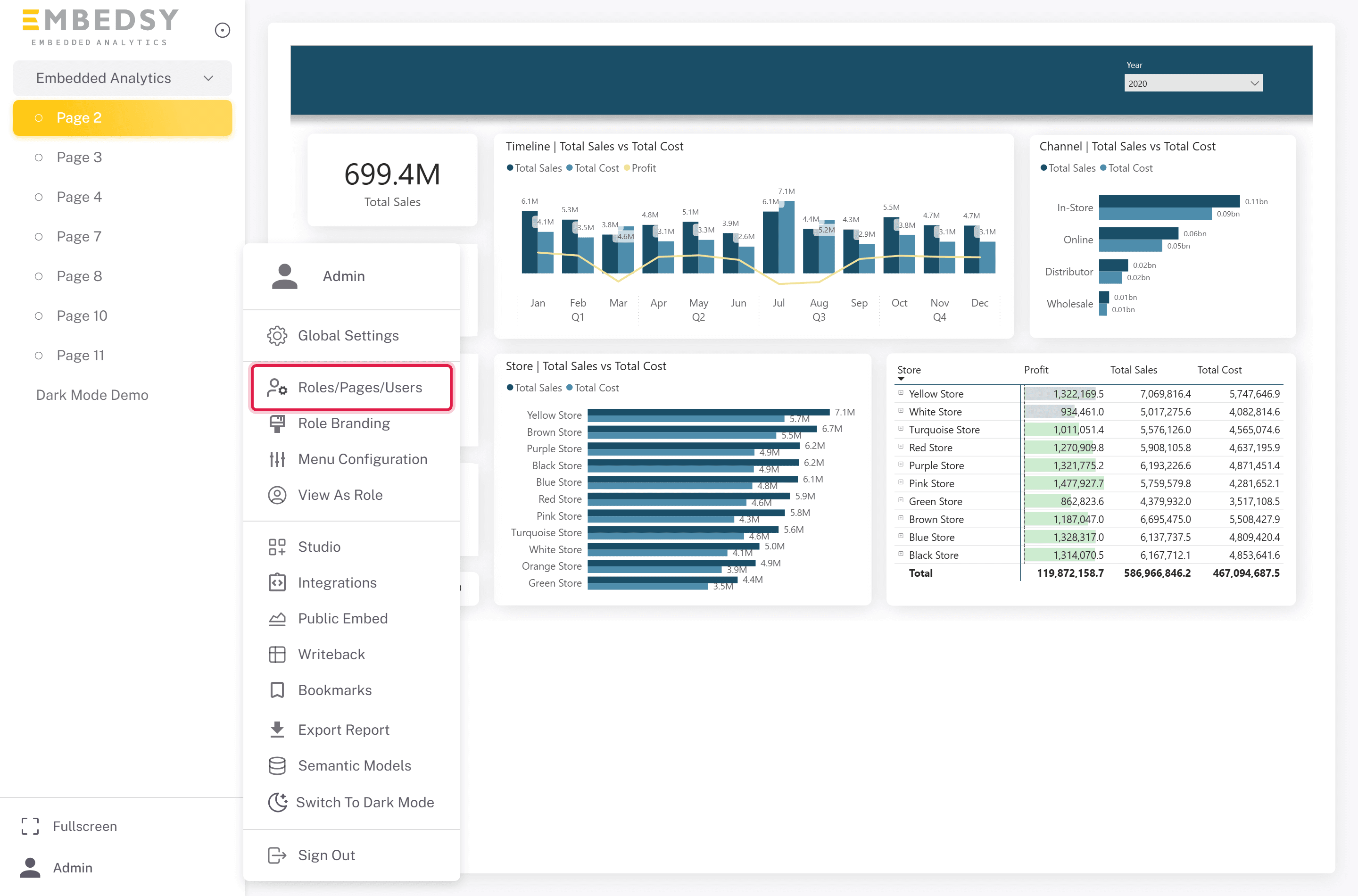
- Open the Roles/Pages/Users page.
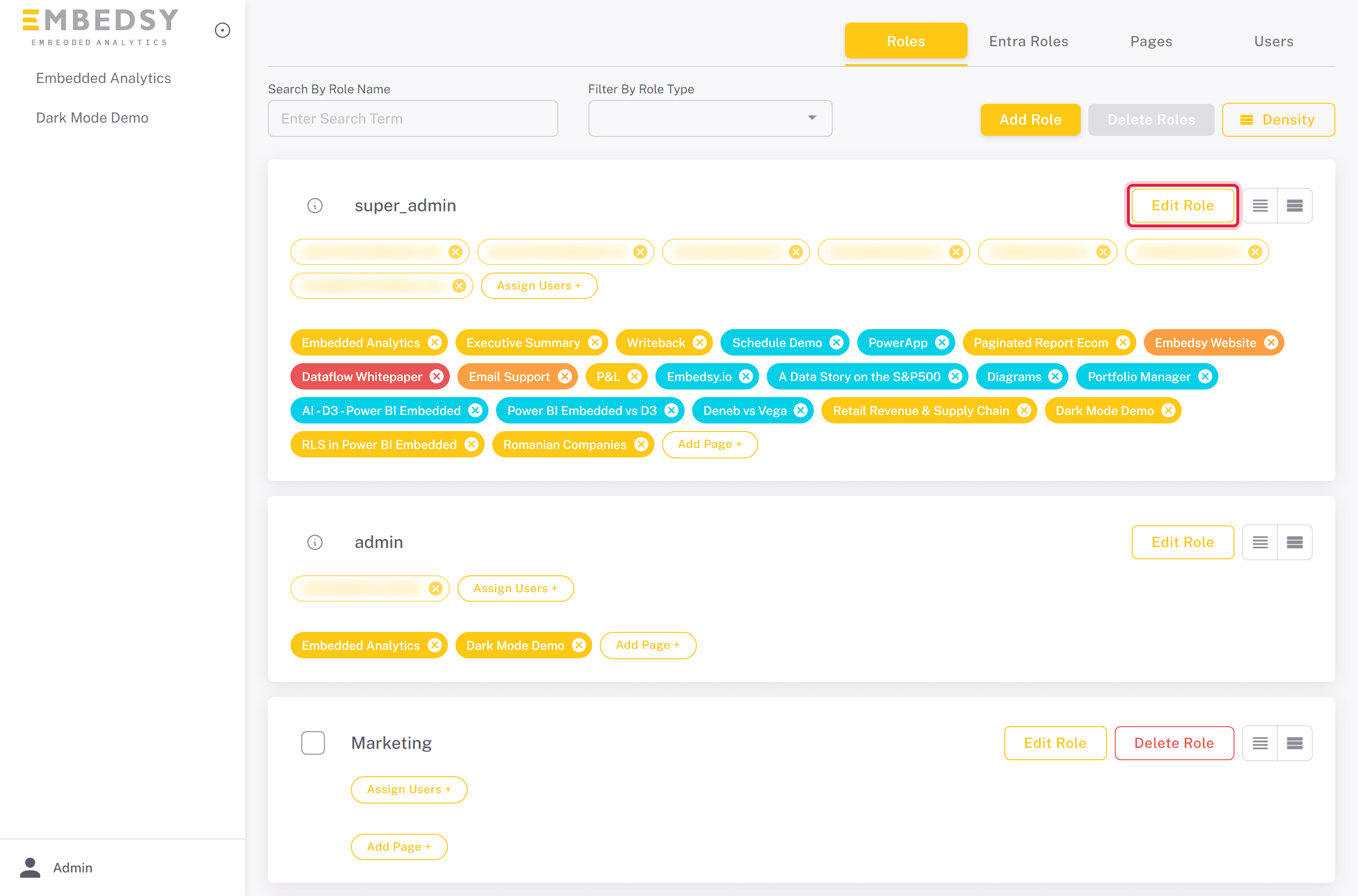
- Open Roles, search for the role you want to change and click Edit Role. For a role based on an Entra group, use the Entra Roles tab and View / Edit.
- Check Can export reports and save the changes.
