


Publicly Embedding Reports, Pages, and Visuals
★ Premium feature
This is a premium feature, available with an active premium subscription or trial. If you don't see it, contact us or your Admin to add it to your plan.
Public Embed generates a self-contained iframe for a whole report, a single page, or an individual visual that anyone can view without signing in to the portal or to Power BI (unless it uses a row-level role, see below). It's meant for content you want to place on a public website, a wiki, or a shared page.
Treat public embeds as public. Because these links require no authentication, anyone who has the iframe code can see that data. Only embed reports, pages, or visuals whose contents are safe to expose to everyone.
Keep the capacity running. Public embeds load from your Power BI Embedded or Fabric capacity like any other report - if the capacity is paused, they won't load. We recommend running the capacity 24/7 while Public Embed is enabled rather than relying on auto-pause. See Capacity Management for how to configure this.
Enabling Public Embed
Three things need to be in place before anyone can create a public embed:
- Feature turned on. A super admin switches on Public Embed under Premium Features in Global Settings.
- Service principal configured. Public Embed uses its own Power BI service principal, separate from the portal's main one, so public access stays isolated from the rest of your portal. In Global Settings, under Embed Visuals, enter the Embed Visuals Service Principal and the Embed Visuals Service Principal Client ID Secret, and make sure that service principal is a member of every Power BI workspace you want to embed from. Only those workspaces can be picked when you create an embed. We recommend using dedicated workspaces for public embedding and granting this service principal access only to those workspaces, so nothing outside them can ever be exposed publicly.

- Role permission granted. In Roles/Pages/Users, on the Roles tab, edit a role and check Can embed reports/visuals. Only users with this permission, admins included, see the Public Embed screen.

Creating a public embed
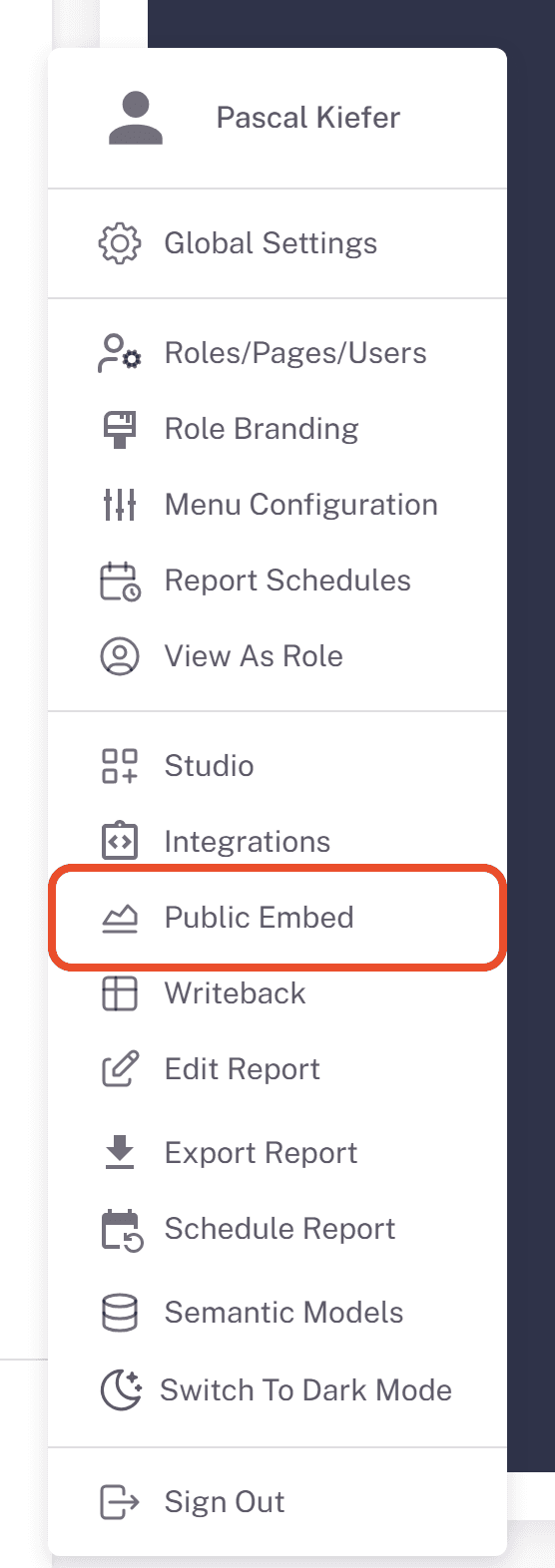
- Open Public Embed from the user menu at the bottom of the navigation on the left. If you don't see it, your role doesn't have the Can embed reports/visuals permission yet (see above).
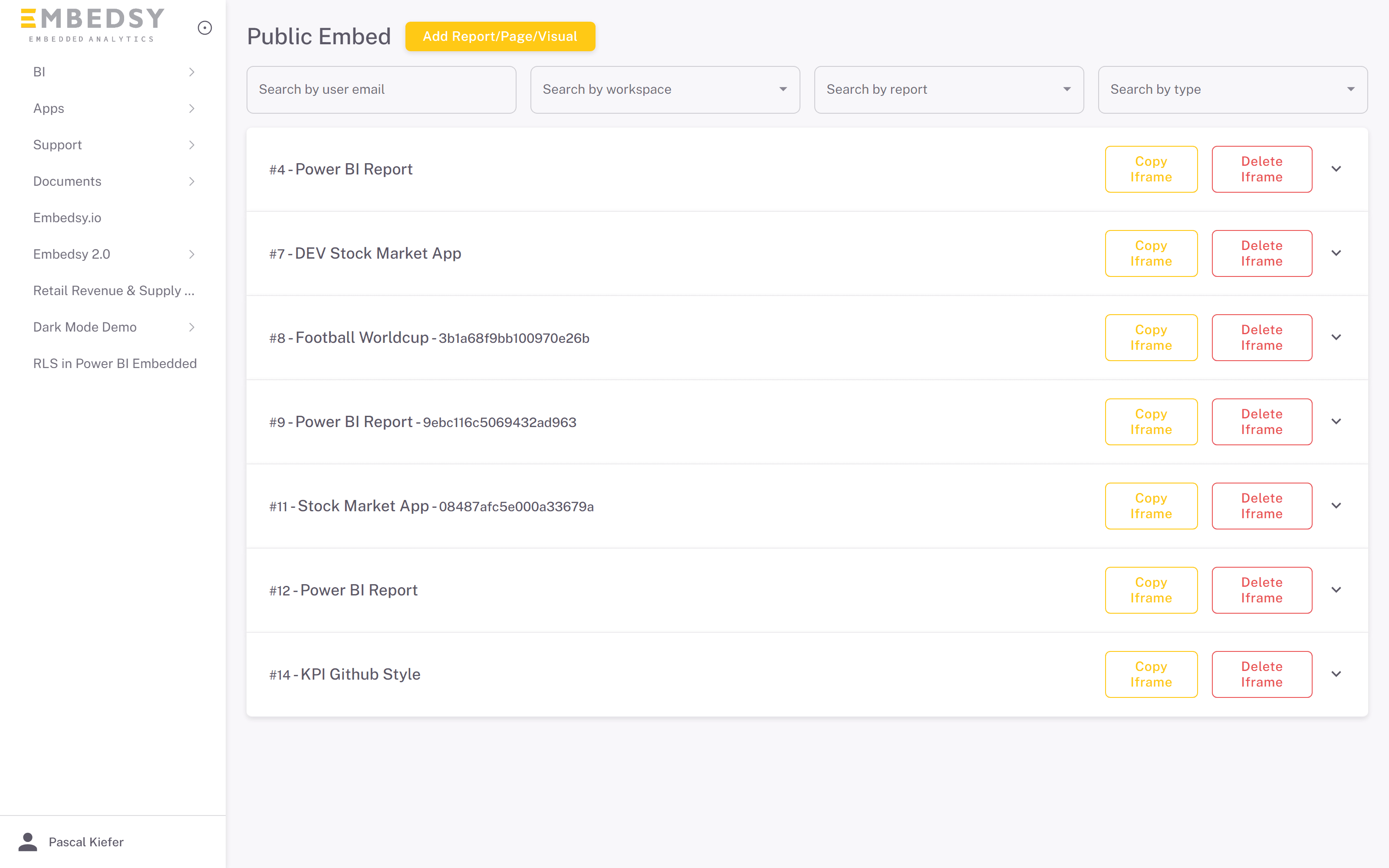
- The page lists the public embeds: admins see all of them, other users only their own. Filter the list with Search by user email (the user who created the embed) and by workspace, report and type, or click Add Report/Page/Visual to create a new one.
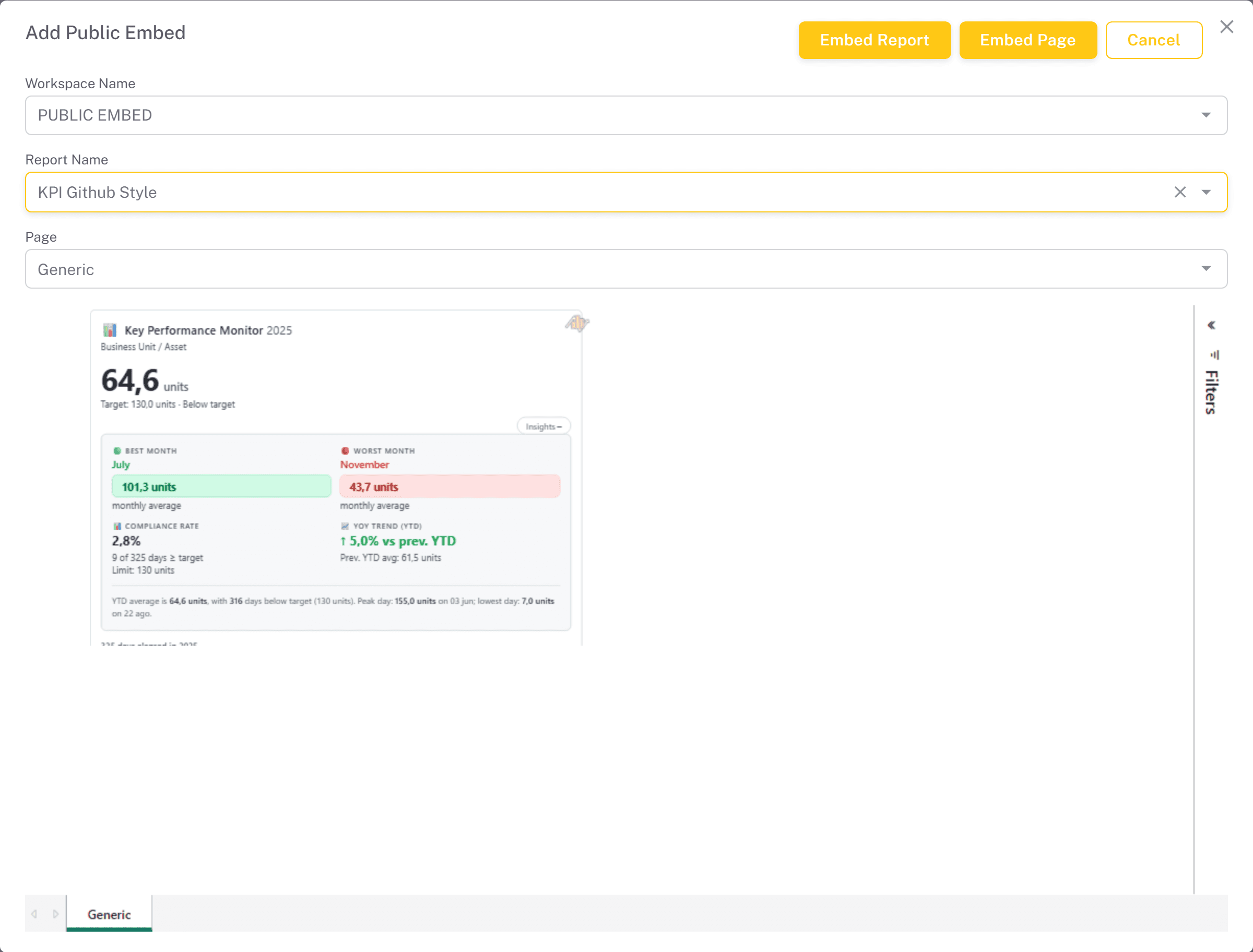
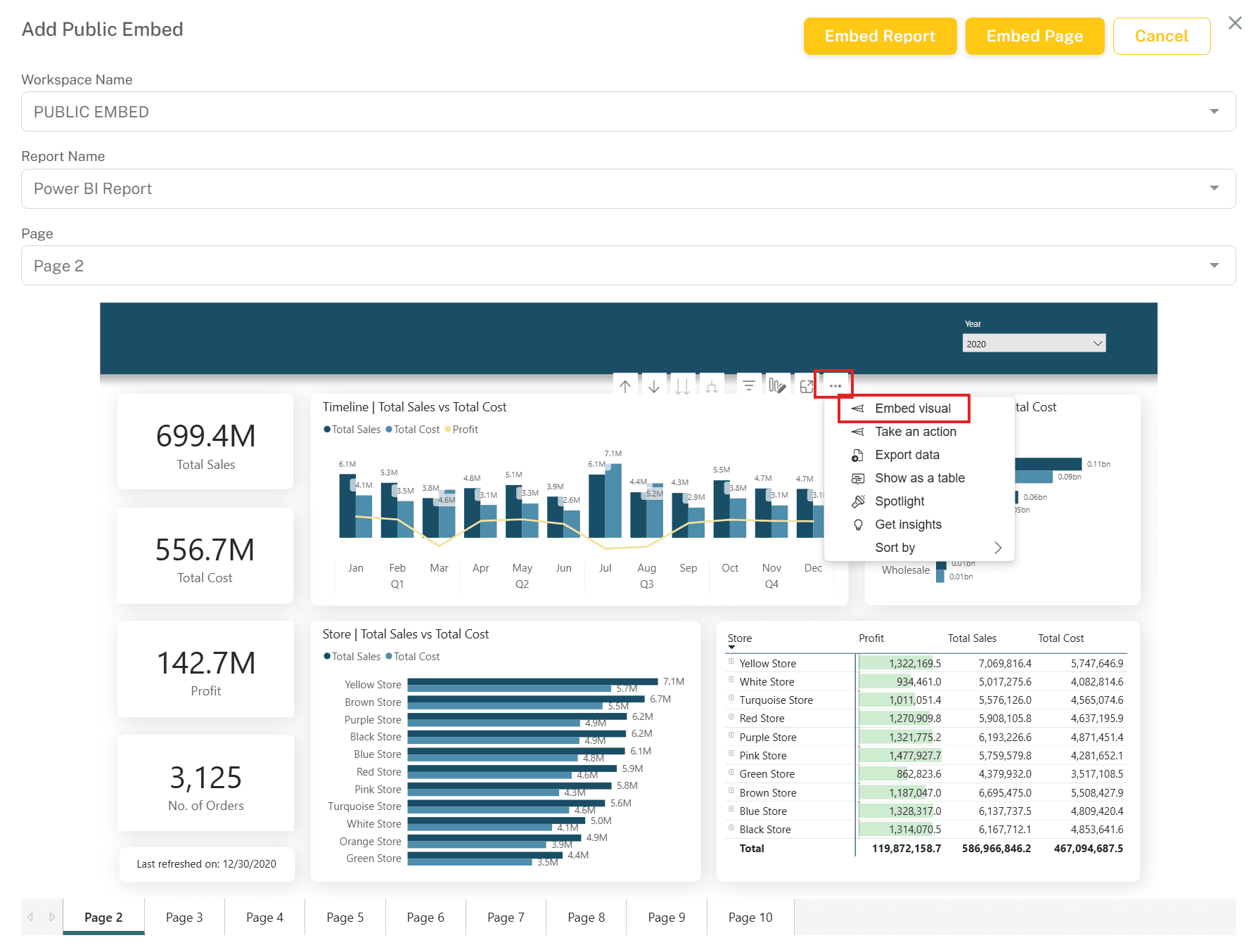
- Pick a Workspace Name and a Report Name. The report renders live in the dialog. Optionally choose a specific Page (hidden pages are selectable and marked (Hidden)). If the report's semantic model uses row-level security, a Row Level Role field appears.
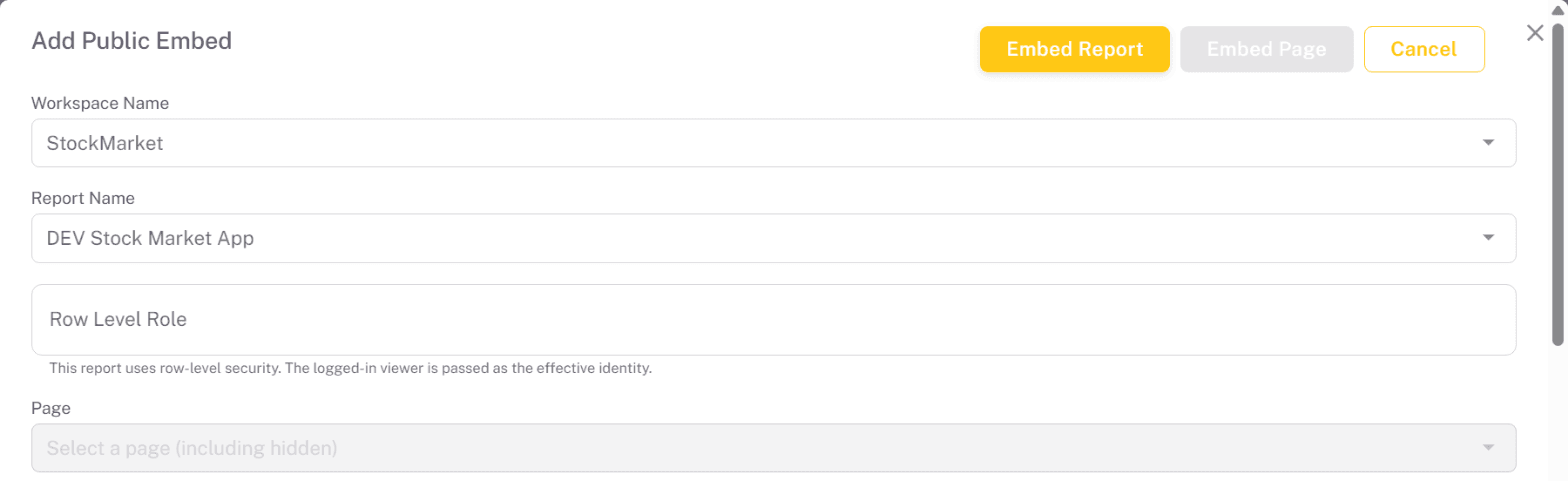
An embed with a row-level role is not public. The role is applied with the signed-in portal user as the identity, so only visitors who are signed in to the portal in the same browser can see it. For anyone else the embed doesn't load. A report, page or visual can only be published with one row-level role; to change it, delete the existing embed first.
- To publish the whole report or a single page, use Embed Report for the whole report or Embed Page for just the page currently shown. The embed is saved and appears in the list.
- To publish a single visual, hover over it in the rendered report, open its context menu (the three dots in the top-right corner of the visual), and choose Embed visual. Text boxes, images and shapes can't be embedded on their own.
The visual header must be on. If the header is turned off for a visual in the report (in Power BI Desktop, under the visual's formatting options), the three dots menu doesn't appear and the visual can't be embedded on its own.
Using the generated iframe
Each saved embed becomes a row on the Public Embed page, labelled with its id, report, and (for visual embeds) the visual name. Click Copy Iframe to copy a ready-to-paste <iframe> snippet, then drop it into any web page. The iframe fills its container (100% width and height), so give the surrounding element a height. Expand a row to see when it was created, its report, page, visual and workspace, the email of the user who created it, and a live preview of exactly what visitors will see.
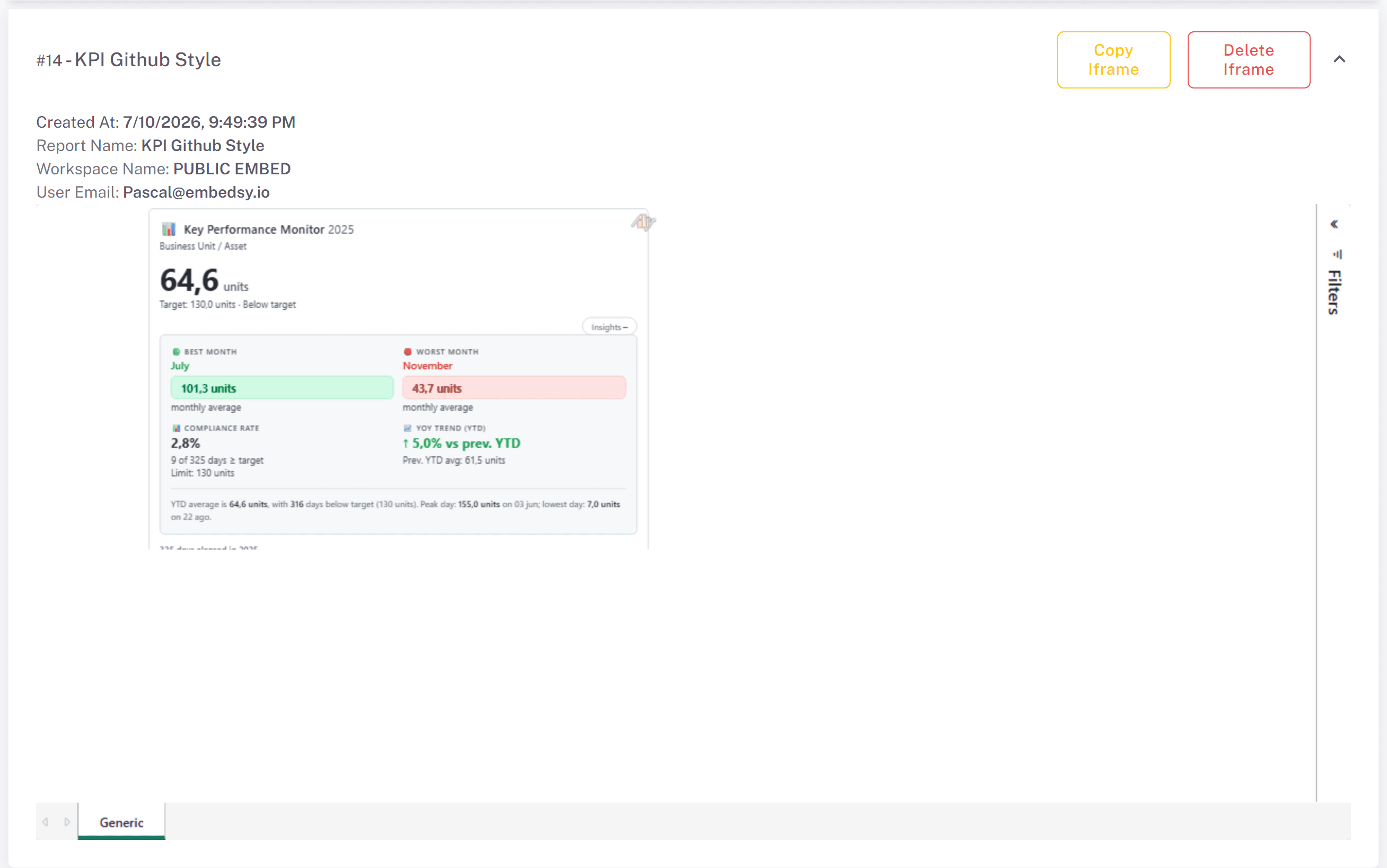
Delete Iframe revokes an embed after a confirmation. The public link stops working immediately - any page still showing that iframe will no longer load it.
Delete every copy to revoke a link. The link points to the report, page or visual, not to one row. If the same view was published more than once, for example by two users, it stays public until all of its rows are deleted.
Turning Public Embed off
Switching Public Embed off for the portal makes every existing public link stop working at once - visitors see a message that the content is no longer publicly accessible. The same happens when the Premium Features subscription is deactivated. Switching it back on restores the existing links, so you can turn it off temporarily without losing your embeds.