


Troubleshooting the Embedsy Portal installation
Most installations finish without problems. When one fails, the cause is usually a restriction in your Azure subscription or in the region you picked. The installer then shows the error message from Azure next to the step that failed. What you can do depends on where it failed:
- Creating the resource group, SQL database, App Service or storage account: the resources created so far stay in place. Retry takes you back to the settings, where you can change the region or names and try again. Start Over removes everything created so far and starts with new names. You can also cancel the installation, which removes everything, and contact us.
- Deploying the Embedsy Portal application: this step fails only for reasons on our side. The installer removes the resources it created; please contact us and we'll finish the setup with you.
Removing resources takes a few minutes on Azure's side. After a cancelled or failed installation, check in the Azure portal that the resource group is gone, so you aren't billed for anything left behind.
Error 1: The resource group is in deprovisioning state
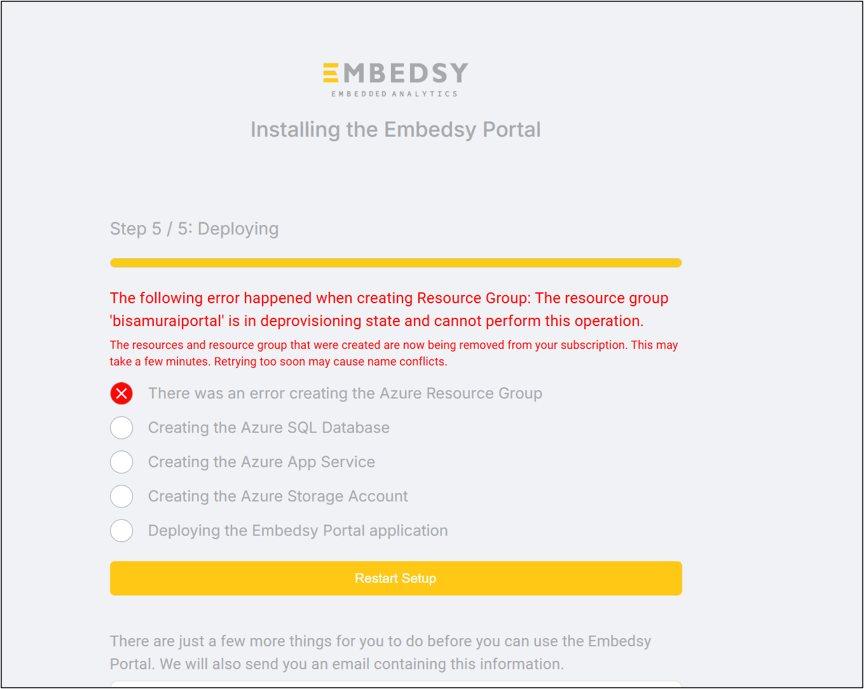
A resource group with the same name, from an earlier attempt, is still being deleted. Wait a few minutes and try again, or use a different resource group name.
Error 2: SQL server creation is not allowed in this region
Creating the SQL server fails with RegionDoesNotAllowProvisioning or a message such as "Your subscription does not have access to create a server in the selected region" or "Location '...' is not accepting creation of new Windows Azure SQL Database servers". Azure limits which subscriptions can create SQL servers in some regions. To fix it, either:
- select Retry and pick a different region, or
- ask Microsoft to enable the region for your subscription: in the Azure portal, create a support request of the type Service and subscription limits (quotas), with quota type SQL Database and Region access. See Resolve capacity errors with Azure SQL Database.
Error 3: A name is not available
The names of the App Service, the SQL server and the storage account must be unique across all of Azure, so a name someone else already uses is rejected. Select Regenerate next to the field, or enter a different name. If you have just changed the region, the old resource may still be being removed; wait a moment and try again.