


What is a Service Principal and why do we need one?
The Service Principal is the technical user the Embedsy Portal uses to read your Power BI reports, call the Power BI and Fabric APIs and send emails. In Microsoft Entra it is an app registration. It only sees the Power BI workspaces you give it access to later in the installation.
How to create a Service Principal
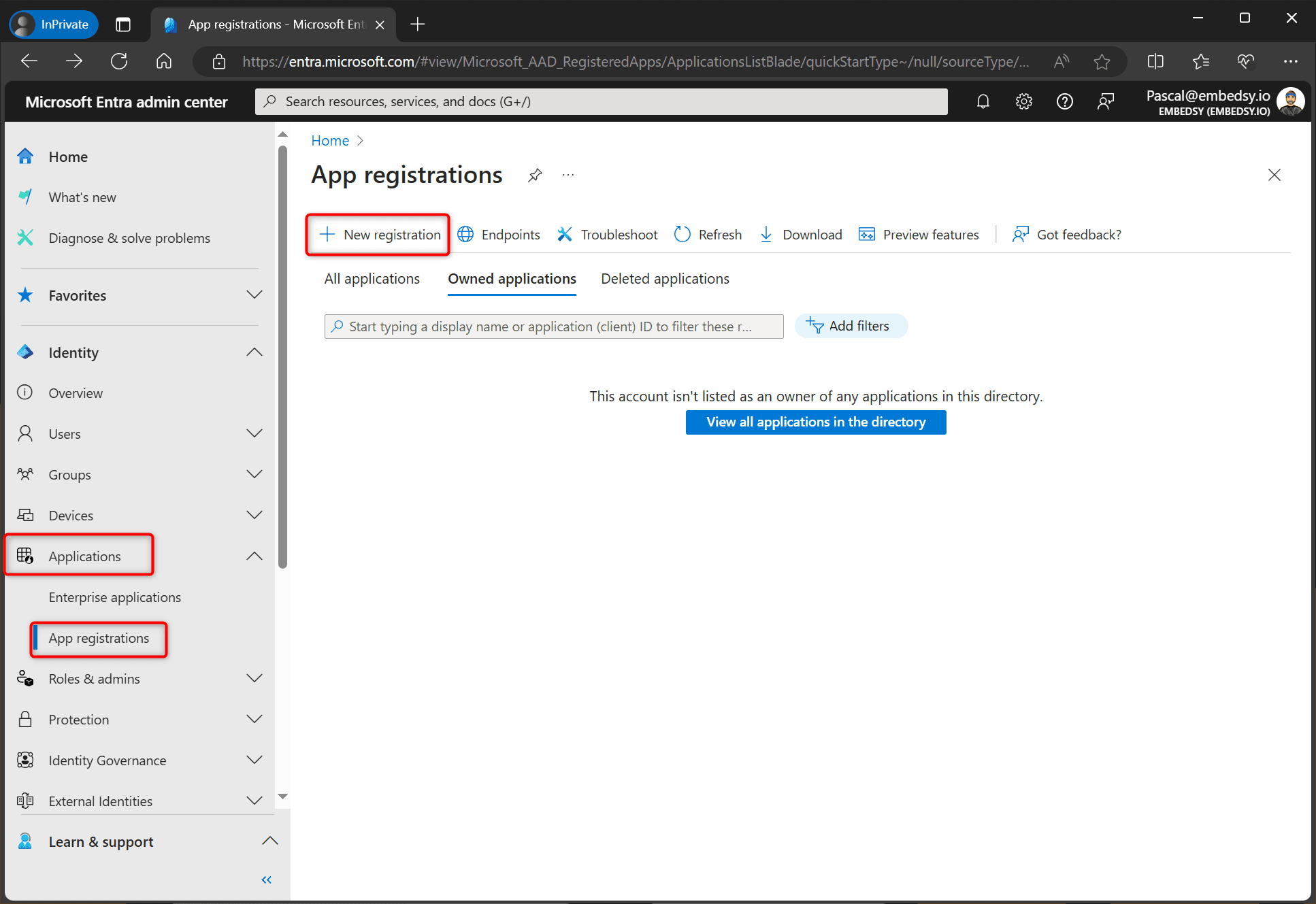
- Sign in to the Microsoft Entra admin center, go to Entra ID > App registrations and select New registration.
- Enter a name of your choice. Under Supported account types, choose the single tenant option (your organization only). Add the redirect URI with the platform Single-page application (SPA), then select Register. If the form has no redirect URI field, add it after registering under Authentication.
Use the exact redirect URI from our email. It has the form
https://<your portal address>/login/auth-callback, and Microsoft login to the portal only works if it matches. If you later connect the Embedsy Portal to a custom domain, you add a second URI for it.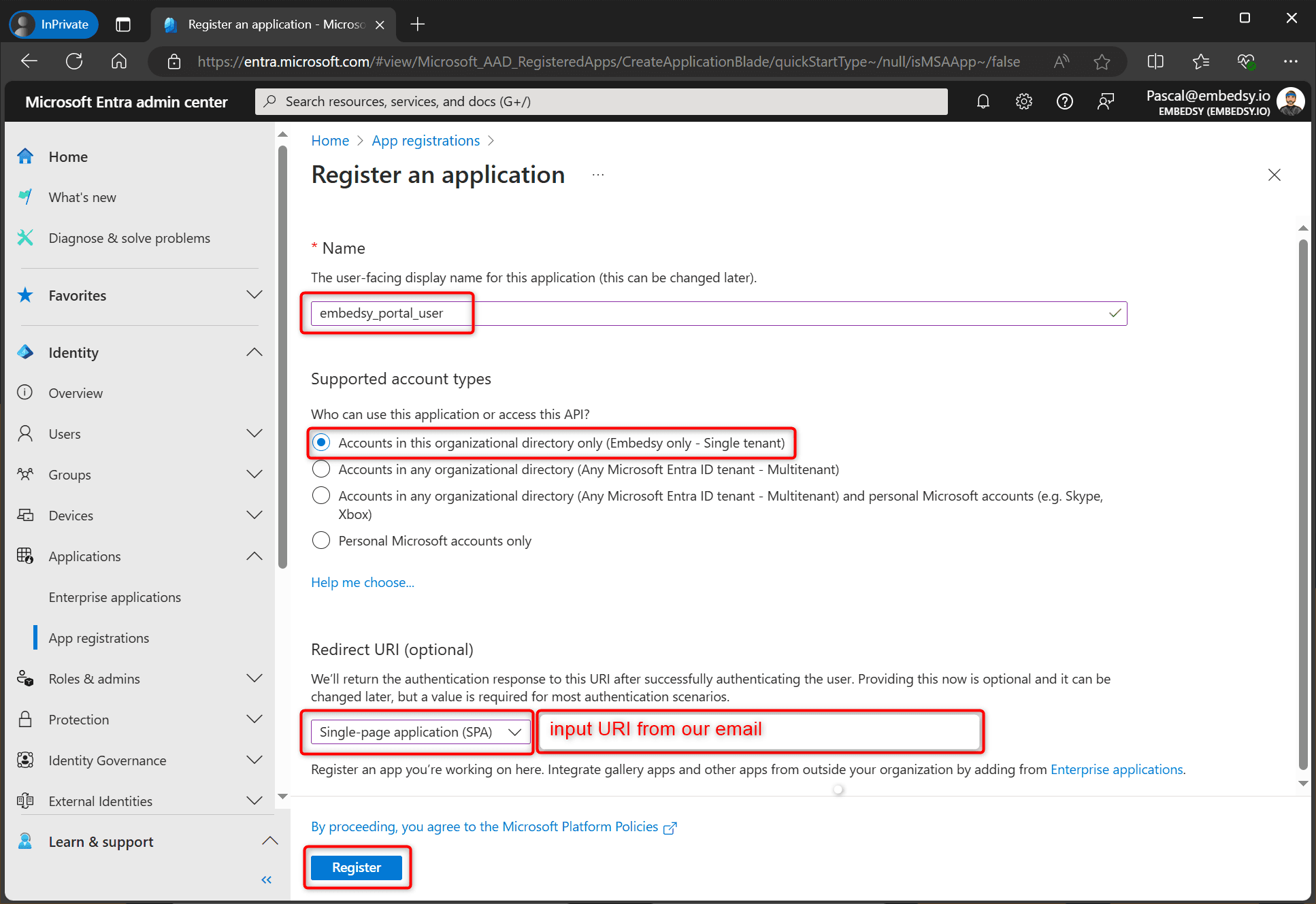
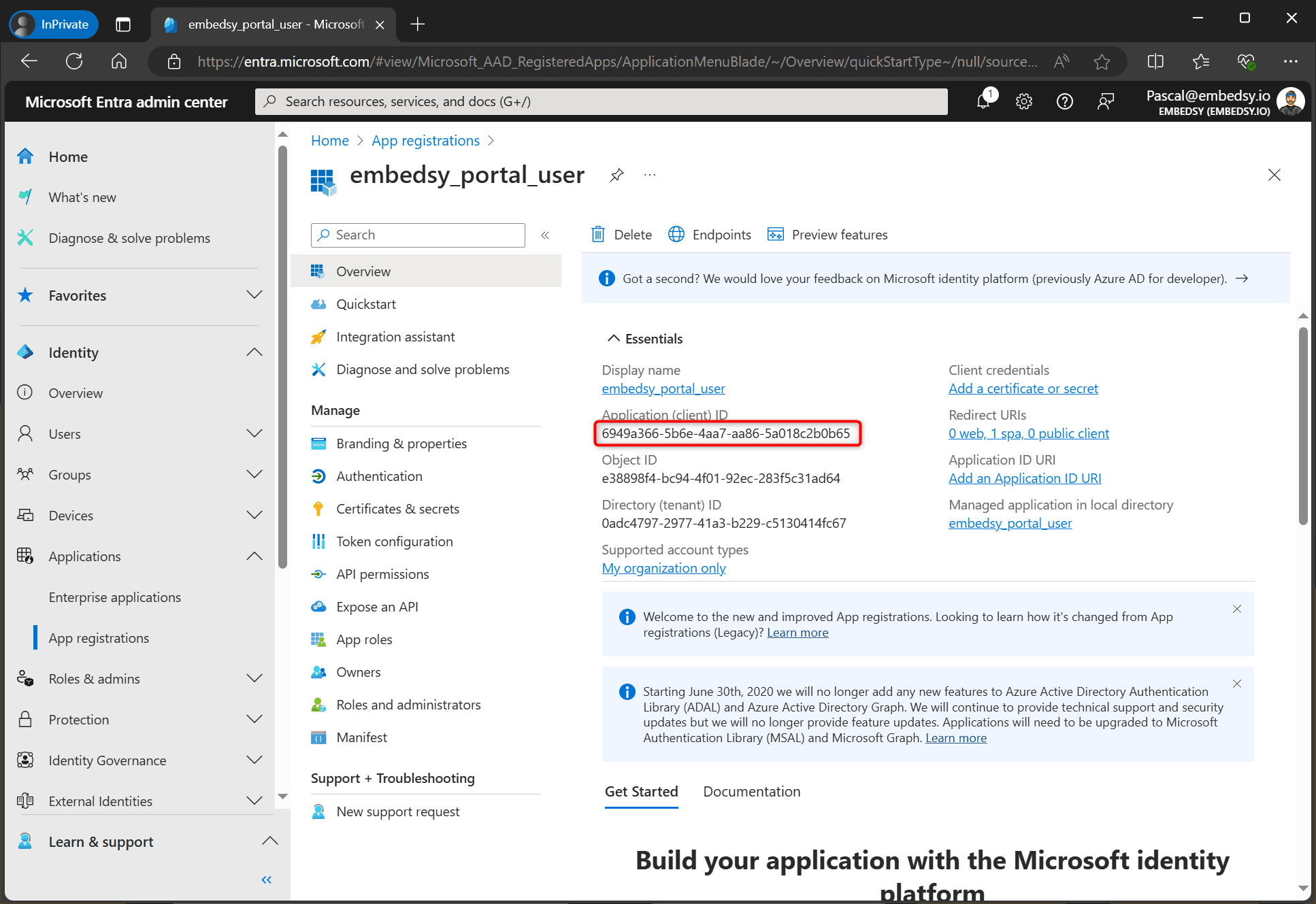
- On the app's Overview page, copy the Application (client) ID and keep it for later in the installation.
- Go to Certificates & secrets and select New client secret.
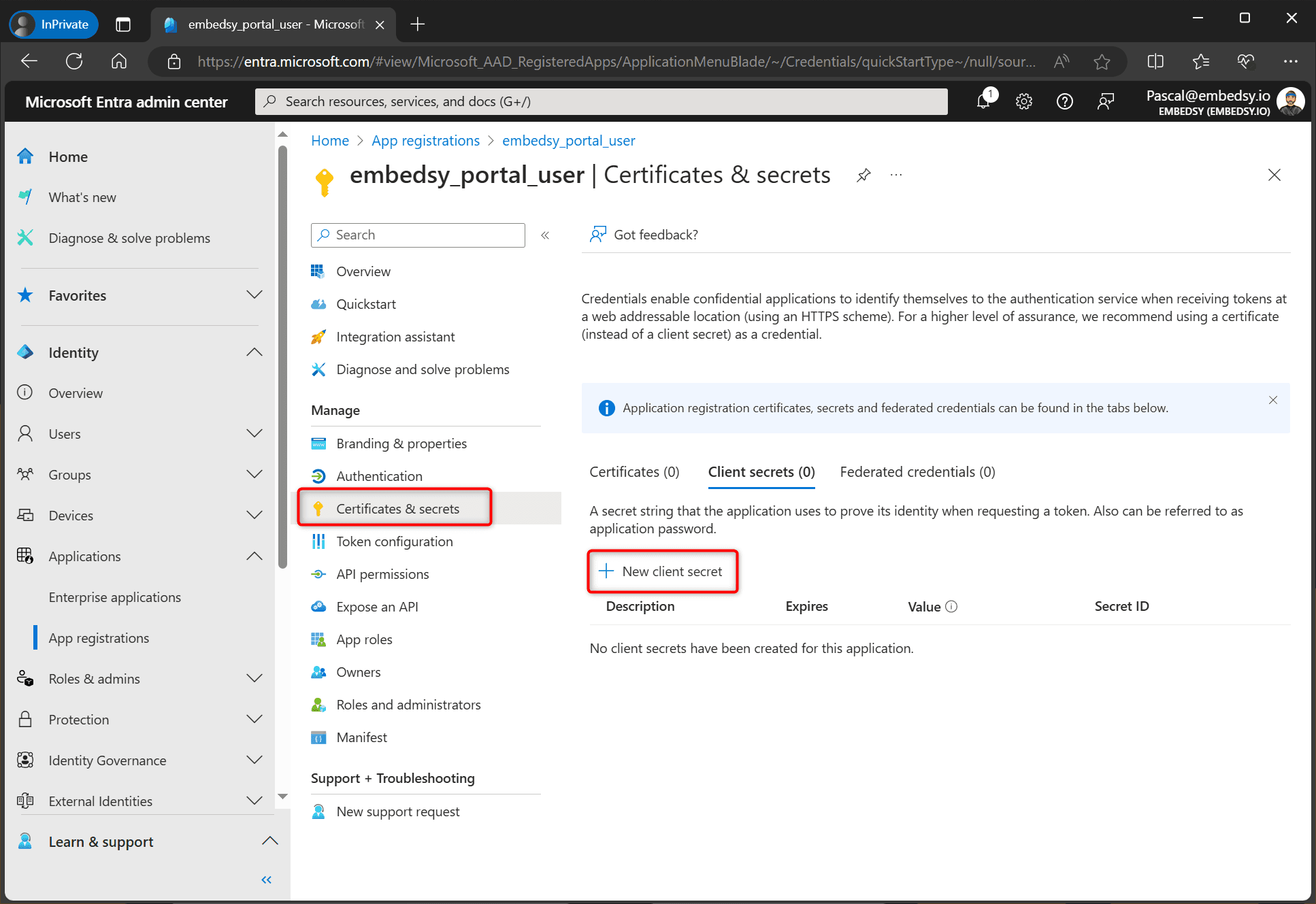
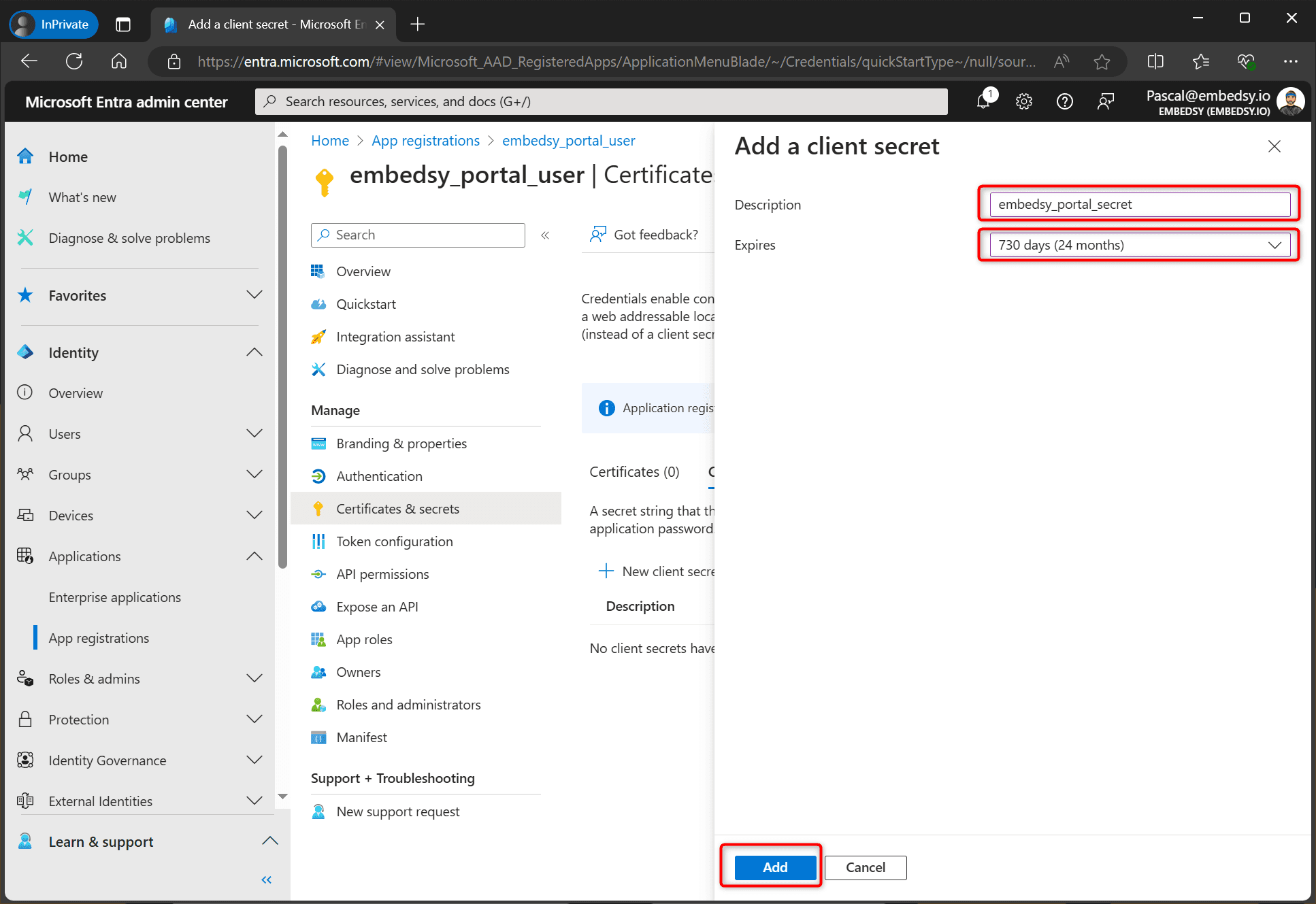
- Enter a description, choose when the secret expires and select Add. Note the expiry date: you enter it in the portal together with the secret.
When the client secret has expired, users can't see any reports in the Embedsy Portal. Choose the longest expiry available, and create a new secret and add it to the portal before it runs out.
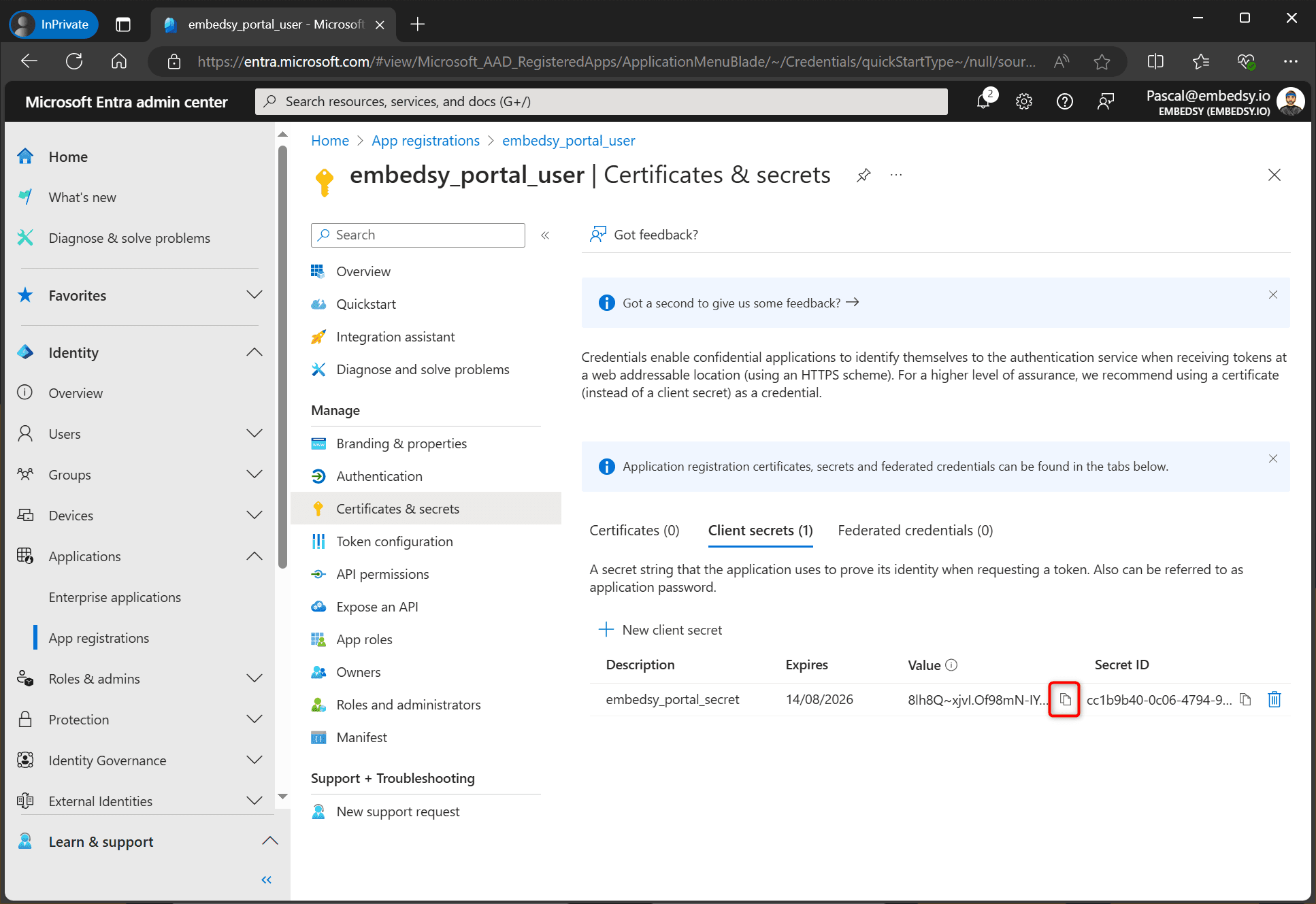
- Copy the secret's Value (not the Secret ID). You will add it to the Embedsy Portal at the end of the installation.
The Value is only shown right after the secret is created. If you navigated away before copying it, delete the secret and create a new one.
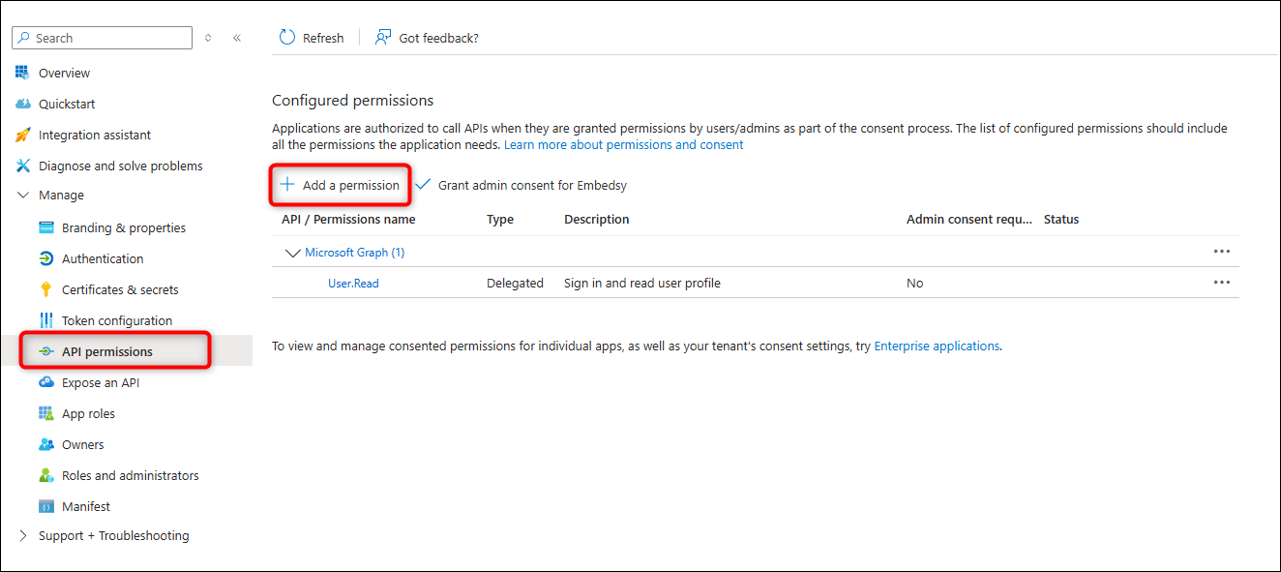
- Go to API permissions and select Add a permission.
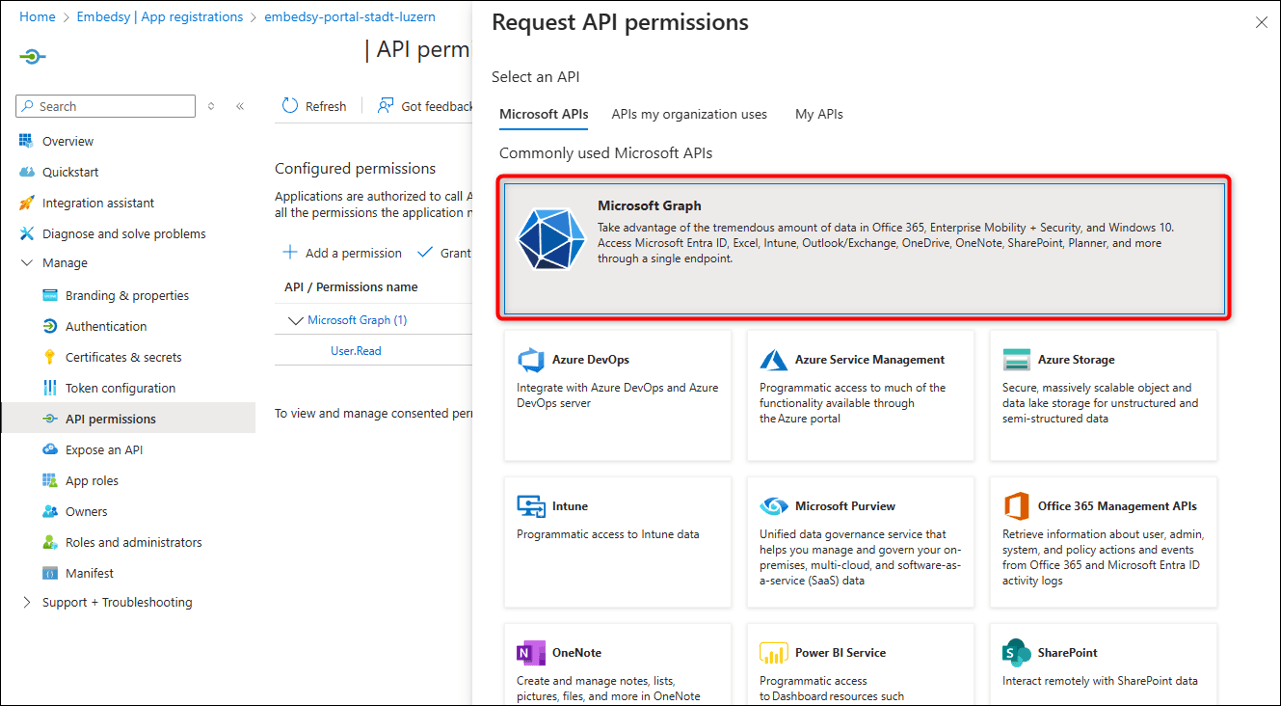
- Select Microsoft Graph.
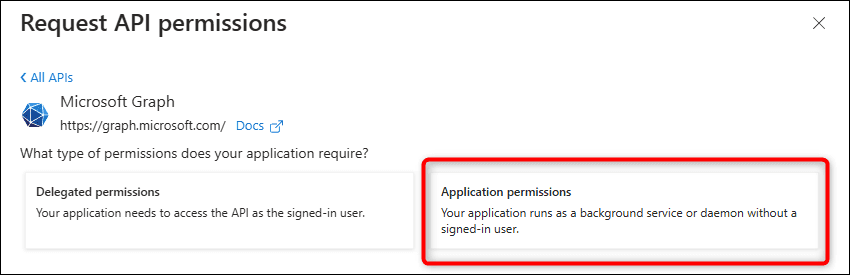
- Select Application permissions.
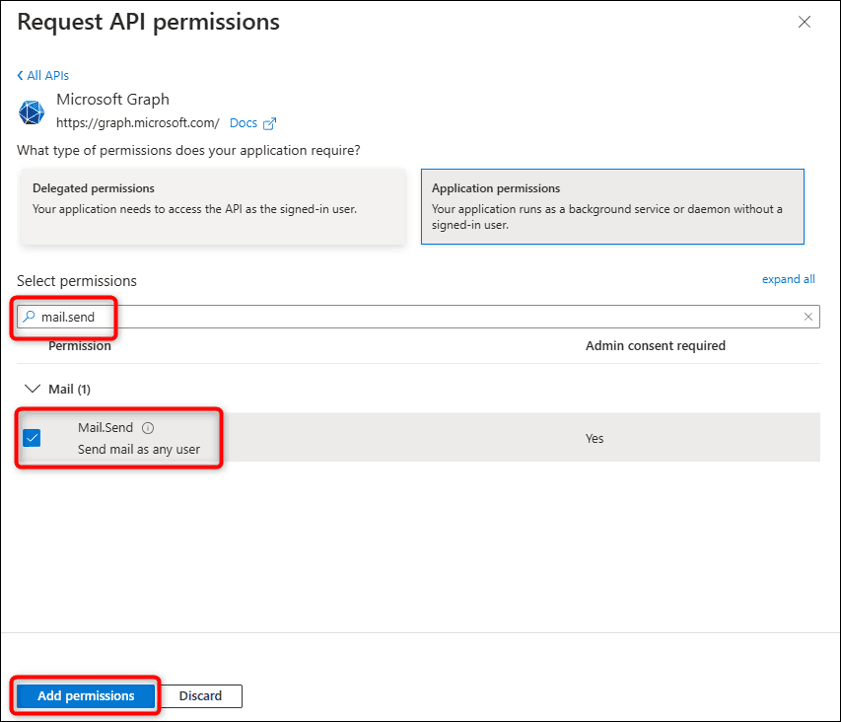
- Search for Mail.Send, select it and select Add permissions. The portal uses it to send password reset emails and scheduled reports.
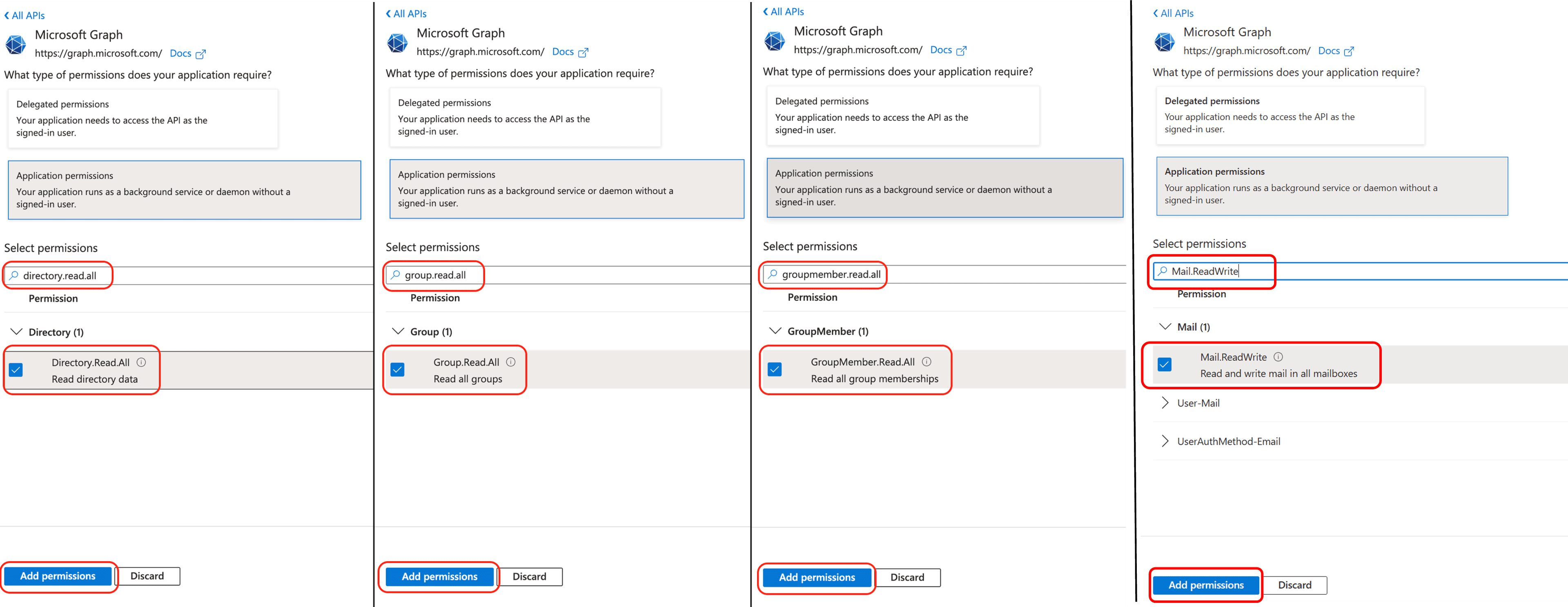
- In the same way, add these Microsoft Graph Application permissions (not delegated): Directory.Read.All, Group.Read.All, GroupMember.Read.All and Mail.ReadWrite. The first three let the portal read users and groups from Entra ID, for Microsoft login and Entra Groups as Roles. Mail.ReadWrite is needed for Report Scheduling, which sends the report as an attachment.
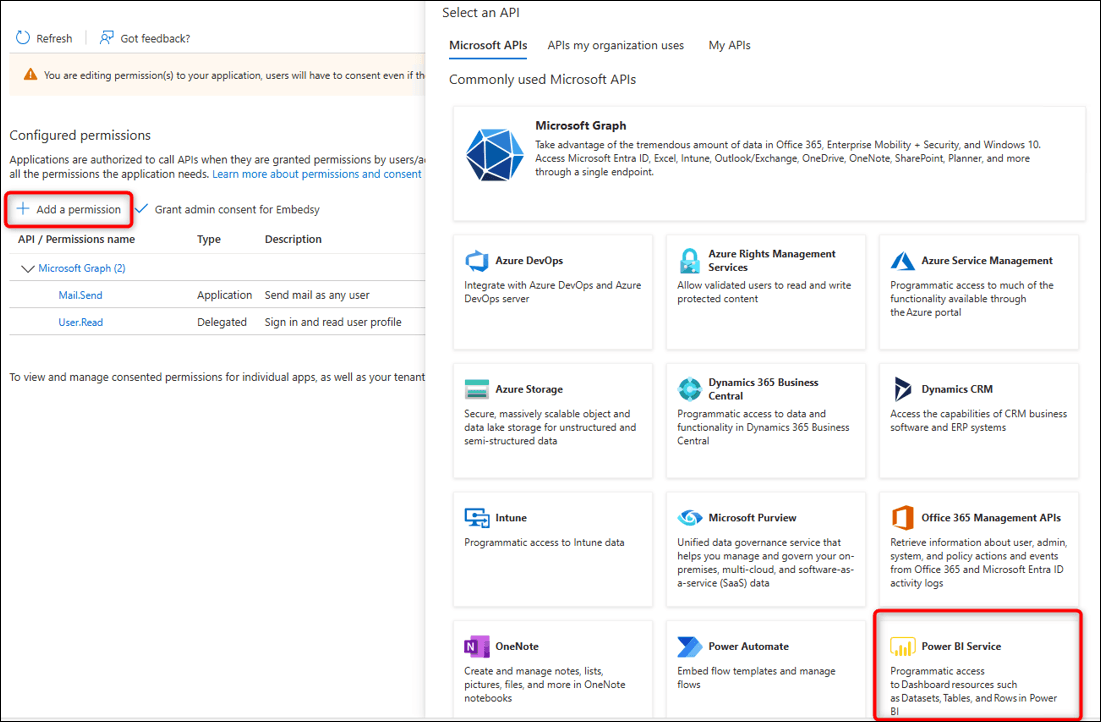
- Select Add a permission again. This time, select Power BI Service.
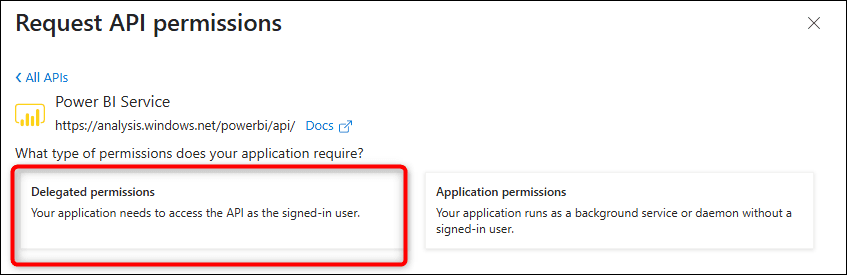
- Select Delegated permissions.
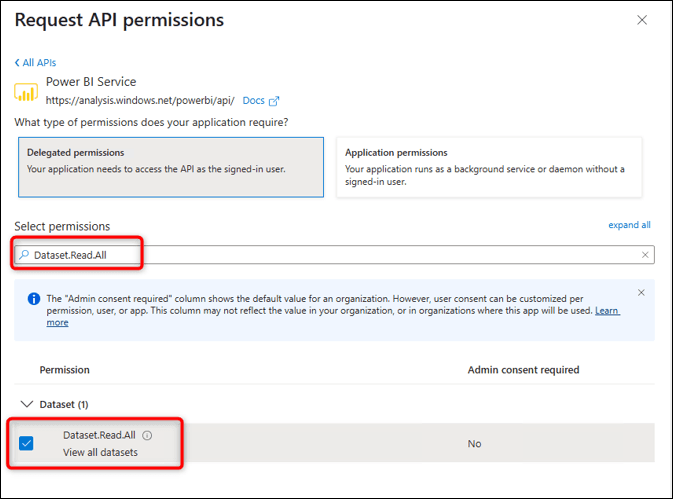
- Search for and select Dataset.Read.All.
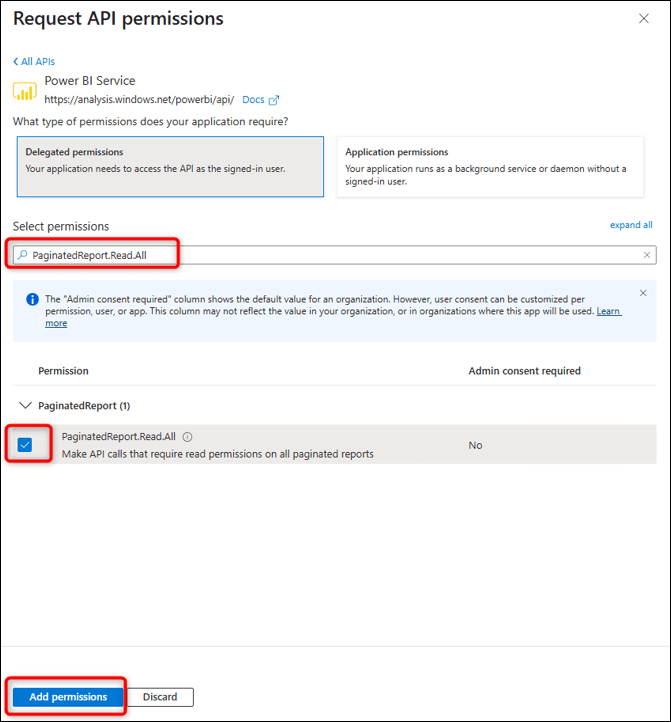
- Search for and select PaginatedReport.Read.All, then select Add permissions.
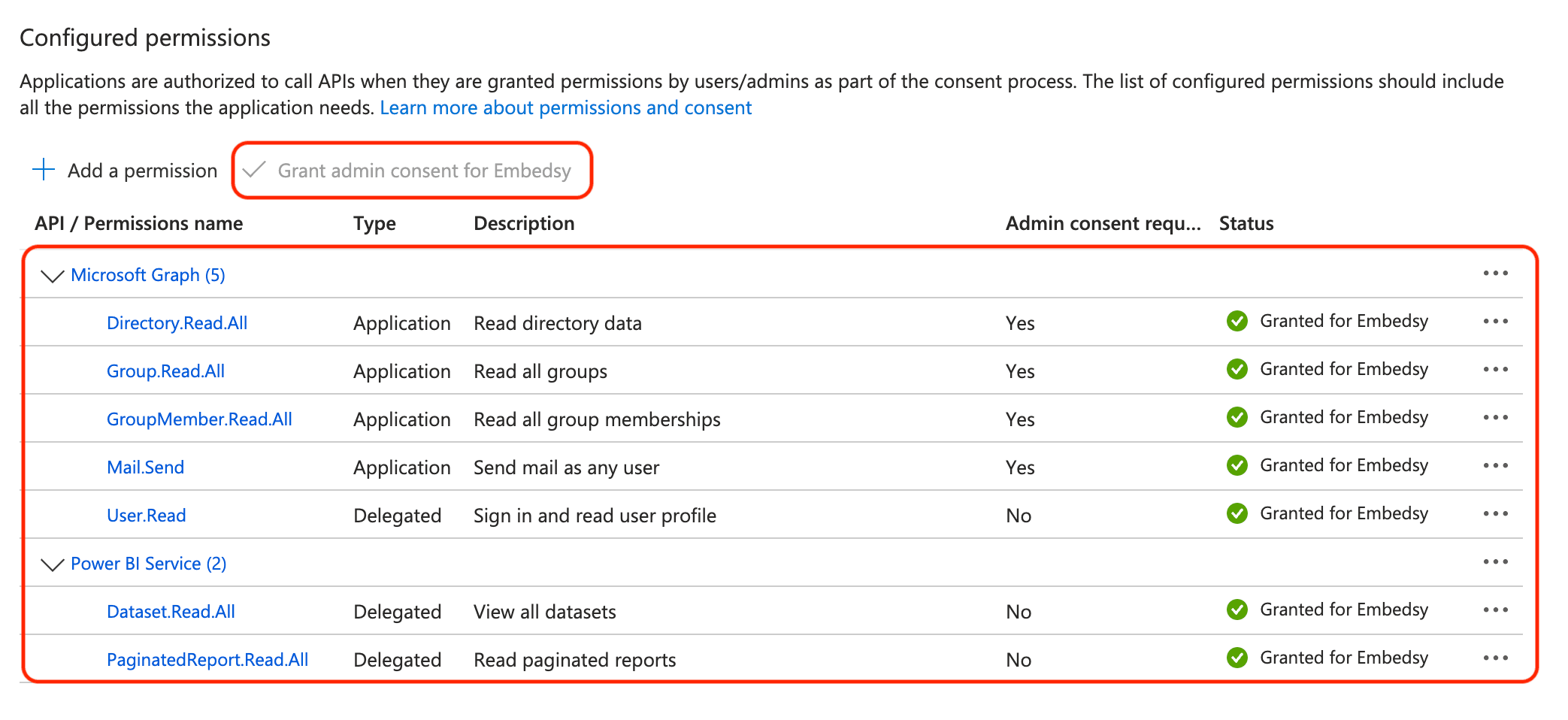
- Check that the list of configured permissions contains:
- Microsoft Graph, Application: Directory.Read.All, Group.Read.All, GroupMember.Read.All, Mail.ReadWrite and Mail.Send (User.Read, Delegated, is added by default)
- Power BI Service, Delegated: Dataset.Read.All and PaginatedReport.Read.All
Granting consent for Microsoft Graph application permissions needs a Privileged Role Administrator or Global Administrator. If the button is greyed out, ask one of them to grant it.
- Next, add the Service Principal to an Entra security group. At the end of the installation you enter the client ID and secret in the portal, as shown in Updating the Client Secret.
Mail.Send and Mail.ReadWrite apply to every mailbox in your tenant. The portal only sends from the Sender Email Address set in Global Settings. To limit the app to that mailbox, use RBAC for Applications in Exchange Online.