


Getting Started with Embedsy Studio
★ Premium feature
This is a premium feature, available with an active premium subscription or trial. If you don't see it, contact us or your Admin to add it to your plan.
Preview feature
This feature is currently in preview. If you don't see it, contact us or your Admin to activate it.
Preview features:
- are provided as-is and aren't meant for production use.
- may have limited or restricted functionality, and details may change before general availability.
- are supported on a best-effort basis and may be subject to reduced or different security, compliance, and privacy commitments.
Embedsy Studio turns your Power BI semantic models into custom data apps. An app is a grid of components: HTML blocks, custom D3 and Vega visuals driven by DAX queries, AI agents that answer questions about your data, and buttons that trigger Microsoft Fabric pipelines. Once published, an app can be opened as a stand-alone link, embedded into any website through an iframe, or shown as a page inside the Embedsy Portal.
A published app is public by default: anyone with the link can open it. Switch on Private and only signed-in portal users with access to the app can open it. See Building Apps for publishing and private apps.
Enabling Studio
Two things need to be in place before anyone can open Studio:
- Studio switched on for the portal. A super admin turns it on under Global Settings > Preview & Premium Features. Studio is a premium feature, so Premium Features must be activated first. If Studio is not listed there, contact us. While it is off, the Studio entry is hidden and published apps stop working.
- Role permission granted. In Roles/Pages/Users, edit a role and tick Can use Studio. The checkbox only appears once Studio is switched on. The same permission exists on Entra roles when you use Entra groups as roles.

Admins need the permission too. Admin and super admin roles get no Studio access from their admin rights alone: the role still needs Can use Studio.
Opening Studio
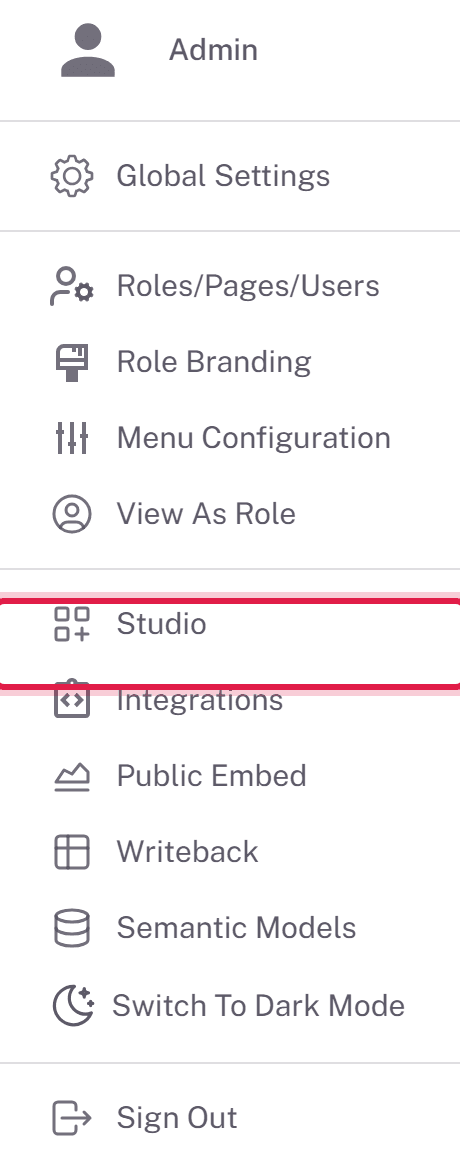
Once both conditions are met, a Studio entry appears in the user menu at the bottom of the portal navigation. Studio opens as its own full-screen workspace: the portal's side navigation is replaced by a slim toolbar holding an Exit Studio button, which takes you back to the portal, the section tabs, and your account menu.
The toolbar has two tabs:
- Studio - your apps, and the starting point for building a new one.
- DAX Queries - saved DAX queries against your semantic models. These are the data sources that feed D3 and Vega visuals.
The AI agents behind AI Agent components and the DAX query editor's assistant are not in Studio: admins connect them from Microsoft Foundry under AI Agents in the user menu, and share them with the roles that build apps.
A typical order of work
Because visuals read their data from saved DAX queries, it is usually easiest to work from the data outwards:
- Make sure the semantic model you want to use is marked Open to LLMs on the Semantic Models screen. Only admins can set this. Studio only lists models with that flag when you pick a model for a DAX query or an AI Agent component.
- Create and test the DAX queries your visuals need, on the DAX Queries tab.
- If the app should answer questions in natural language, have an admin connect an AI agent from Microsoft Foundry and share it with your role.
- Build the app on the Studio tab, save it as a draft, then publish it, public or private, when it is ready.