


Set up roles, pages and users
Every user in the Embedsy Portal has one role. The role decides which pages the user sees in the navigation and what they are allowed to do, such as exporting reports or refreshing data. You manage all three on one screen.
Opening Roles/Pages/Users
Admins and super admins open the user menu at the bottom of the portal navigation and click Roles/Pages/Users.
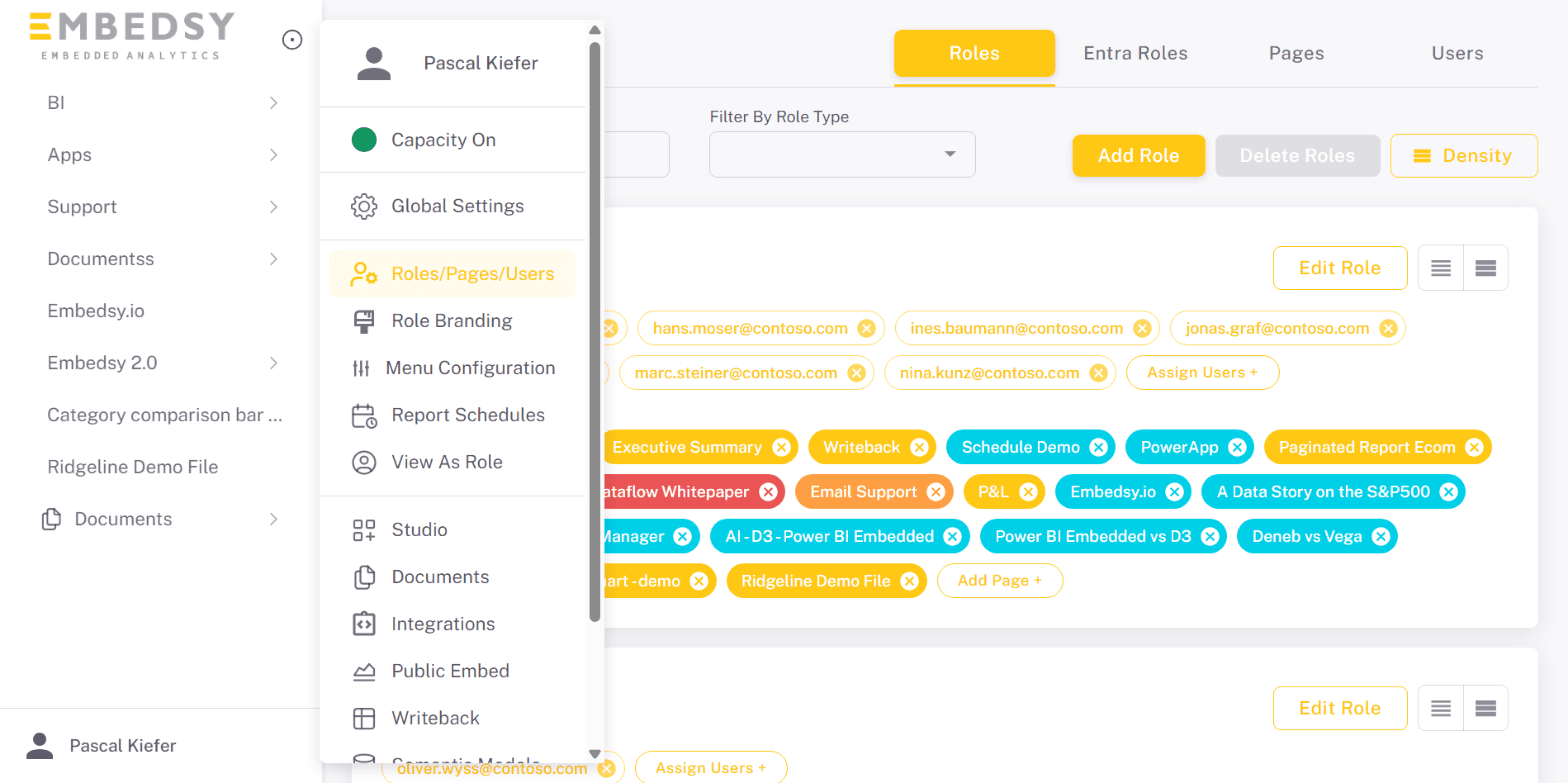
The screen has four tabs: Roles, Entra Roles, Pages and Users. Each tab has a search field, a Density button to switch the cards between Standard and Compact, and checkboxes on the cards for deleting several items at once.
Roles
Each role is a card with its users on the first line and its pages on the second. Use Search By Role Name, and Filter By Role Type to show only Default roles or only roles created from Microsoft Entra groups.
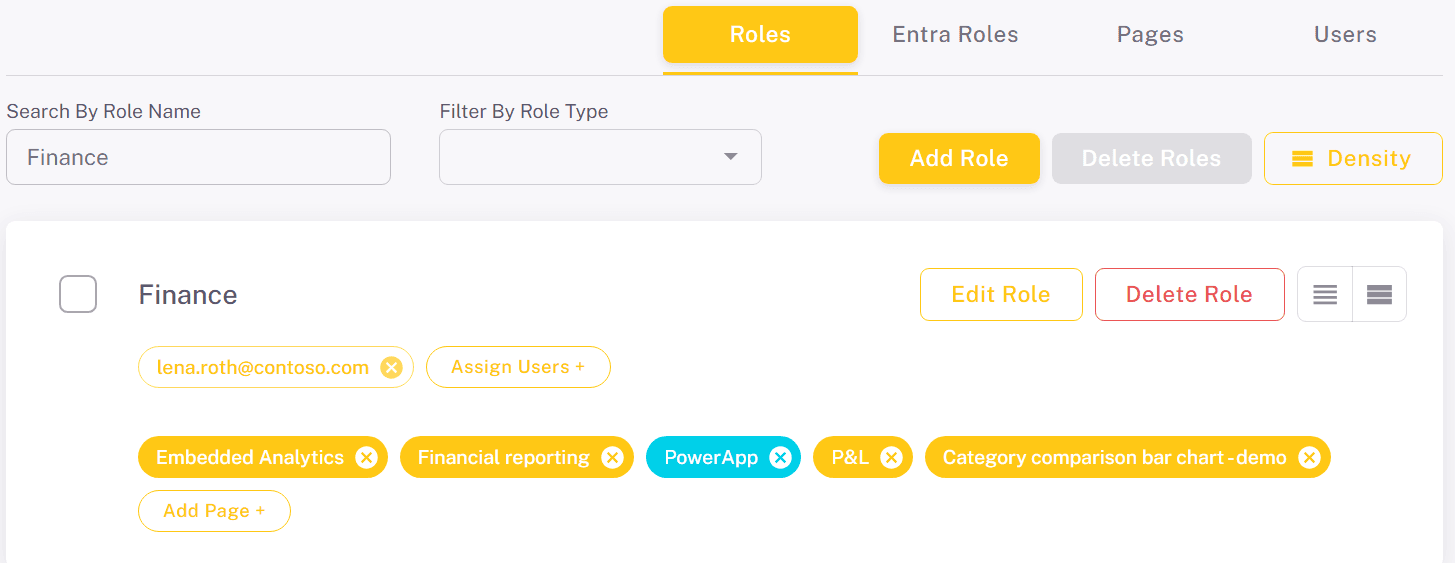
Three roles are built in and can't be renamed or deleted: super_admin, admin and guest. Guest is the role of everyone who has no other role, for example someone who signs in with Microsoft or Google for the first time, so you can't assign users to it by hand. Give the guest role only pages that anyone who can sign in may see.
Adding a role
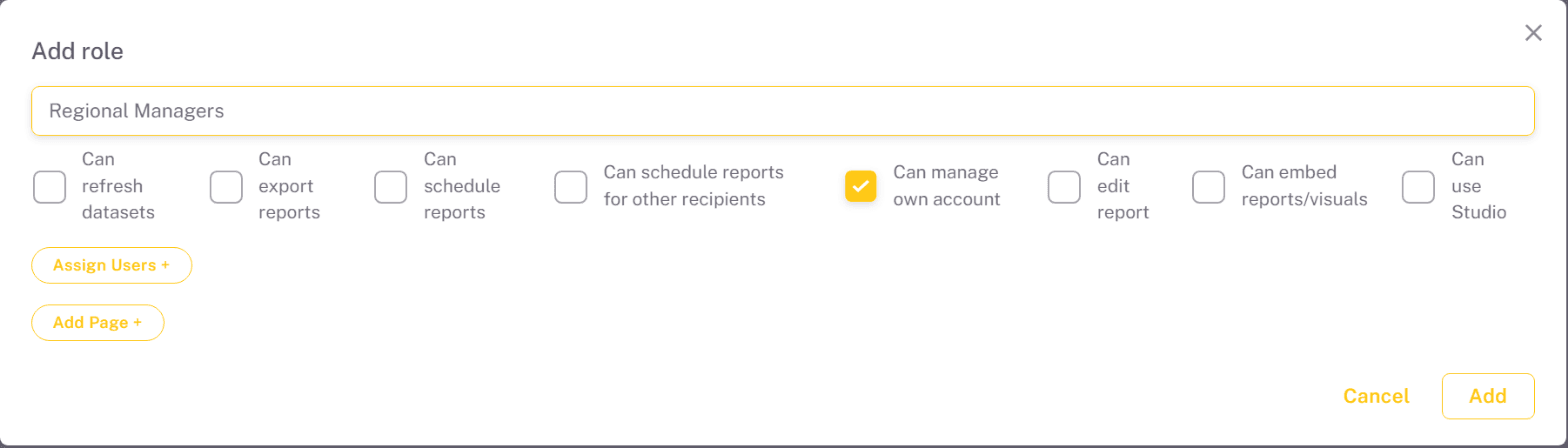
- Click Add Role and enter the role name.
- Check the permissions the role should have (see below).
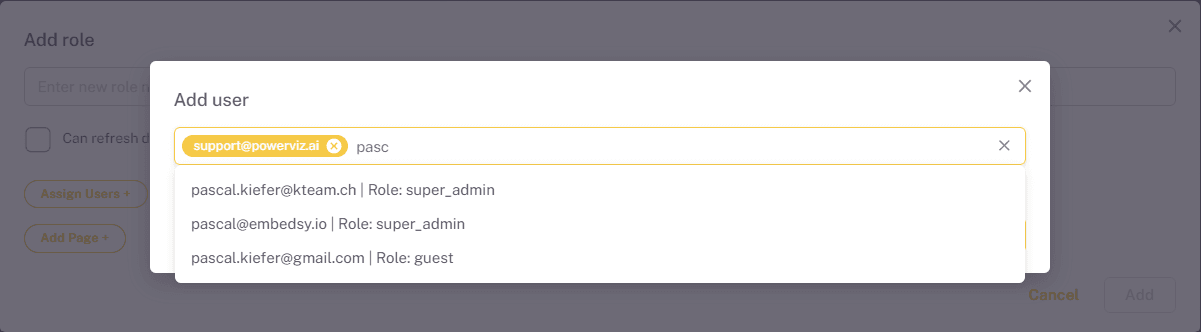
- Click Assign Users + and pick users from the list, which shows each user's current role, or type an email address and press Enter. Assigning a user replaces their current role, and the dialog warns you when it will.
- Click Add Page + to add pages to the role. The page types and their settings are described in Adding Pages.
- Click Add.
The permissions are:
- Can refresh datasets - refresh the semantic models behind the role's reports.
- Can export reports - export reports to a file.
- Can schedule reports and Can schedule reports for other recipients - schedule report deliveries to themselves, or to other people too. Shown only when report scheduling is turned on.
- Can manage own account - edit their own profile and change their password. Checked by default.
- Can edit report - edit reports in the portal. Only a super admin can change this checkbox.
- Can embed reports/visuals - create public embeds. Shown only when Public Embed is turned on.
- Can use Studio - build apps in Studio. Shown only when Studio is turned on.
Editing a role
- Edit Role opens the same dialog. The names of the built-in roles are locked.
- Assign Users + and Add Page + on the card work as in the dialog.
- The ✕ on a page removes that page from the role. The ✕ on a user asks whether to Remove User From Role.
- A card shows the role's most recent users. Use the Users tab to search all of them.
- Delete Role deletes one role; Delete Roles deletes all checked roles.
Roles created from Entra groups carry an Entra tag. You can add pages to them here, but not edit or delete them. Roles that combine several Entra groups are on the Entra Roles tab. Both are described in Using Entra Groups as Roles.
Pages
The Pages tab lists every page with the roles and users that can see it. Search with Search By Title or narrow the list with Filter By Type. Click Add Page, choose a page type, fill in its settings and select the roles that should see it. The six page types (Power BI report, paginated report, website, Studio app, hyperlink and PDF) are covered in Adding Pages.
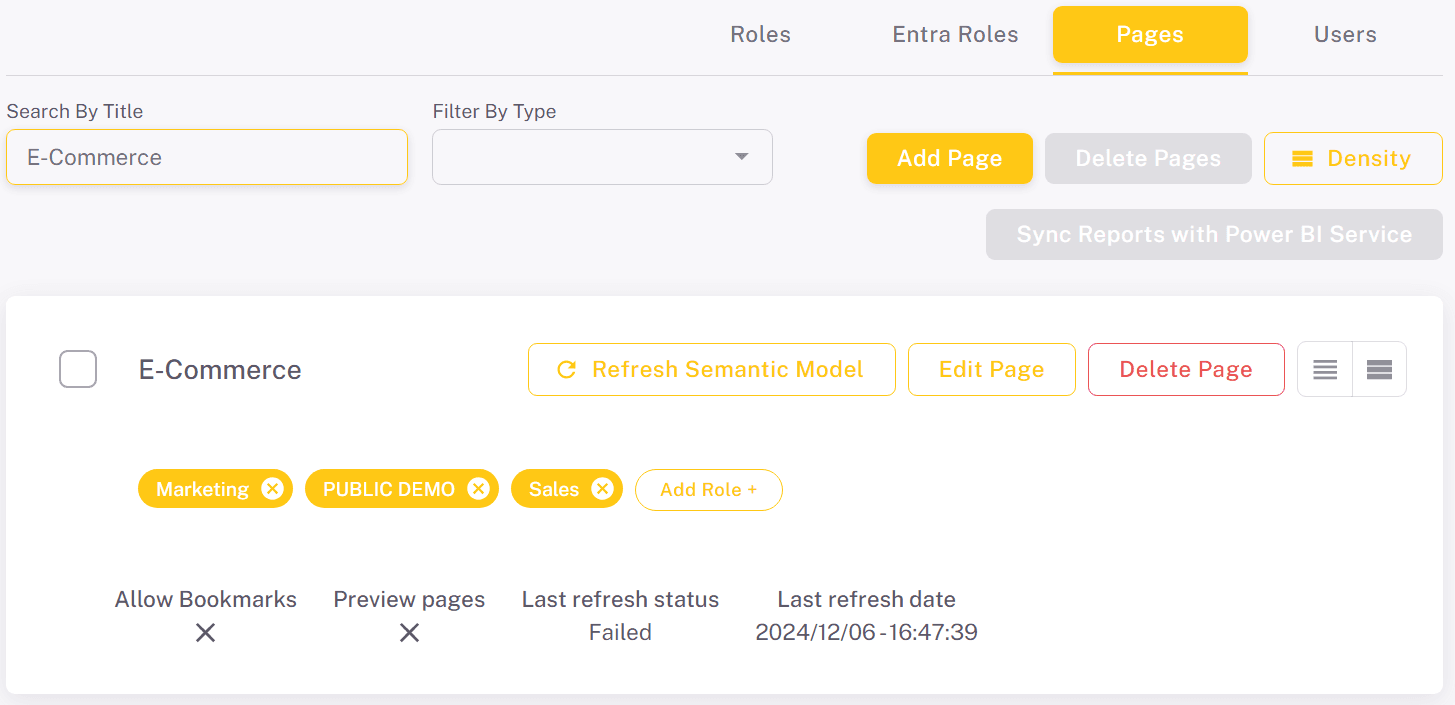
Sync Reports with Power BI Service becomes active when a report or workspace used by a page has been renamed or deleted in Power BI. See Sync.
On each page card:
- Edit Page and Delete Page change or remove the page for all its roles. Refresh Semantic Model (Power BI reports only) refreshes the report's data.
- Click a role chip to see which users get the page through that role. The ✕ on a role chip removes the page from that role. Add Role + gives another role the page.
- The footer shows the page's settings, such as Row Level Role, Allow Bookmarks and Preview pages, and for reports the last refresh status and date.
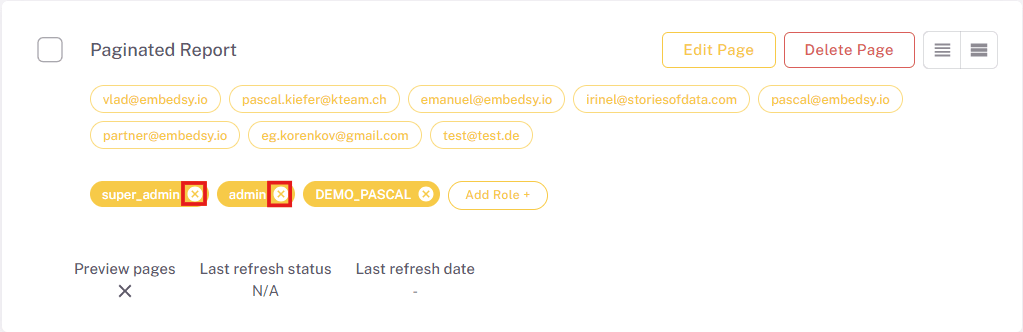
A page you add to a role appears last in that role's navigation. To move it, use Menu Configuration.
Users
Each user card shows the user's Role, their Entra Role and Entra Groups if they get access through Entra groups, and the pages they can see. Click the role chip to see which pages come from that role.
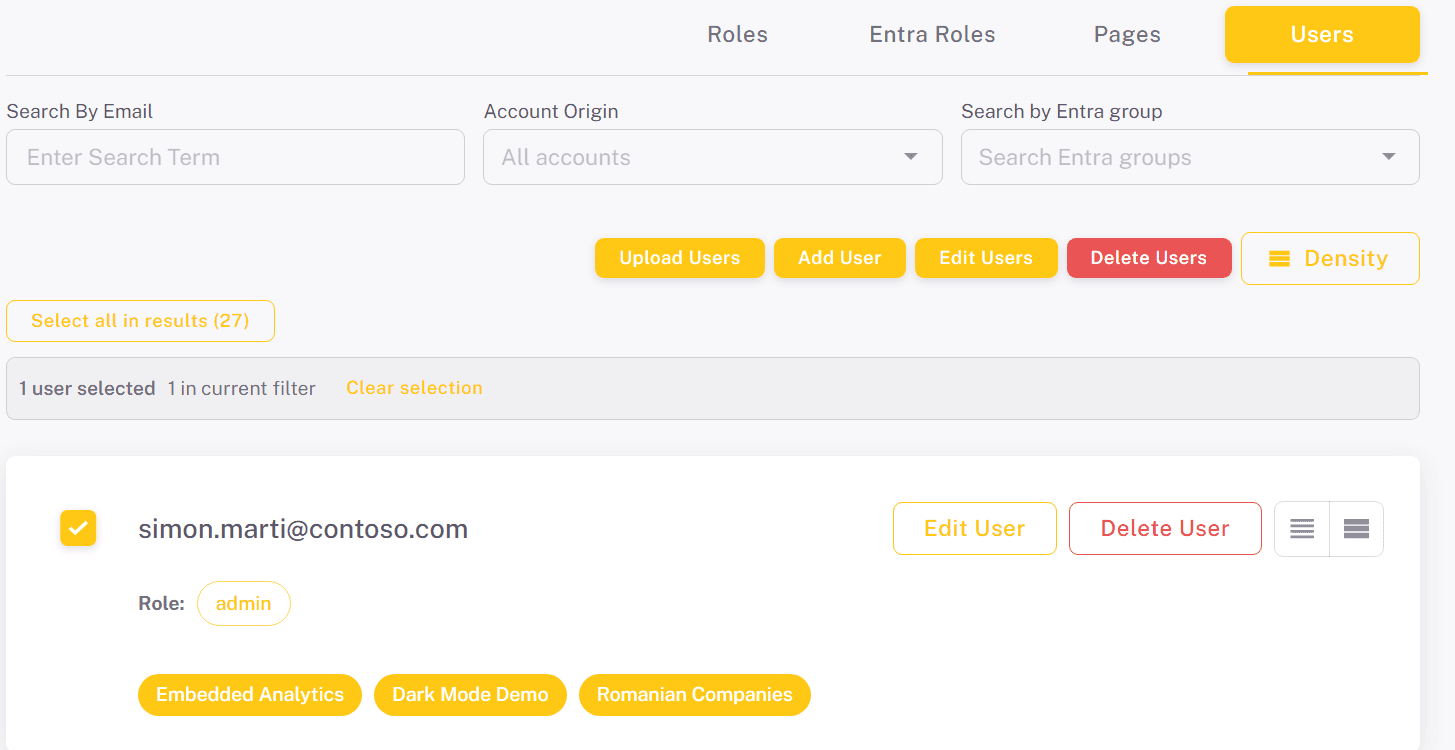
Narrow the list with:
- Search By Email.
- Account Origin - Guest shows guest accounts of your own Microsoft Entra tenant, External shows people who signed in with Microsoft from another organization's tenant. These users also carry a Guest or External label on their card. The label is about the account, not the portal's guest role.
- Search by Entra group - users in the selected Entra groups.
Adding users
- Click Add User.
- Type an email address and press Enter. Repeat for each user.
- Click Add Role + and choose the role. The role's pages are listed below it.
- Click Save. It is active once there is at least one email address and a role.
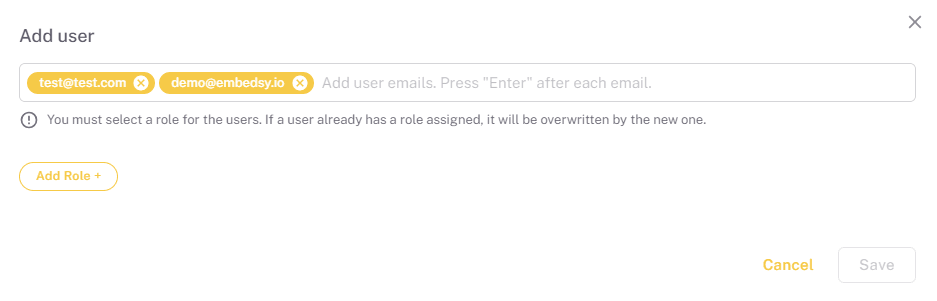
The portal doesn't send an invitation. The role applies when the person signs in with that email address. An address that already belongs to a user is rejected; change that user with Edit User instead.
Changing a user's role
For one user, click Edit User, remove the role chip, add the new role and save. To give many users the same role:
- Check the users, or click Select all in results to select everyone the current search and filters match. Bulk actions work on up to 500 users.
- Click Edit Users.
- Choose the Platform role and click Apply role.
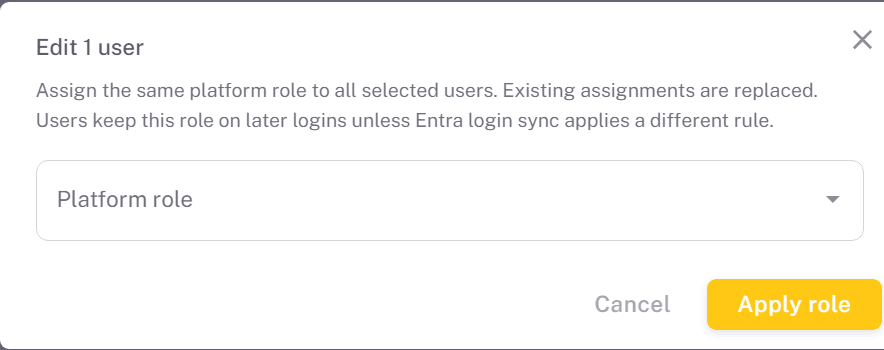
The new role replaces each user's current roles. Roles from Entra groups can't be chosen here, and only a super admin can make someone a super admin. Users that can't be changed are skipped and listed with the reason.
Entra group membership can override the guest role. If you set a member of an imported Entra group back to guest, they get their Entra role again the next time they open the portal. Any other role you assign is kept.
Uploading users from a CSV file
To add many users with their roles at once, prepare a CSV file whose first line is exactly email,role, followed by one line per user, for example anna@example.com,Sales. The role must match the name of an existing role.
- Click Upload Users and choose the file.
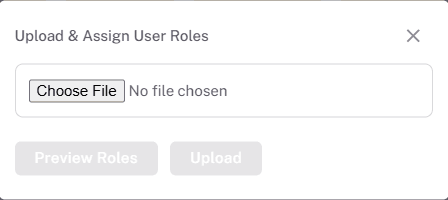
- Click Preview Roles to check the rows, then Upload.
The upload only assigns roles to email addresses that don't have one yet. Lines for existing users are skipped; change their role with Edit Users.
Removing and deleting users
Delete User on a card, or Delete Users for the checked users, offers two options:
- Remove User From Role takes the role away and keeps the account. Not offered for guests.
- Delete User From Portal deletes the account.
Only a super admin can change or remove another super admin. The last super admin can't be removed, and an admin can't remove the last admin.