

AI Agents
★ Premium feature
This is a premium feature, available with an active premium subscription or trial. If you don't see it, contact us or your Admin to add it to your plan.
Preview feature
This feature is currently in preview. If you don't see it, contact us or your Admin to activate it.
Preview features:
- are provided as-is and aren't meant for production use.
- may have limited or restricted functionality, and details may change before general availability.
- are supported on a best-effort basis and may be subject to reduced or different security, compliance, and privacy commitments.
An AI agent answers questions about your Power BI data in plain language. You build the agent in Microsoft Foundry and set it up there, and then connect it to the portal under AI Agents in the user menu. The portal hands the agent the semantic model it should work with and a way to query it, so the agent looks up the actual figures before it answers. A connected agent can be used in two ways:
- beside a report, as a chat panel next to a Power BI report in the portal,
- in Embedsy Studio, in the AI Agent component of an app and in the DAX query editor.
Adding agents and attaching them to semantic models is for admins.
Create the agent in Foundry
The portal doesn't create agents: it connects to one that already exists in a project in Microsoft Foundry. There:
- In your Foundry project, create an agent. Give it a name, choose the model deployment it runs on (for example
gpt-5-mini), and add the instructions, tools and guardrails it should have. Save it. Foundry keeps every saved change as a new version, and the portal always runs the latest one.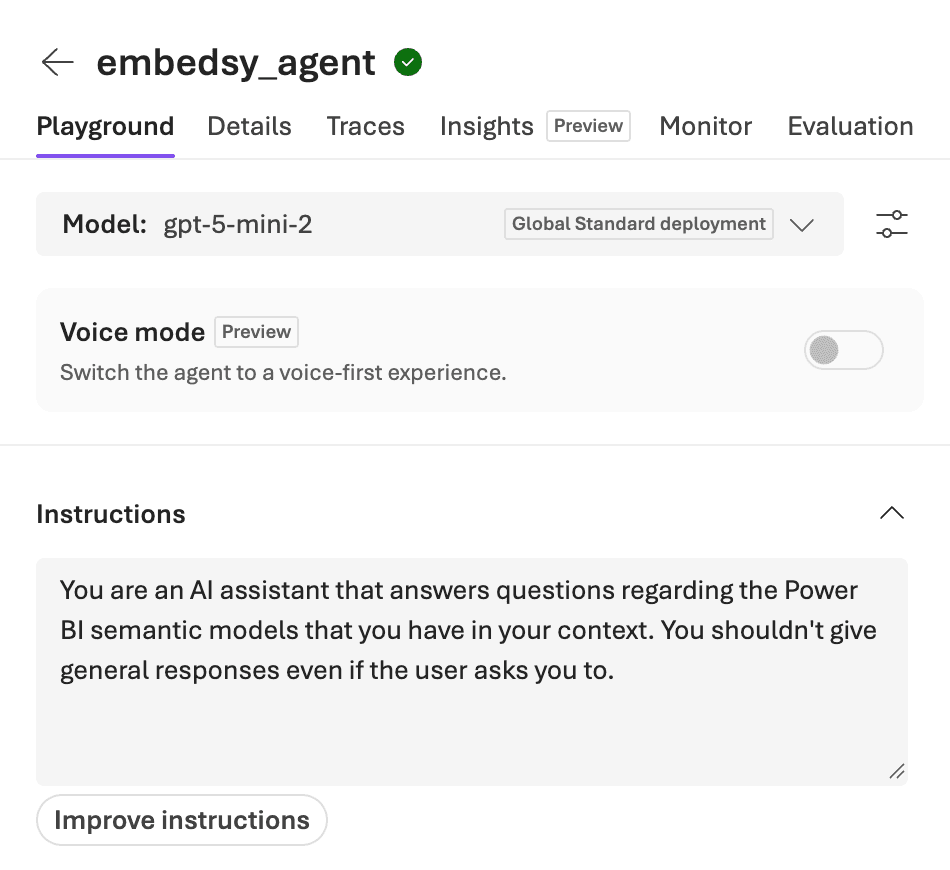
- On the project's Project details page, copy the Project endpoint. It looks like
https://<resource>.services.ai.azure.com/api/projects/<project>; its last part is the project's name.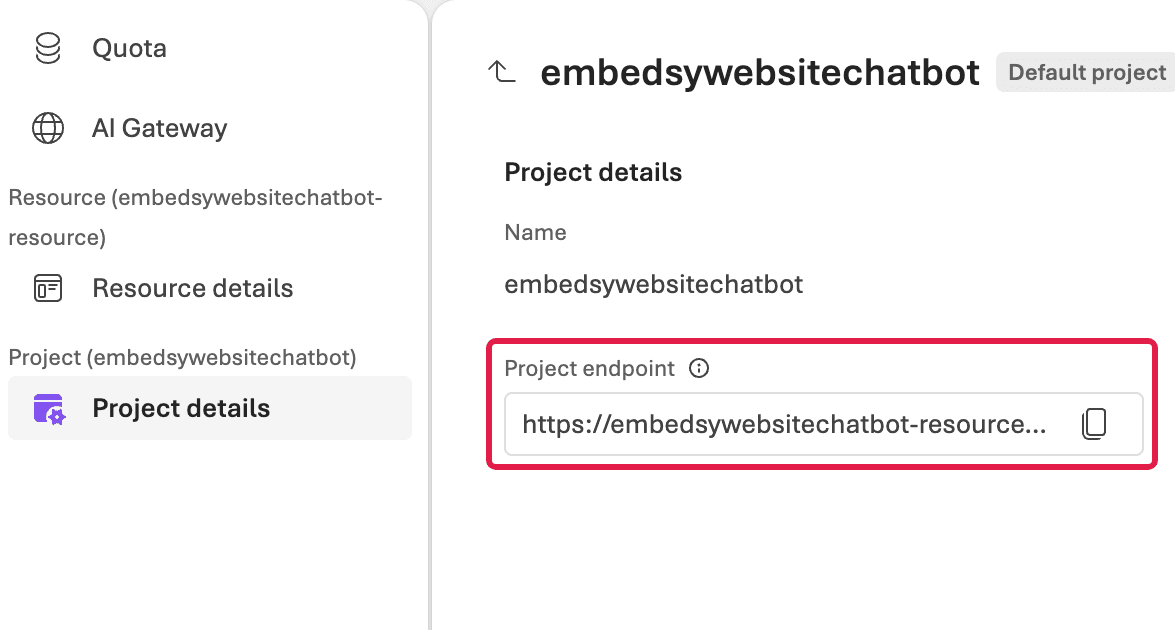
- Open the model deployment the agent runs on, go to its Details tab and copy the Key. Take only the key from this tab: the Endpoint next to it belongs to the model, not to the project.

Connect an agent, not a model. The portal's Foundry agent field takes the name of the agent you created in step 1. A model deployment such as gpt-5-mini is not an agent, and the connection fails with a message such as "Agent gpt-5-mini with version not found". If your project only has model deployments, create an agent on one of them first.
Add the agent to the portal
Open the user menu at the bottom of the portal navigation and choose AI Agents. Only admins see it. The page lists the agents already connected.
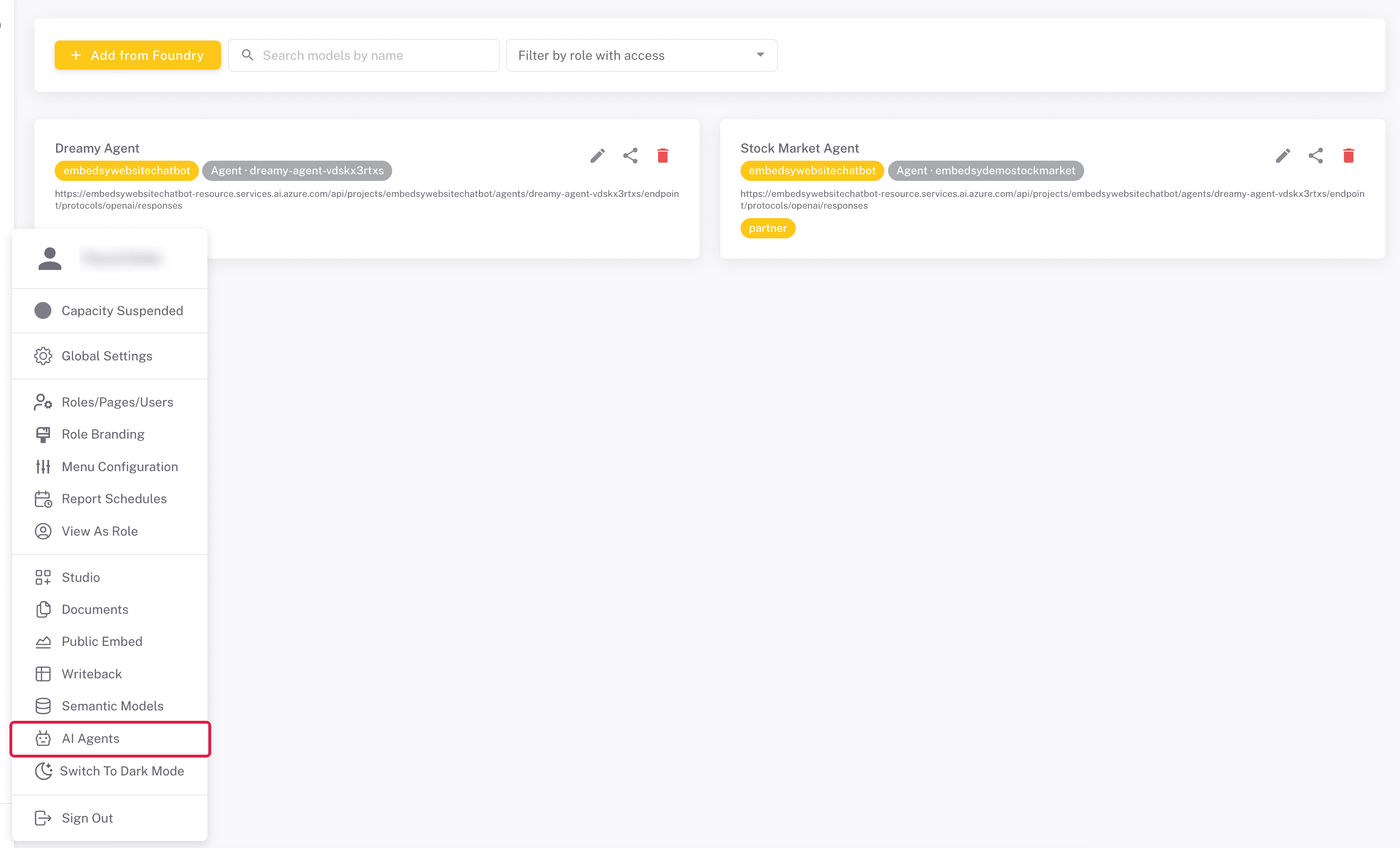
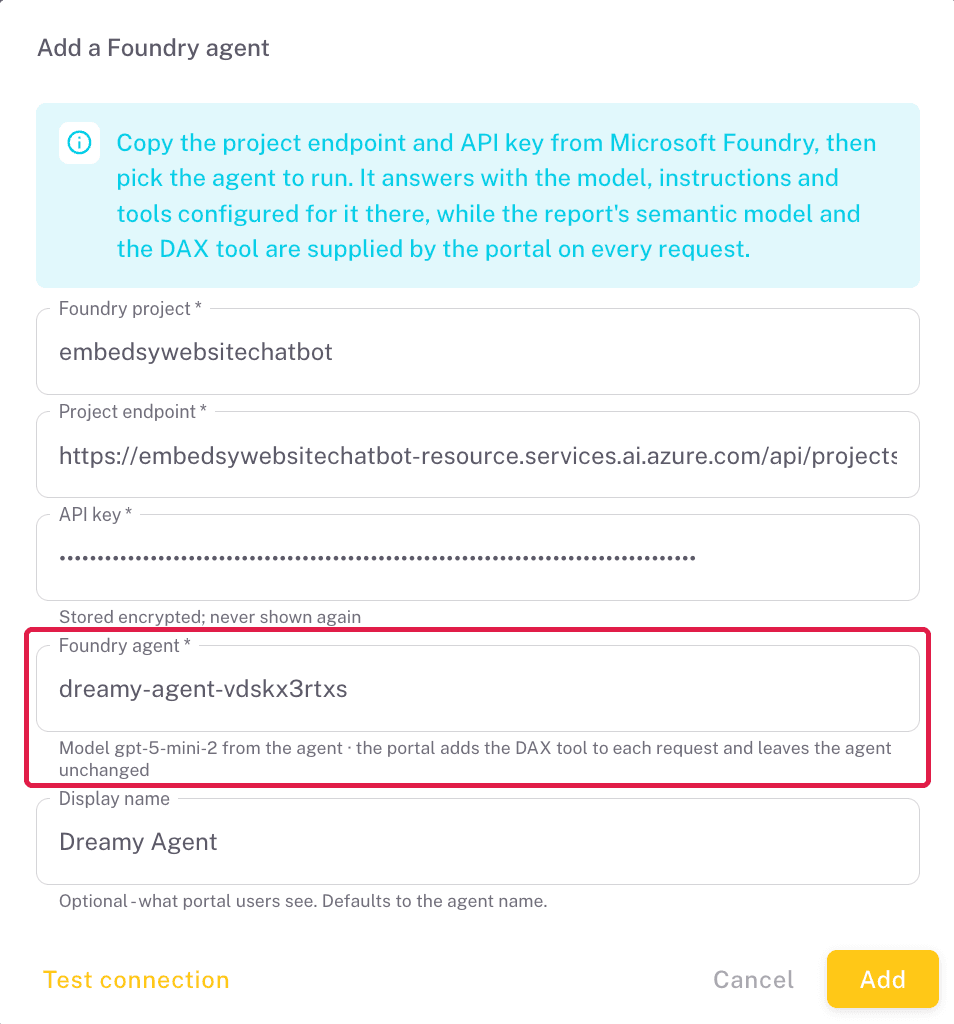
Click Add from Foundry. The Add a Foundry agent dialog asks for:
- Foundry project - the project's name, shown as Name on the Project details page and as the last part of the project endpoint.
- Project endpoint - the endpoint you copied from Foundry.
- API key - the key you copied. It is stored encrypted and never shown again.
- Foundry agent - open the list to load the project's agents and pick one. Each entry shows the agent's model, version and the start of its instructions. If the list is empty, the endpoint or key is wrong, or the project has no saved agent.
- Display name - optional, the name people see in the portal. It defaults to the agent's name.
Click Test connection. When Foundry answers, the button turns green and reads Connection works. Then click Add.
Each card on the page shows the agent's project, its Foundry agent and its endpoint, with icons to Edit connection, Share and Remove model. A Foundry agent can be added only once per portal.
Changing or removing a connection
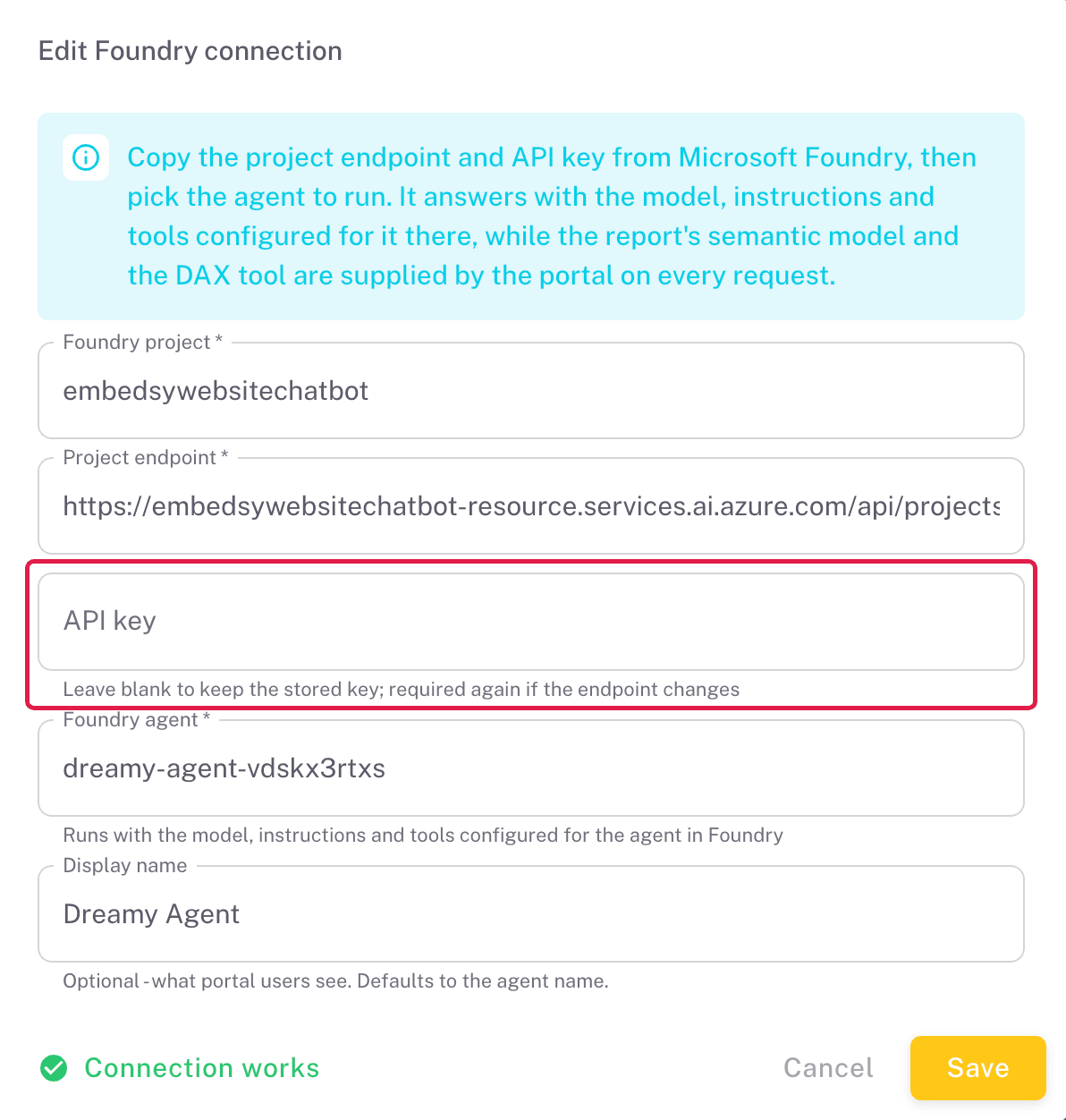
- Edit connection opens the same dialog. Leave the API key blank to keep the stored key; if you change the project endpoint, you have to enter the key again.
- Remove model takes the agent out of the portal; it stays untouched in Foundry. Removing is refused while a semantic model or a Studio app still uses the agent, and the message names them, so pick another agent there first.
Two ways to use an agent
Once an agent is added, it can answer questions beside a report and in Embedsy Studio. Each is switched on in its own way.
Beside a report
An agent can sit next to a Power BI report in the portal and answer questions about the report's data. For that, three things must be in place:
- On the Semantic Models screen, an admin ticks Open to LLMs on the report's semantic model.
- On the same card, the admin picks the agent under AI agent. It then serves every report built on that model.
- The viewer's role has Can use AI agents ticked, on the Roles tab or on the Entra role. New roles start without it.
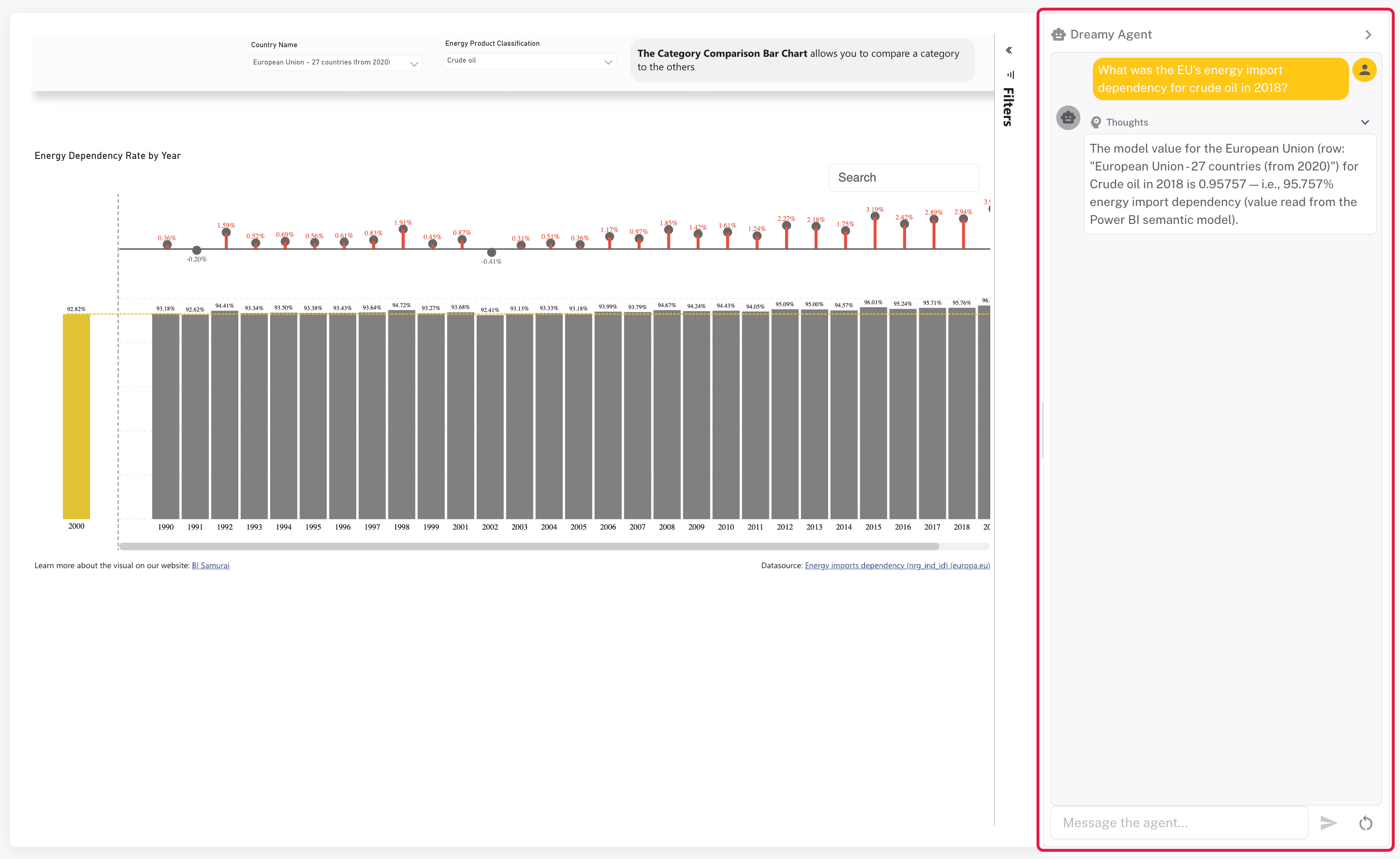
The agent then appears as a narrow bar with its name on the right of the report. Click it to open the chat, drag the panel's edge to widen it, and use the arrow to collapse it again. The conversation starts afresh on another report.
The agent reads the semantic model behind the report, not the report page: it doesn't see the visuals, or the filters and slicers the viewer has set. Name them in the question ("for crude oil in 2018"), or the answer may cover all the data.
Reports with row-level security can't use an agent. Power BI doesn't let the portal read such a model on a viewer's behalf, so the panel says that chat is turned off for the report.
In Embedsy Studio
In Studio, the person building an app or writing a query picks the agent and the semantic model it works with:
- an AI Agent component puts a chat with the agent into an app, for the app's viewers;
- the AI assistant of the DAX query editor uses the agent to help write DAX queries.
Share the agent before Studio users can pick it. An agent belongs to the admin role that added it. Studio users in other roles don't see it in the AI Agent component or the DAX query editor until you share it with their role, with the Share icon on its card; see Sharing & Ownership. The chat beside reports doesn't need this: it follows the semantic model and the Can use AI agents permission.
The prompt library
While configuring an AI Agent component you can save any question and the answer it produced. Saved prompts go into one library for the whole portal, not tied to an agent or app.
Clicking the star on a prompt endorses it. Endorsed prompts are offered to viewers of every published app with an AI Agent component, as suggested questions they can click to load into the chat box; prompts that are not endorsed are only shown while building. Endorsing a handful of well-phrased questions is the simplest way to show viewers what the agent is good at. The suggestions can be switched off per component - see AI Agent.
What the portal adds to each question
The agent runs in Foundry with the model, instructions, tools and guardrails you gave it there, and the portal leaves it unchanged. With each question, the portal adds a description of the semantic model (its tables, columns and measures, read live from Power BI) and lets the agent run read-only DAX queries against that model: the agent writes a query, the portal runs it, and the agent answers from the rows that come back. The queries it ran appear in the answer's Thoughts section. Each question allows a few rounds of queries; if the agent uses them up, for example while correcting a query that failed, it answers from what it has or asks whether to go on.
An agent doesn't carry a semantic model of its own: beside a report it uses the model the report is built on, and in Studio the one chosen there, so the same agent can serve several models. Only models marked Open to LLMs on the Semantic Models screen can be used. Without a model, the agent has no access to your data.
An agent answers whatever it is set up to answer. The portal adds no rules of its own, so an agent will also take questions that have nothing to do with your data. Every answer is billed to your Foundry resource, and an agent in a public Studio app answers anyone who opens the app. Keep the agent on topic with its instructions and guardrails in Foundry.
Troubleshooting
| Message or symptom | What to do |
|---|---|
| “Agent … with version not found” or “Foundry has no such agent on this project” | The Foundry agent field holds a name that is not an agent in this project, usually a model deployment name such as gpt-5-mini. Open the list and pick the agent, or create one in Foundry first. |
| “This project has no agents yet” | The endpoint points to a project with no saved agent. Check that the endpoint ends in your project's name, and that the agent was saved in Foundry. |
| “Foundry rejected the API key for this project” | The key belongs to another resource, or has been regenerated since. Copy it again from the Details tab of the agent's model deployment in Foundry. |
| “Project endpoint must be an Azure Foundry host” | Paste the project endpoint exactly as Foundry shows it, ending in /api/projects/<project>, not the endpoint of a model or of Azure OpenAI. |
| “This Foundry agent has already been added” | The agent is already on the AI Agents page. Edit that connection instead of adding it again. |
| No chat beside a report | Check the three conditions under Beside a report: the model is open to LLMs and has the agent, and the viewer's role can use AI agents. |
| A Studio user can't pick the agent | Share the agent with the user's role, with the Share icon on its card on the AI Agents page. |