


Adding Bookmarks to Power BI Reports in Embedsy Portal
Bookmarks let users save a view of a report - its filters, slicers and current page - and return to it with one click. Bookmarks are personal: each user sees and manages only their own. An admin switches the feature on per report page; after that, everyone who can open the page can use it. A saved bookmark can also be used as the view for a scheduled report email.
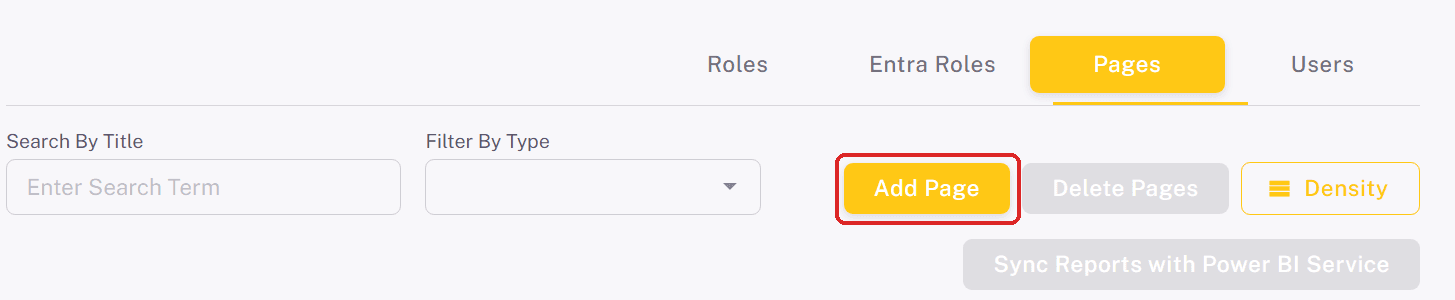
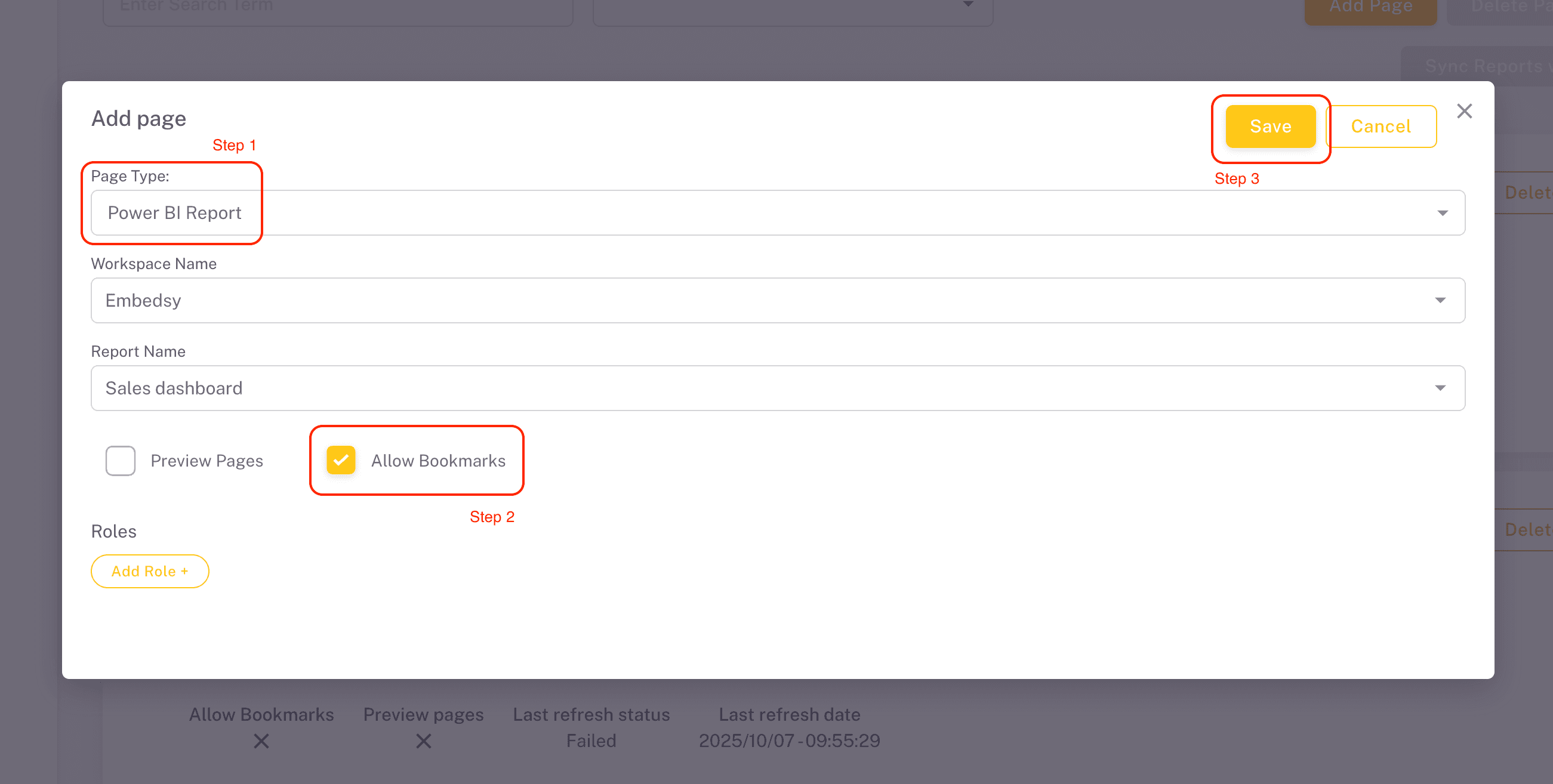
- Open Roles/Pages/Users, switch to the Pages tab and click Add Page (or Edit Page on an existing page). Choose Power BI Report as the page type (Step 1), check Allow Bookmarks (Step 2) and click Save (Step 3). Paginated reports don't support bookmarks.
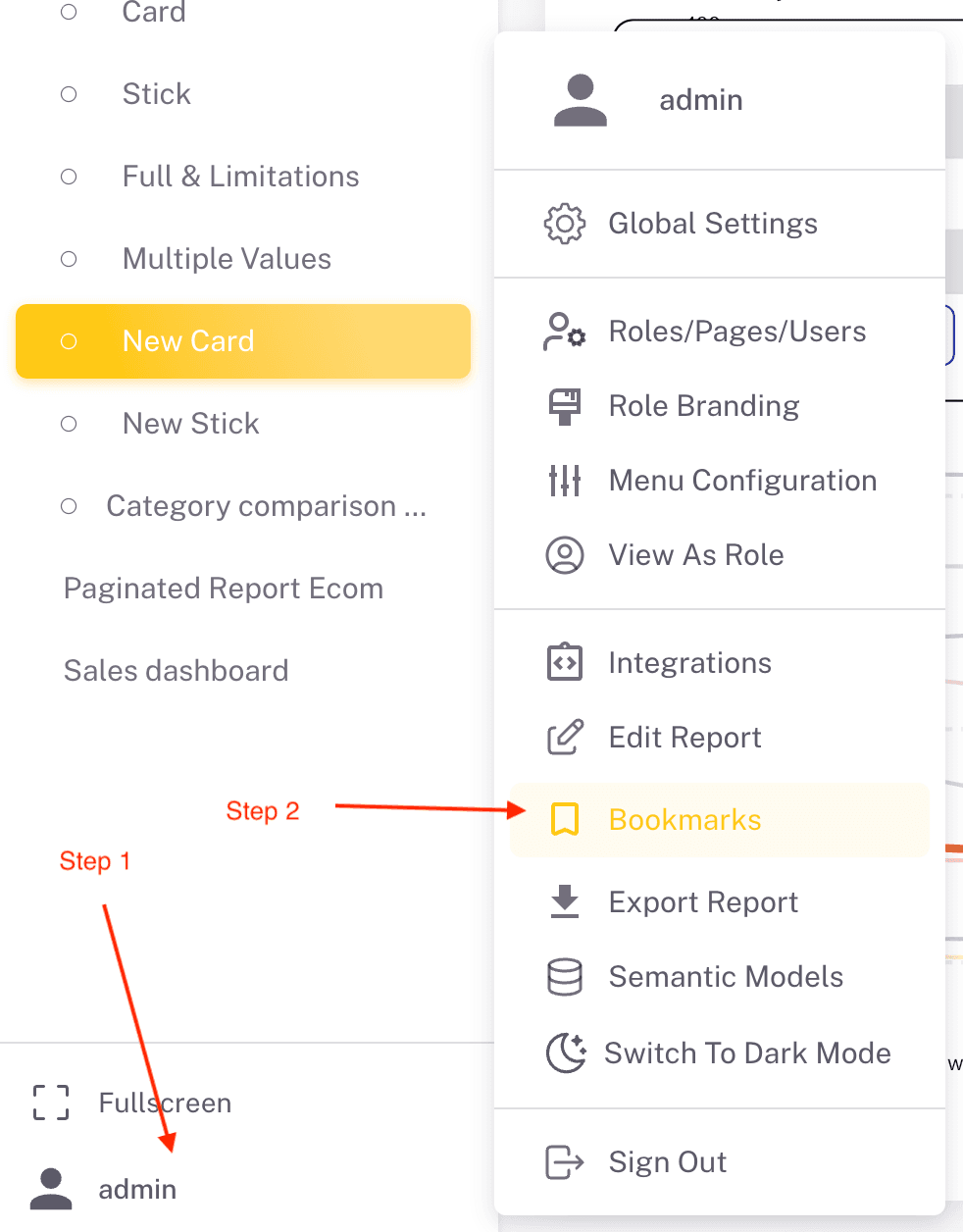
- Open the report from the navigation menu, then click the profile icon at the bottom of the navigation on the left (Step 1) and select Bookmarks (Step 2). The entry only appears on pages with bookmarks allowed.
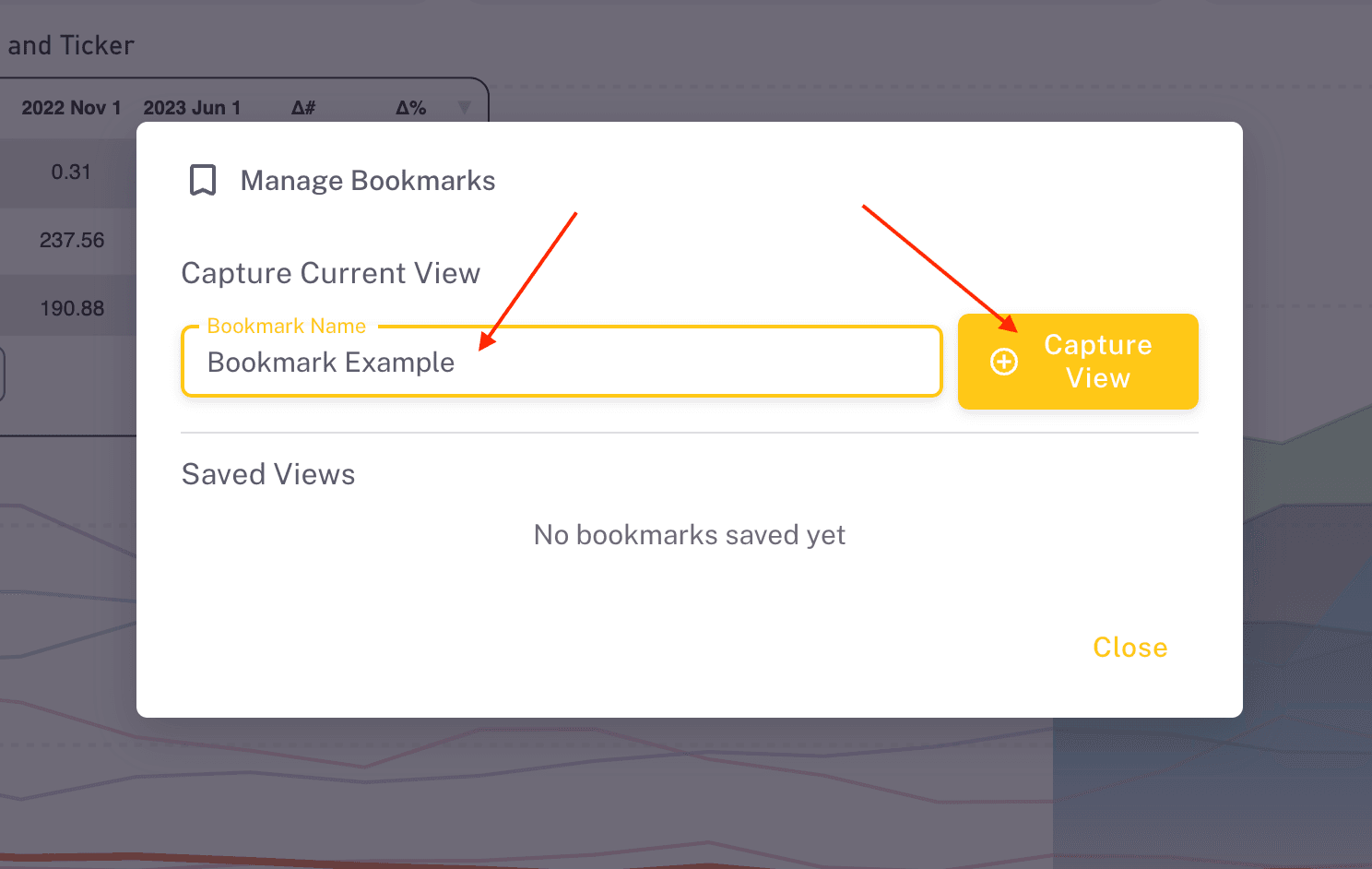
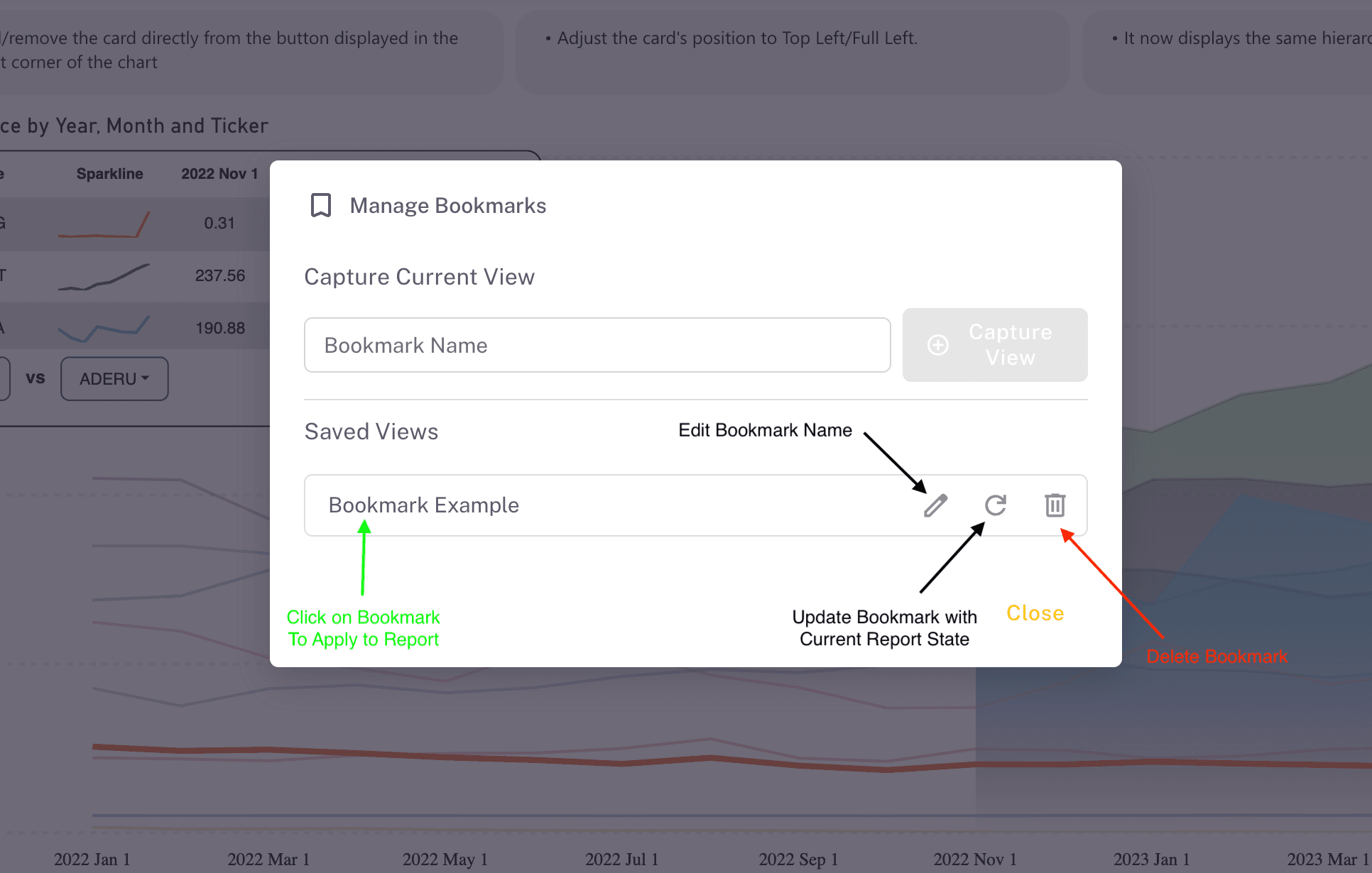
- In the Manage Bookmarks dialog, enter a Bookmark Name and click Capture View. The bookmark stores the report exactly as you see it at that moment.
- Your bookmarks for the report are listed under Saved Views. Click one to apply it to the report, or use the icon buttons next to it: Rename, Update state (overwrite the bookmark with the report as it looks now) and Delete (removes it immediately, without asking).
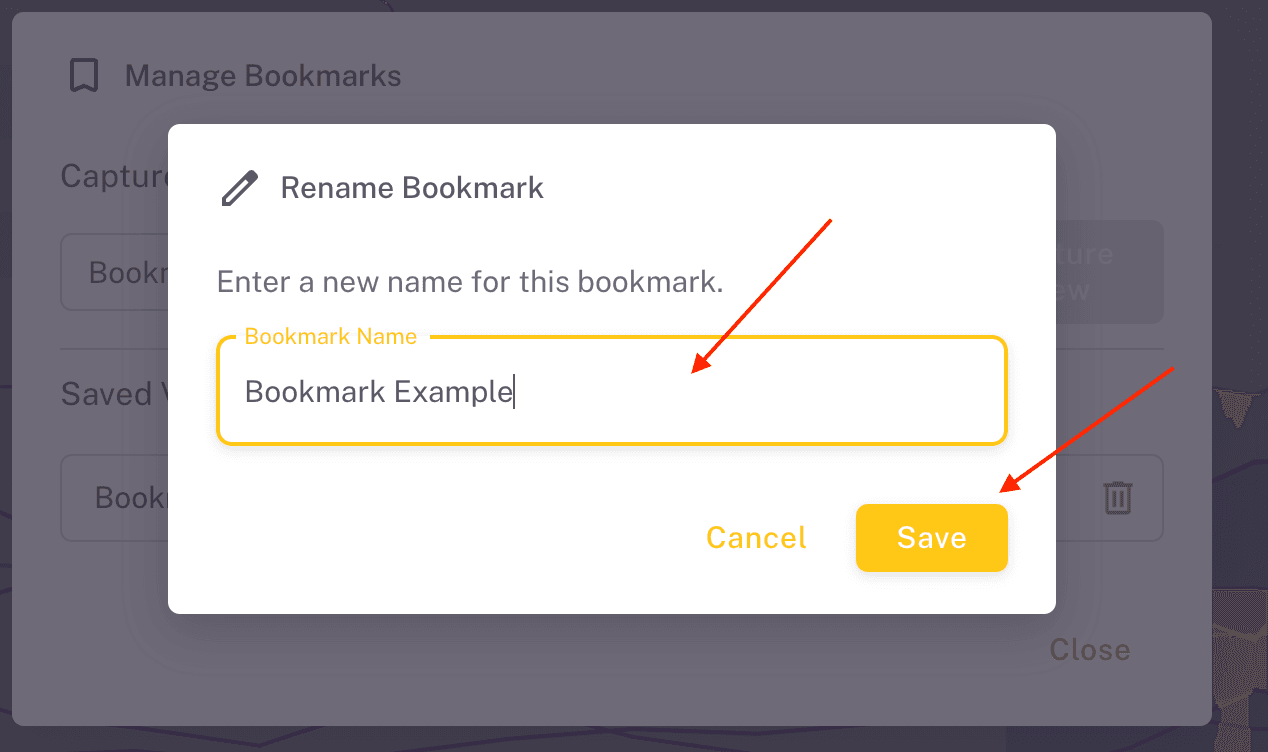
- Rename opens the Rename Bookmark dialog. Enter a new name and click Save. The name cannot be empty.
If a report is changed after a bookmark was captured - for example a visual the bookmark refers to is removed - applying that bookmark can fail. The portal then shows a Bookmark Error dialog saying the bookmark might have become obsolete and offering to delete it. Choose Delete Bookmark to remove it, or Cancel to keep it and capture the view again with Update state.