


Syncing Reports with the Power BI Service
When a report is renamed or deleted in the Power BI Service, the portal does not change on its own: the page keeps the old report name, and a page whose report was deleted no longer loads. A sync pulls the current state from the Power BI Service and updates the portal's pages to match.
Running a sync
- Open the user menu at the bottom of the navigation and select Roles/Pages/Users.
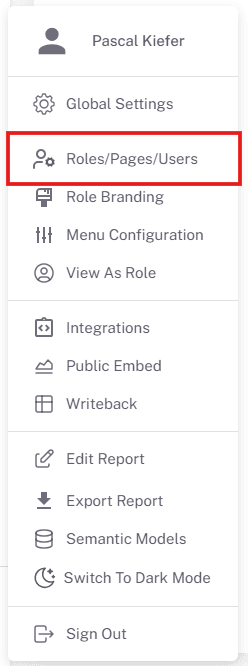
- Open the Pages tab.

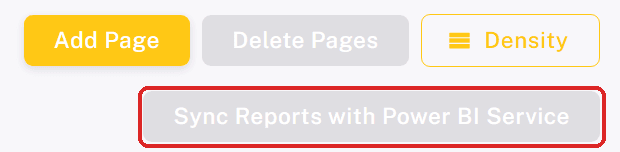
- Click Sync Reports with Power BI Service, below Add Page. The button is greyed out while none of the listed pages needs a sync. A message confirms when the sync has finished.
What a sync changes
- Renamed report - the page takes the report's new name, for every role it is assigned to.
- Deleted report - the page is deleted from the portal for every role and disappears from their menus.
- Only Power BI reports and paginated reports are synced. Other page types, such as Studio apps, hyperlinks and PDFs, are not affected.
The Pages tab does not mark which pages are out of date, and the button only checks the pages currently listed. If it stays greyed out after a change in Power BI, clear the search and type filter or go to the list page that shows the affected report. The sync itself always covers every page. Only admins and super admins can run a sync.
Pages of deleted reports are removed for good. Their role assignments are not kept. If the report comes back, add it again as described in Adding Pages.