


Configuring Microsoft Authentication for the Embedsy Portal
With Microsoft Login, users sign in to the Embedsy Portal with their Microsoft Entra work or school account. This article has two parts:
- Microsoft Login for your organisation - lets accounts in your own Microsoft Entra tenant sign in, including guests you have invited into it. This uses the service principal from your installation and only needs switching on.
- Sign-in from other organisations (optional) - also lets people from other organisations' tenants sign in with the Microsoft account they already have, so customers and partners need no guest invitation and no separate portal password. This takes its own app registration and a few extra steps.
If only your own organisation signs in, you need Part 1 only.
How Signing In Works
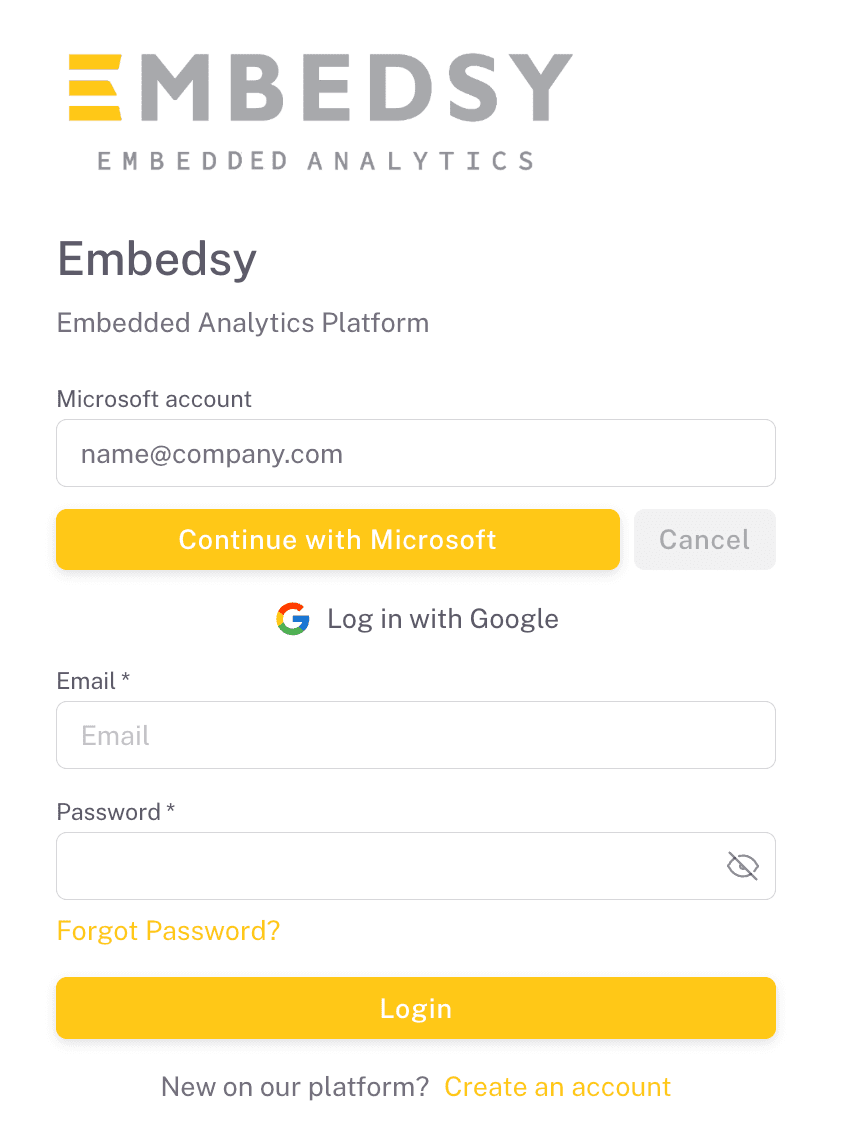
- On the login page, the user clicks Log in with Microsoft.
- The portal asks for their Microsoft account email address and they click Continue with Microsoft.
- The portal works out where the account belongs:
- Internal - a member of your own tenant.
- Guest - someone from outside your organisation who has been invited into your tenant as a B2B guest.
- External - an account in another organisation's tenant, with no guest entry in yours. Can sign in only after the optional Part 2 is set up.
- A Microsoft sign-in window opens. The user signs in there, with their own company's multi-factor authentication and Conditional Access policies.
- The portal verifies the token Microsoft returns and signs the user in.
Part 1: Microsoft Login for Your Organisation
Internal and guest users sign in through the Microsoft authentication service principal you created in the installation guide. To switch Microsoft Login on:
- Click the profile icon at the bottom of the navigation on the left
- Select "Global Settings"
- Navigate to the "Users & Authentication" section
- Enable "Microsoft Login"
- Make sure "Microsoft Authentication Service Principal Client ID" holds the Application (client) ID of the service principal from your installation
- Save the configuration
To test it, log out, click "Log in with Microsoft" and sign in with an account from your organisation. Nothing else is needed unless you also want users from other organisations to sign in.
Part 2 (Optional): Sign-In From Other Organisations
This part is optional
Skip it if only your own organisation and its invited guests use the portal. Part 1 must be done first: Microsoft Login has to be enabled before the fields below appear.
Users from other organisations sign in through a second, separate app registration that you create in your own tenant. It is multi-tenant, which means Microsoft lets accounts from other tenants sign in to it. Setting it up takes five steps.
Step 1: Register a Multi-Tenant Application
Log in to Microsoft Entra, go to "App registrations" and click "New registration". Use these settings:
- Name: any name you like. Users from other organisations see it on the Microsoft sign-in and consent screens, so choose something they will recognise, such as your company name followed by "Portal".
- Supported account types: "Multiple Entra ID tenants". Then choose which organisations may sign in:
- Allow all tenants - anyone with a work or school account in any Microsoft Entra tenant can sign in.
- Allow only certain tenants - only the organisations you list can sign in; Microsoft turns everyone else away before they reach the portal. Click "Manage allowed tenants" and add the tenant ID of each customer or partner. At least one is required. Microsoft currently marks this option as a preview.
- Redirect URI: platform "Single-page application (SPA)", with the same URI your existing service principal uses, for example https://your-portal-name.azurewebsites.net/login/auth-callback (or https://your-custom-domain/login/auth-callback)
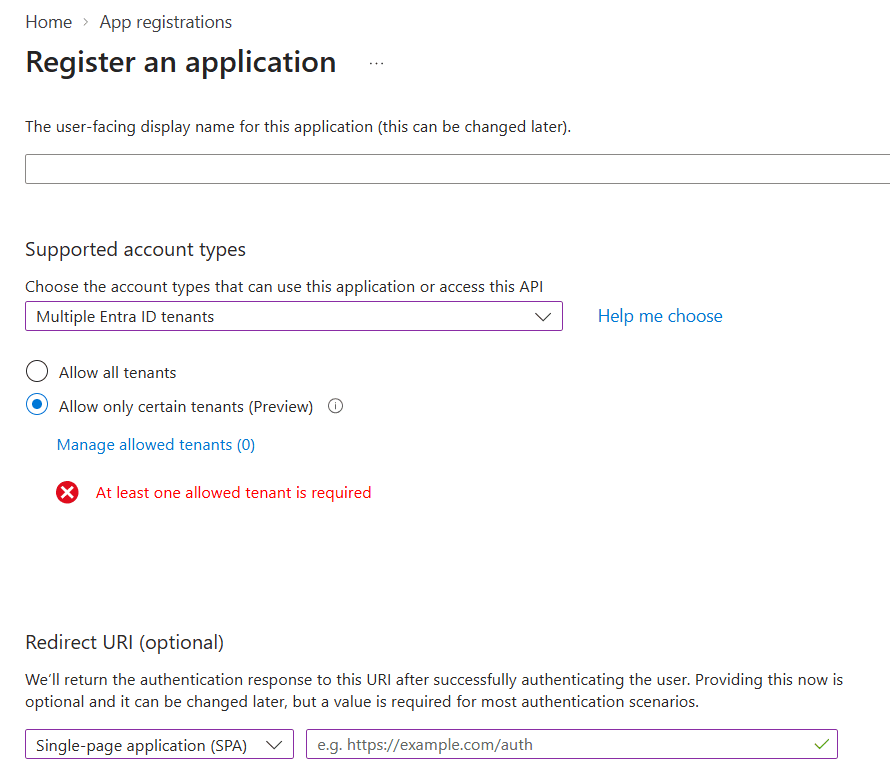
You can change the allowed tenants later on the app registration, for example when you take on a new customer, without changing anything in the portal. The app needs no extra API permissions: the portal only requests the sign-in scopes (openid, profile and email), so the default "User.Read" delegated permission is enough.
Step 2: Copy the Application (Client) ID
On the app's "Overview" page, copy the Application (client) ID. That is all the portal needs: the sign-in runs in the user's browser, so the app needs no client secret.
Step 3: Configure the Embedsy Portal
In the portal, open "Global Settings" and go to the "Users & Authentication" section. With Microsoft Login enabled, one more field appears under the client ID from Part 1:
- Paste the Application (client) ID into External (Multi-Tenant) Service Principal Client ID
- Save the configuration
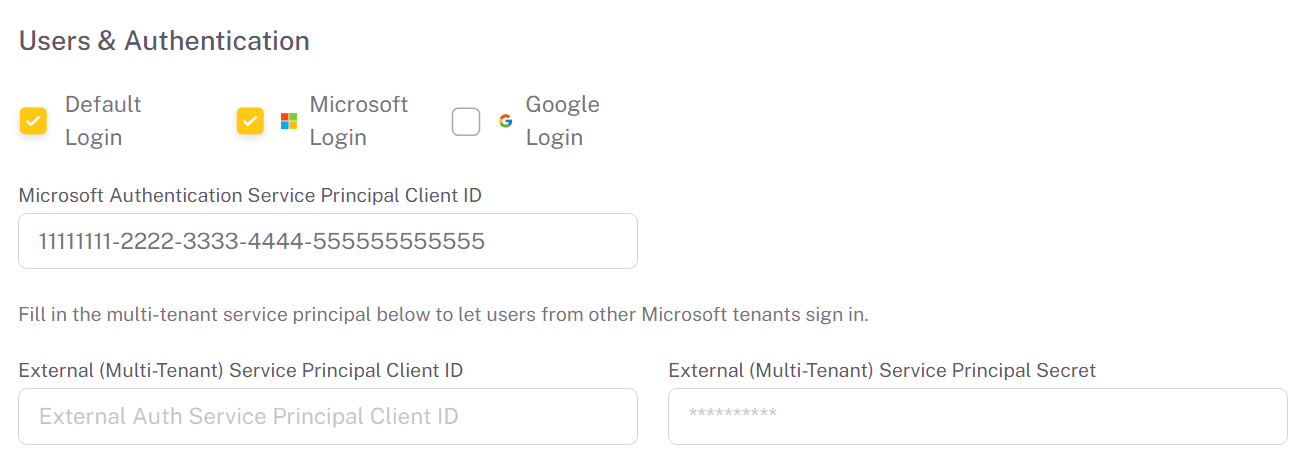
Who can sign in once this is saved
Everyone the app registration allows: any Microsoft Entra tenant if you chose "Allow all tenants", or only your listed tenants. Each person's first sign-in creates a portal user with the built-in Guest role. Keep content off the Guest role, and give external users access by assigning them a role yourself (next step).
Step 4: Give External Users Access
An external user's first sign-in creates their portal account and gives it the Guest role. To decide what they can see:
- Click the profile icon in the bottom left corner, then select Roles/Pages/Users
- Open the "Users" tab. External and guest accounts are labelled External or Guest. To list only those accounts, use the "Account Origin" filter.
- Assign the user a role, as described in Roles, Pages and Users
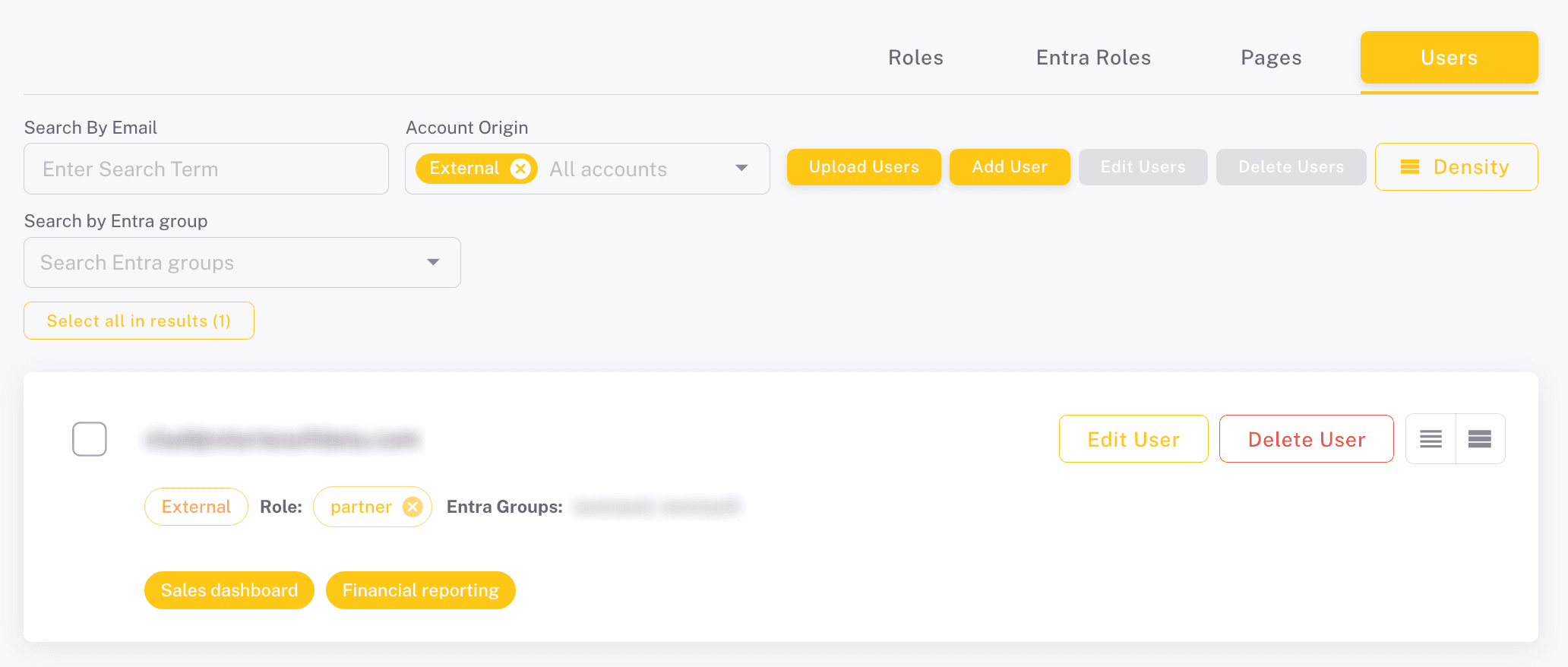
You can also upload or add users ahead of time with their role. When they first sign in with Microsoft, they get the role you assigned instead of Guest.
Entra groups as roles apply to internal and guest users only. An external user's groups live in their own tenant, which the portal cannot read, so their roles are always assigned in the portal.
Step 5: Test the Configuration
- Open the portal in a private browser window
- Click "Log in with Microsoft" and enter an account from another organisation (one of your allowed tenants, if you limited them)
- Complete the Microsoft sign-in, and accept the consent prompt if one appears
- Check that the user now appears in the Users tab with the External label
Consent in the User's Organisation
The first time someone from another organisation signs in, Microsoft asks them to consent to your app. Many organisations only let an administrator approve apps from other publishers. In that case the user sees "Need admin approval" instead. Their Microsoft Entra administrator can approve the app for the whole organisation by opening this address and signing in:
https://login.microsoftonline.com/<their-tenant-id>/adminconsent?client_id=<your-multi-tenant-client-id>
Turning External Sign-In Off
To stop one organisation signing in, remove its tenant from the allowed tenants on the app registration. To stop all of them, clear the "External (Multi-Tenant) Service Principal Client ID" field in the portal and save. Internal and guest users are not affected either way. External accounts that already exist stay in the Users tab, and you can delete them there.
Troubleshooting
The portal shows these messages under the email field:
- Sign in from external organisations is not enabled for this portal: the email belongs to another tenant, but the optional Part 2 has not been set up. Complete its Steps 1 to 3.
- Microsoft sign-in is not configured for this account. Please contact your portal administrator: the client ID for that type of account is missing in Global Settings.
- Microsoft sign-in could not be verified: the client ID in Global Settings does not match the app the user signed in to. Copy the Application (client) ID again from the app's Overview page.
- User is not verified: the portal account exists but is not verified. Check the user in the Users tab.
- Nothing happens after "Continue with Microsoft": the browser blocked the sign-in pop-up. Allow pop-ups for the portal's address.
And these in the Microsoft sign-in window:
- The user's organisation is not allowed: the app registration is limited to certain tenants and this user's tenant is not on the list. Add it under "Manage allowed tenants".
- Redirect URI mismatch (AADSTS50011): the app registration is missing the portal's /login/auth-callback address, or it was added under the wrong platform. It must be "Single-page application". See Microsoft Entra login errors.