


Troubleshooting Microsoft Entra login
With Microsoft Login, users select Log in with Microsoft, enter the email address of their Microsoft account and sign in in a Microsoft pop-up. This needs two things set up during the installation: an app registration (service principal) in Microsoft Entra ID that has the portal's address as a redirect URI, and that app's Client ID in the portal's Global Settings. If either is missing or wrong, sign-in fails with one of the errors below.
Error 1: AADSTS50011, the redirect URI does not match
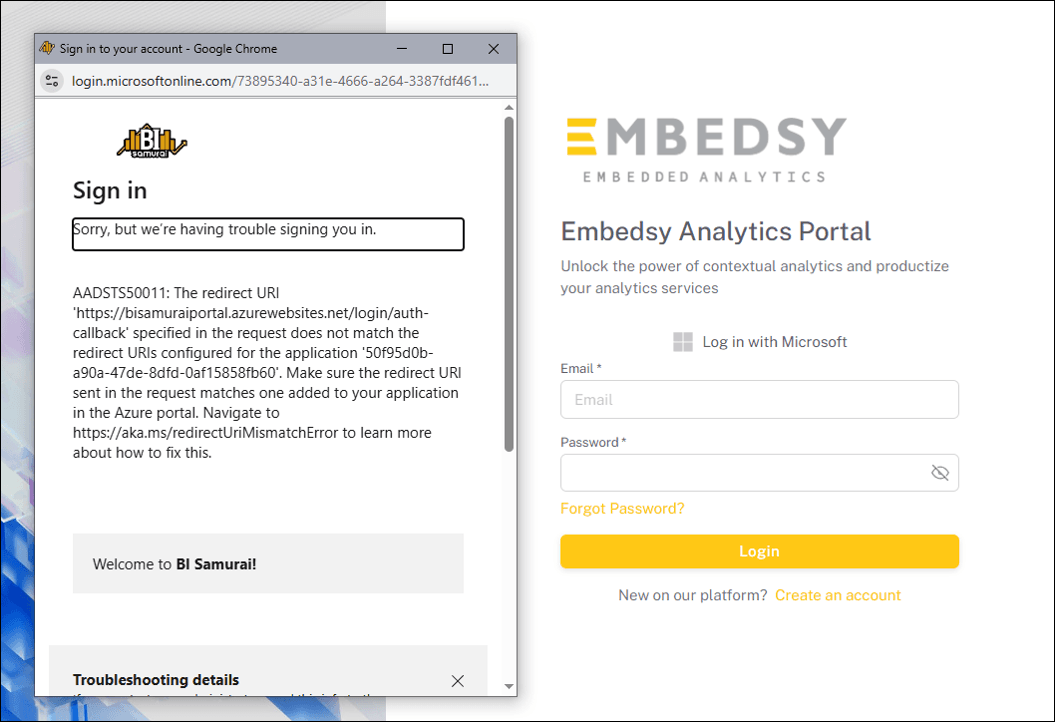
The portal sends its own sign-in address to Microsoft, and that address isn't registered on the app registration. To fix it:
- In Microsoft Entra, open App registrations and find the app whose ID appears in the error message.
- Under Authentication, add the redirect URI from the error message to the Single-page application platform and save. It is your portal's address followed by /login/auth-callback, for example https://your-portal-name.azurewebsites.net/login/auth-callback, or https://your-custom-domain/login/auth-callback if you use a custom domain. It must match exactly, including https:// and without a trailing slash.
- Wait a few minutes and sign in again.
The URI to use was also in the email you received after the installation; see Service Principal. If the address in the error message is not the one you use for the portal, contact us: the portal's own address setting needs to be changed.
Error 2: AADSTS700016, application with identifier was not found in the directory
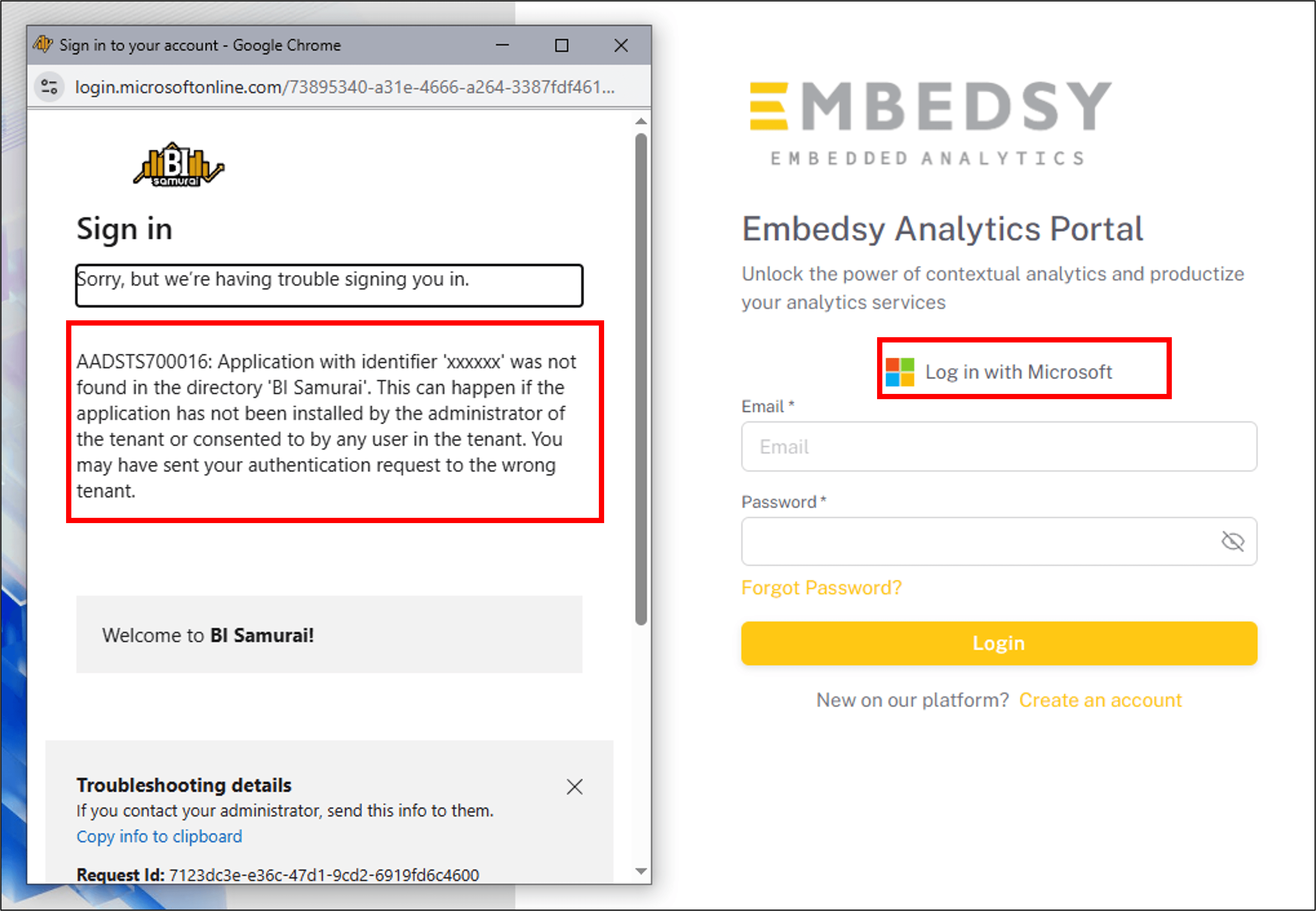
The Client ID the portal sent doesn't belong to an app registration in the Microsoft Entra tenant the sign-in went to (your own tenant, for your users and guests). Usually the ID in Global Settings has a typo, or it belongs to an app registration that was deleted. To fix it:
- In Microsoft Entra, open App registrations, select the app registration for the portal and copy its Application (client) ID from the overview.
- In the portal, open Global Settings and paste it into Microsoft Authentication Service Principal Client ID under Users & Authentication. Save your changes.
If only users from other organizations get this error, check the External (Multi-Tenant) Service Principal Client ID instead. That app registration must accept accounts from any Microsoft Entra directory (multitenant) and needs the same redirect URI as in Error 1.
Error 3: Sign in from external organisations is not enabled for this portal
The portal shows this message under the email field when the email address belongs to another organization's Microsoft Entra tenant and the user is not a guest in yours. Either:
- invite the user as a guest in your Microsoft Entra tenant, or
- to let users from other organizations sign in with their own accounts, fill in External (Multi-Tenant) Service Principal Client ID and Secret in Global Settings.