


DAX Queries
★ Premium feature
This is a premium feature, available with an active premium subscription or trial. If you don't see it, contact us or your Admin to add it to your plan.
Preview feature
This feature is currently in preview. If you don't see it, contact us or your Admin to activate it.
Preview features:
- are provided as-is and aren't meant for production use.
- may have limited or restricted functionality, and details may change before general availability.
- are supported on a best-effort basis and may be subject to reduced or different security, compliance, and privacy commitments.
A DAX query is a saved, named question put to one of your Power BI semantic models. Queries are the data layer of Embedsy Studio: D3 and Vega visuals do not talk to Power BI directly, they select one or more saved queries and render whatever those queries return. Several visuals can share one query, and a change to it flows through to all of them.
The query list
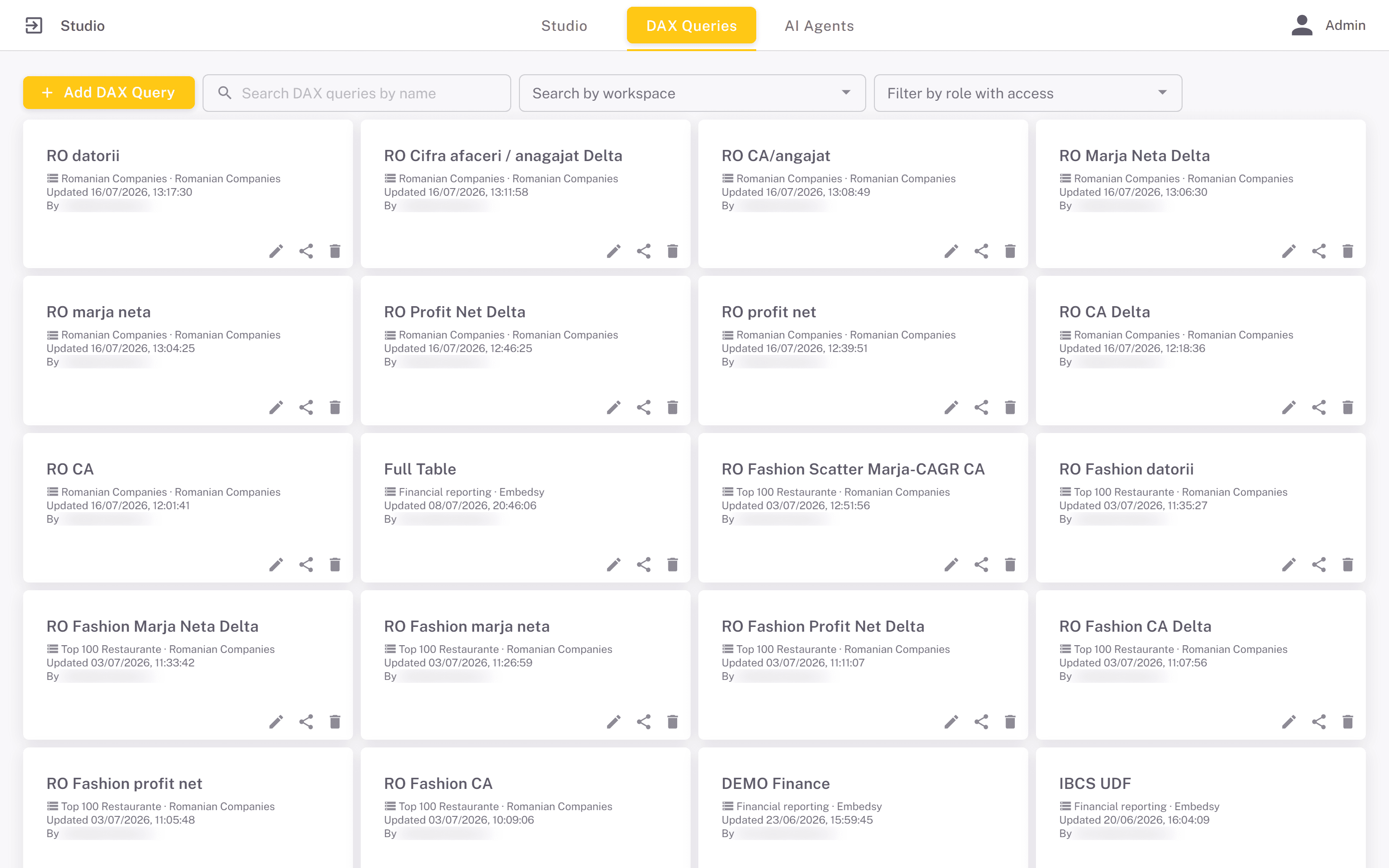
The DAX Queries tab shows one card per query you can see, with the report and workspace of its semantic model, when it was last updated and by whom, and chips for the roles with access. Hover over a title to see the query itself. Add DAX Query creates a new one and opens the editor. Search by name, narrow the list with Search by workspace, or use Filter by role with access.
Each card has Edit, Share and Delete icons. Share is only shown to the owning role and to admins; the rules are the same as for apps and are described under Sharing & Ownership.
Writing a query
- Enter a Title in the header. A new query starts as Untitled DAX query.
- Pick the Semantic model (dataset), listed by report and workspace. Only models marked as open to LLMs on the Semantic Models screen are listed.
- Write the DAX in the DAX query editor and press Run. The rows appear under Result preview, so you can check both the values and the column names. If the query fails, the error from Power BI is shown as it is.
- Press Save (Update for an existing query). An Unsaved marker shows while there are unsaved edits, and leaving the page asks whether to save first.
Choose the title with care. Visuals refer to a query by a key made from its title, with anything other than letters, digits and underscores turned into an underscore: Sales by Region becomes dataSets.Sales_by_Region in D3 code and the Sales_by_Region data source in a Vega spec. Renaming a query changes its key, so visual code written against the old name has to be updated.
The AI assistant
The robot icon in the header shows or hides an AI assistant beside the editor, for drafting and refining DAX:
- Pick an AI agent. The list shows the AI agents an admin has connected and shared with your role, and the first one is selected for you.
- Describe the query you want. The assistant works against the selected semantic model. It doesn't see the editor, so to have it fix or extend a query, paste the query into your message. Ask for the query itself ("write a DAX query that..."), or the agent may run it and reply with the figures instead.
- Under an answer that is a DAX query, Insert into editor replaces the editor's content with the generated query, and Execute runs it and shows the rows in the chat.
Drag the divider to resize the assistant. Whatever it produces still has to be run and reviewed like any hand-written query.
Using queries in visuals
In a D3 or Vega component, saved queries appear under DAX query instances. Select as many as the visual needs: each one runs when the component loads, and the first is also the default data set. How the rows reach your code is described under D3 Visual and Vega Visual.
Queries run each time the app is opened, so a published app always shows the semantic model's current data rather than a snapshot taken at build time.
Every viewer sees the same data. Queries in D3, Vega and AI Agent components run under the portal's own Power BI identity, not the viewer's, so row-level security in the model does not filter them per viewer. Only query data that everyone who can open the app may see.