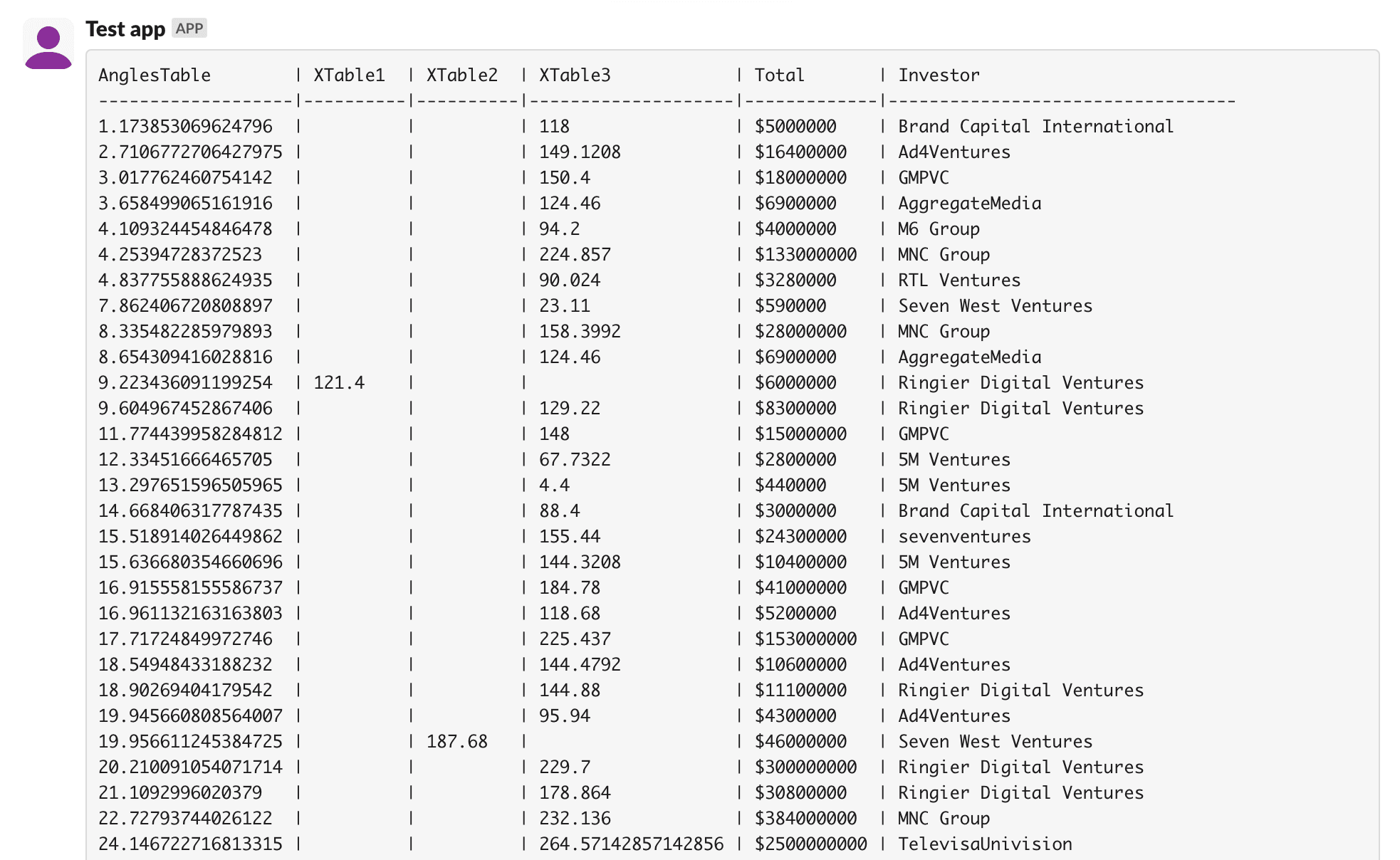

Sending Report Data to Slack and Gmail
Preview feature
This feature is currently in preview. If you don't see it, contact us or your Admin to activate it.
Preview features:
- are provided as-is and aren't meant for production use.
- may have limited or restricted functionality, and details may change before general availability.
- are supported on a best-effort basis and may be subject to reduced or different security, compliance, and privacy commitments.
Users can send the data behind a report visual to Slack channels and people, or by email through Gmail, straight from the visual's menu. The portal connects to Slack and Gmail through Nango, an integration service, so you need a Nango account with a connection to each service you want to use.
Every user who can see a report can send its data. Once the integration is set up, Take an action appears on the visuals of every user, and messages go out through the one Slack workspace or Gmail account you connect. Only connect accounts whose channels and recipients your users may reach.
Before you start
- A super admin has switched on Third Party Integrations under Preview Features in Global Settings.
- You are a super admin: the Nango section of Global Settings is only shown to super admins.
- You have a Slack app or a Google OAuth client with its client ID and secret. Nango explains how to create them: Slack setup, Gmail setup.
Step 1: Create an account on Nango
Sign up at app.nango.dev and confirm your email address with the link in the verification email. After signing in you land on the Nango dashboard.
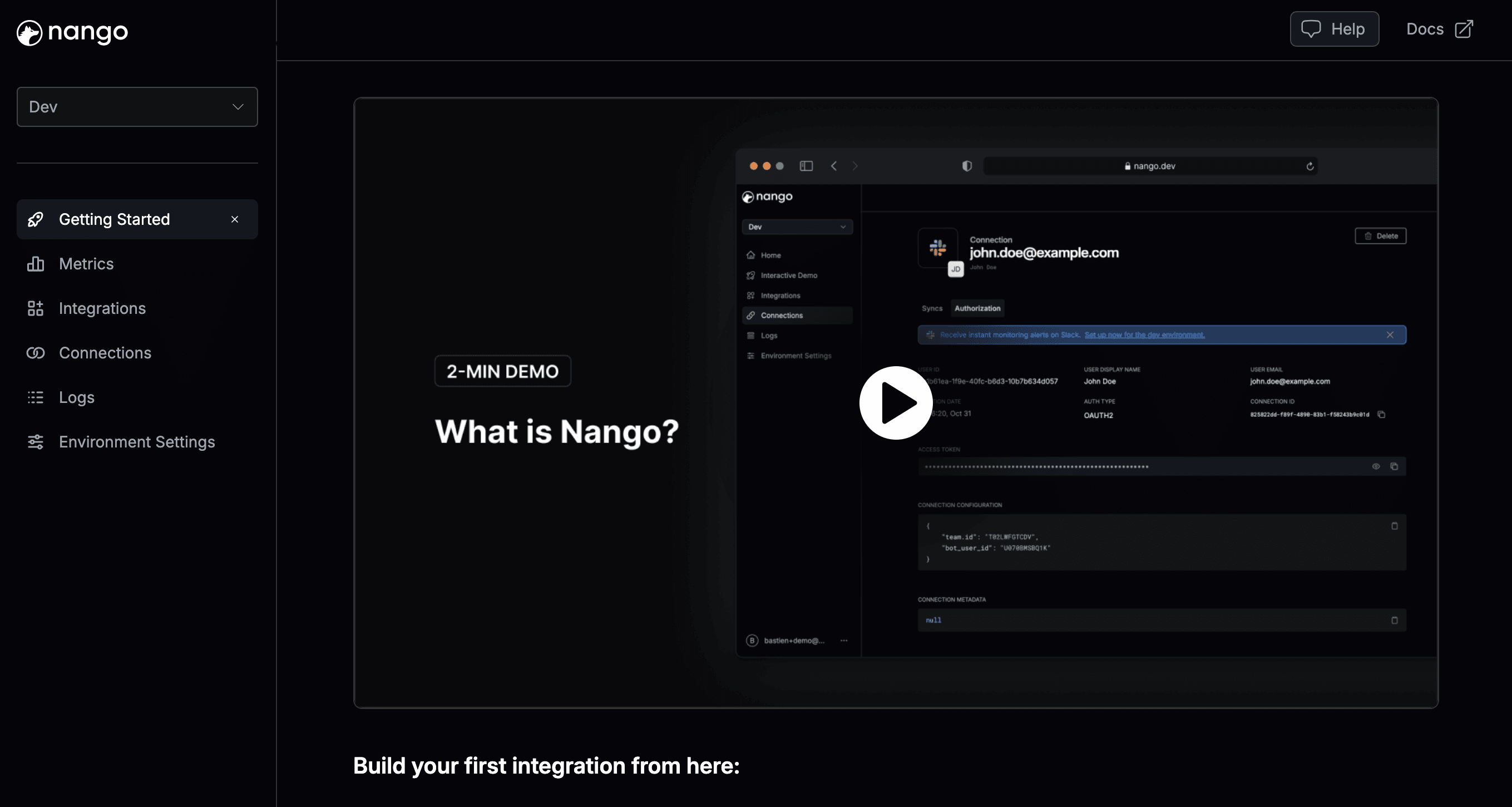
Step 2: Create an integration
Open Integrations in the Nango dashboard and select Slack or Gmail. Keep the integration ID Nango suggests (slack and google-mail): the portal finds the integrations by these IDs.
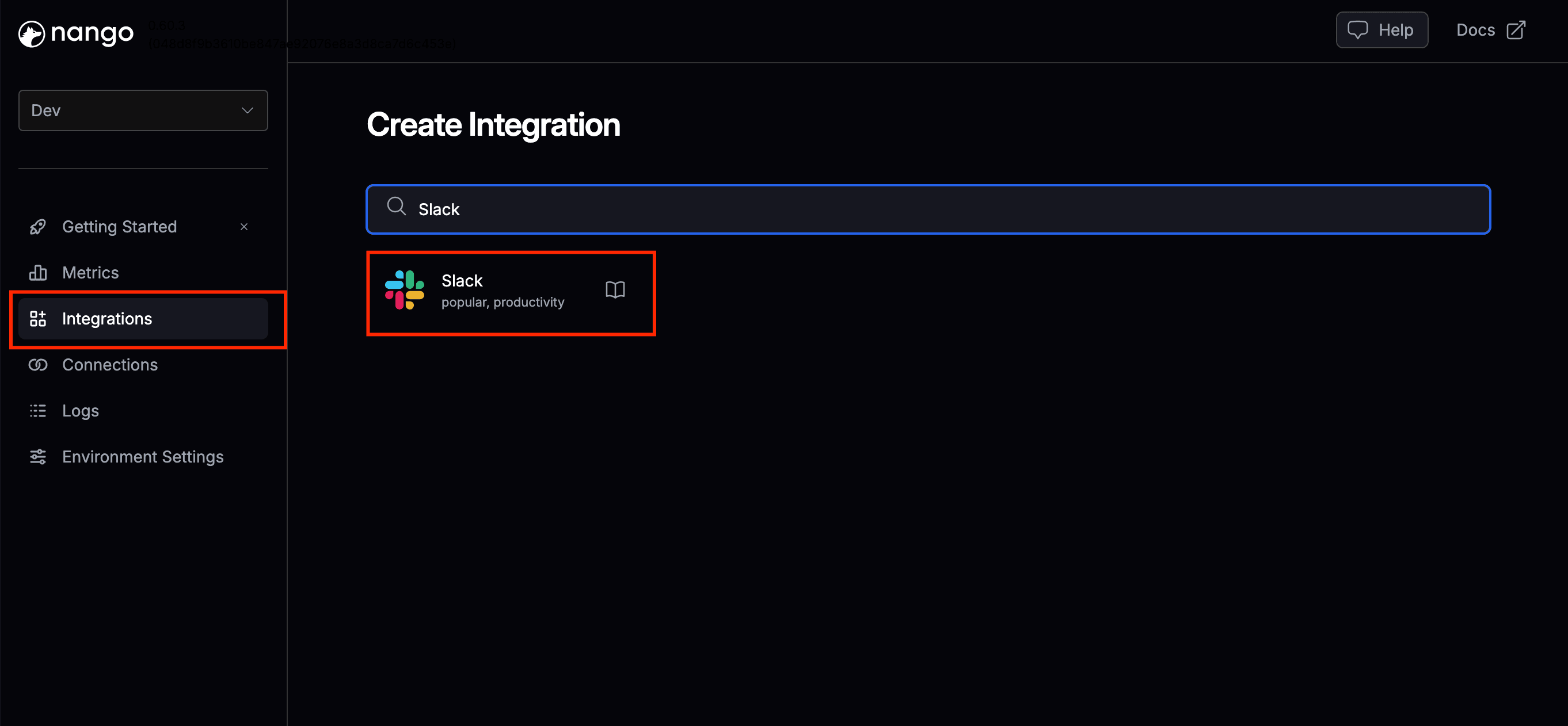
Step 3: Enter your app credentials and enable endpoints
On the integration's Settings tab, enter the Client ID, Client Secret and Scopes of your Slack app or Google client and click Save.
Required scopes for Slack:
- chat:write
- channels:read
- groups:read
- im:read
- mpim:read
- triggers:read
- users:read
- users:read.email
- users:write
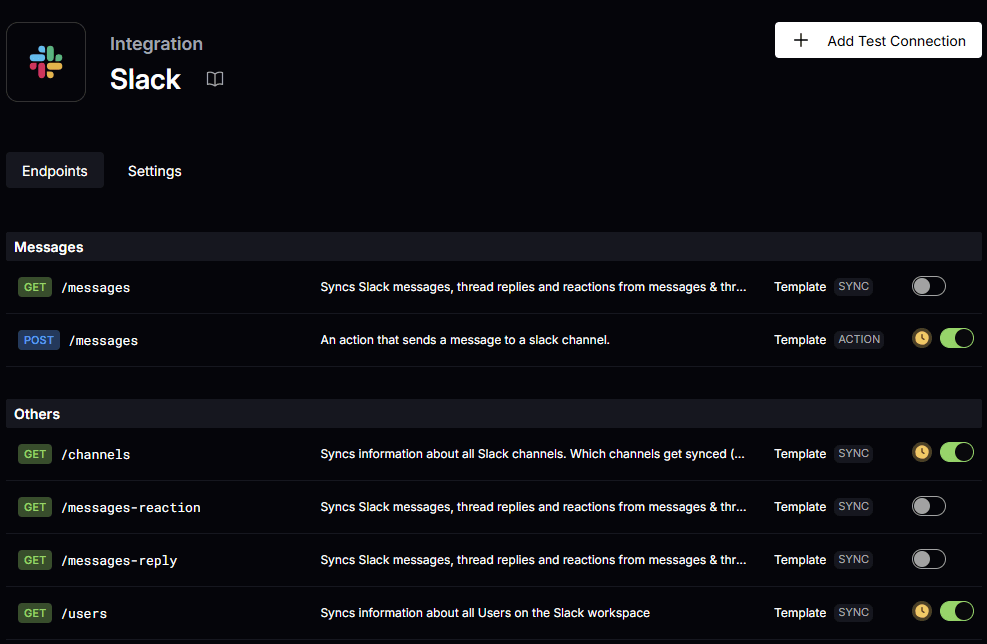
Then open the Endpoints tab and switch on POST /messages, which sends the message, and GET /channels and GET /users, which fill the list of recipients in the portal:
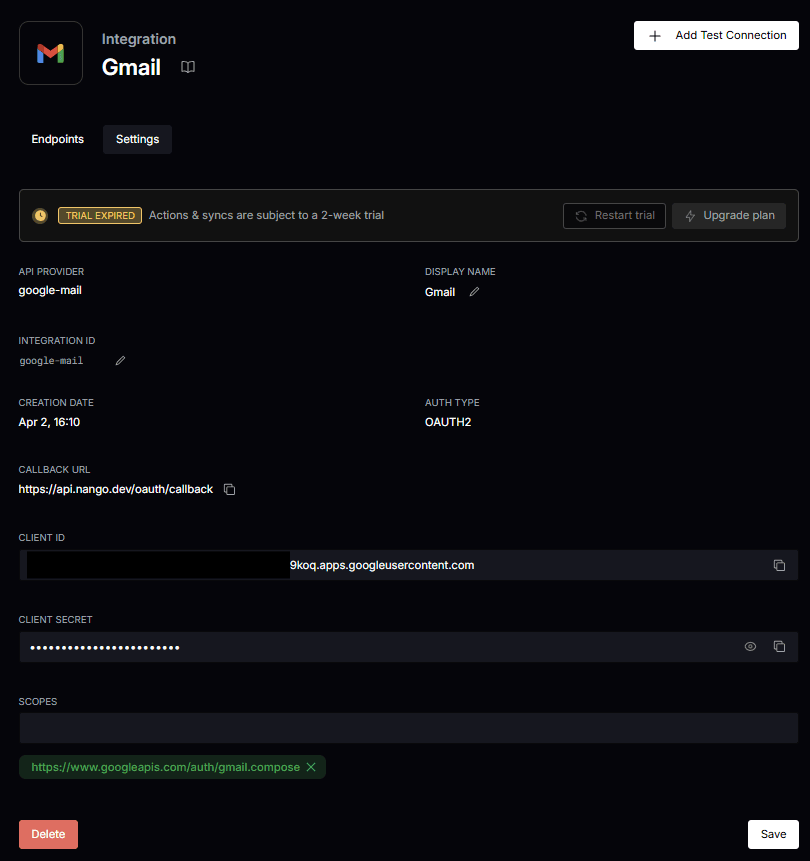
Required scopes for Gmail:
- .../auth/gmail.addons.current.action.compose
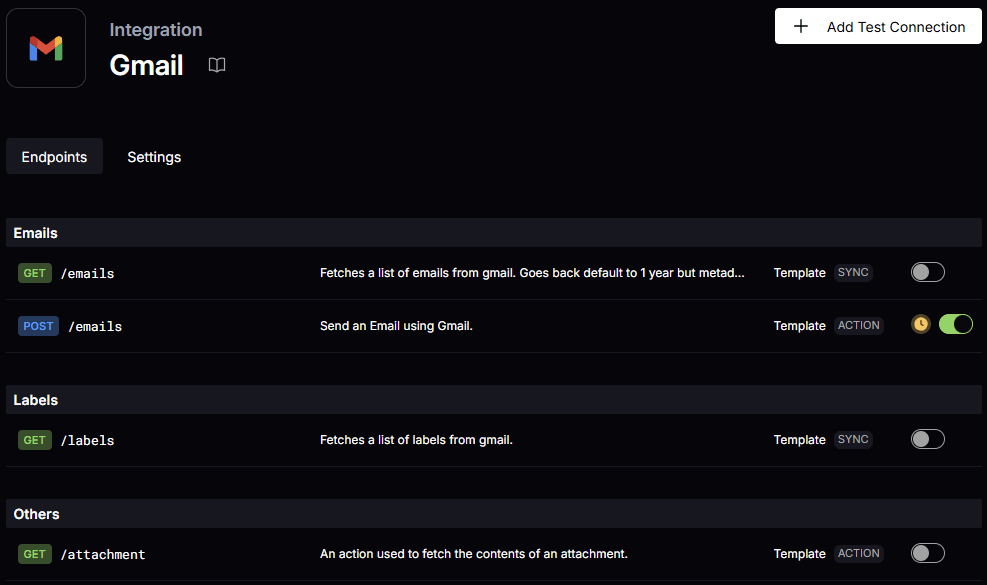
For Gmail, switch on POST /emails on the Endpoints tab:
Step 4: Create a connection
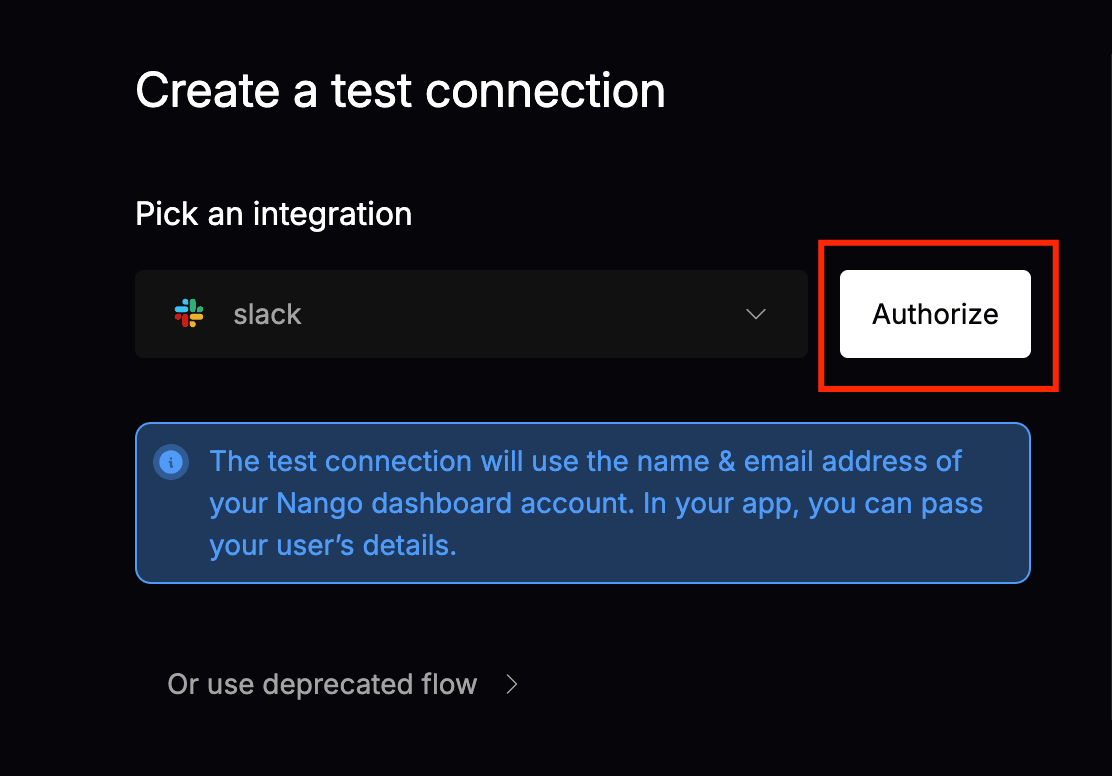
Click Add Test Connection at the top right of the integration, pick the integration and click Authorize. A new window opens where you sign in to Slack or Google and allow access. Create one connection per service: the portal uses the first connection it finds for Slack and for Gmail.
Step 5: Check the connection
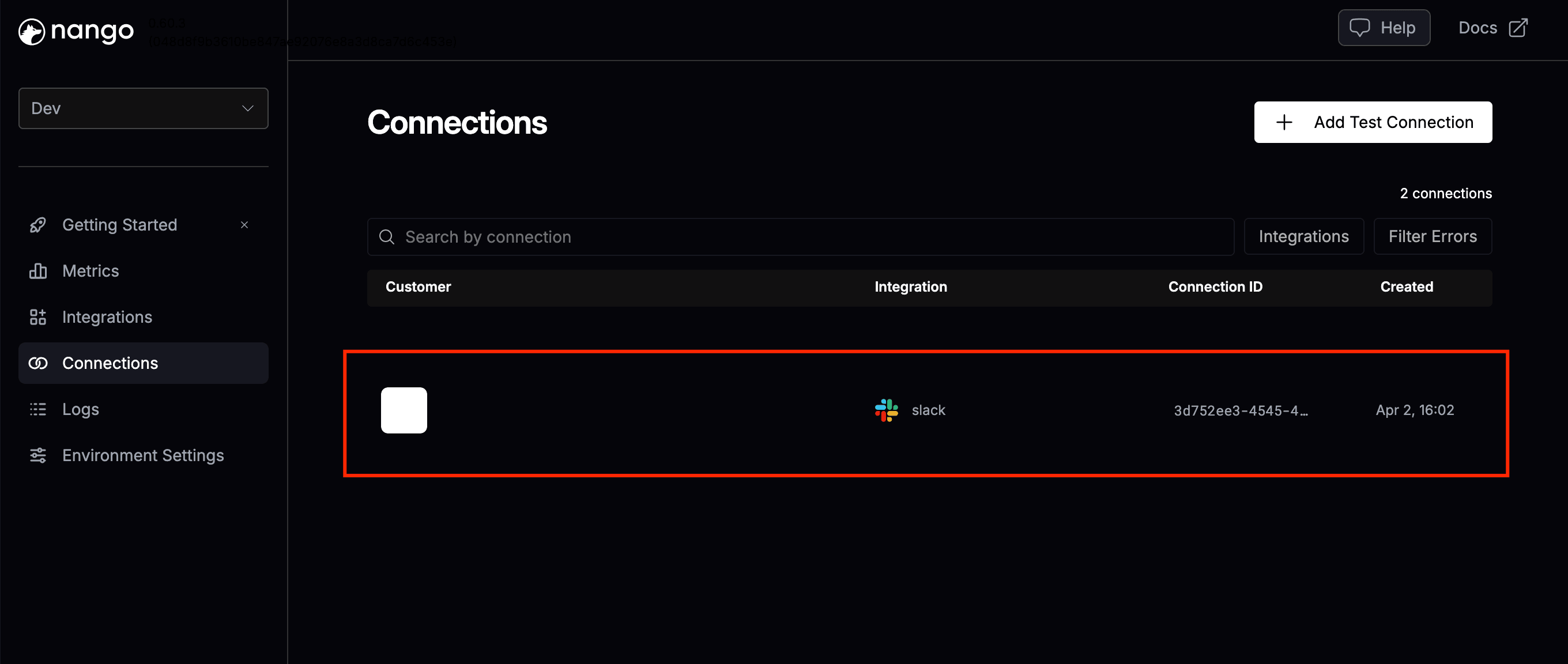
Once you have authorized, the new connection appears under Connections in the Nango dashboard. Click it and open the Authorization tab.
Step 6: Enter the Nango details in the Embedsy Portal
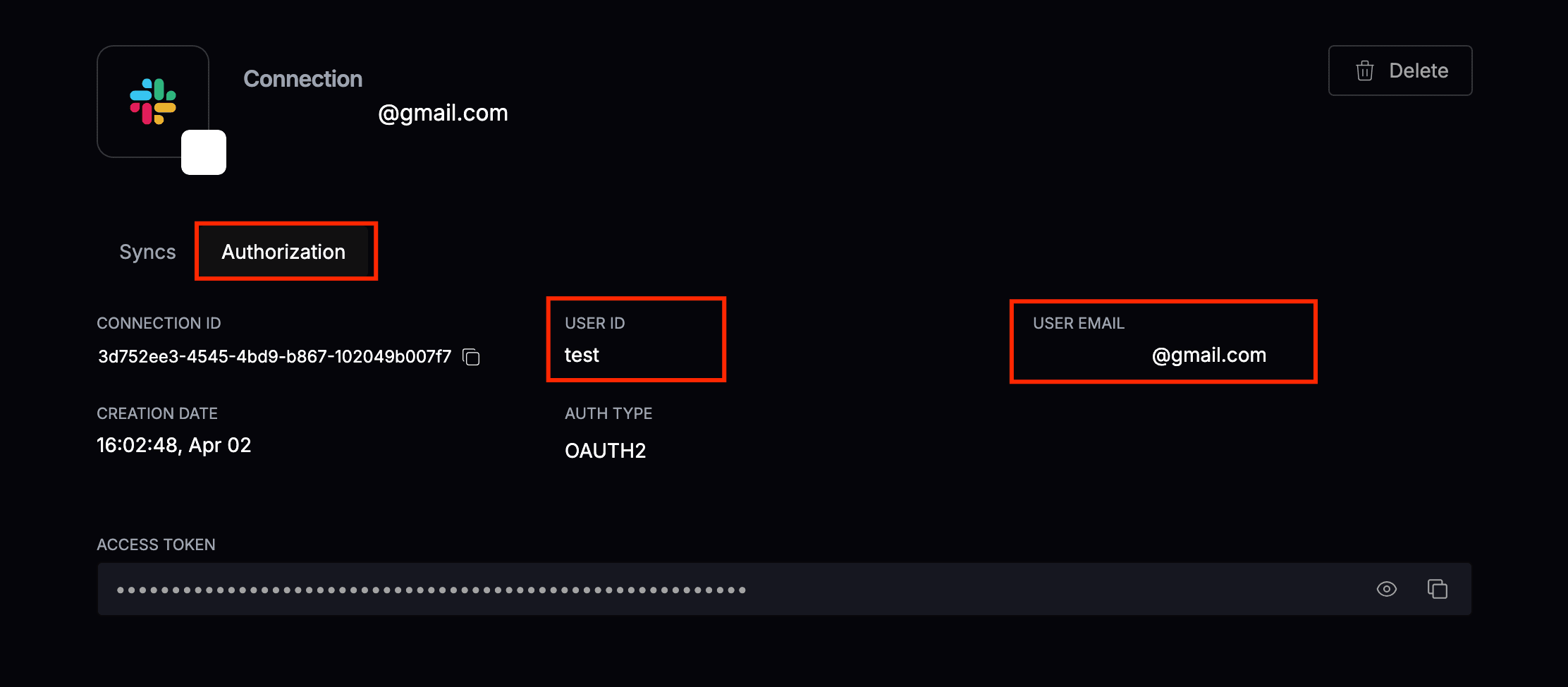
Copy the User ID and User Email from the Authorization tab:
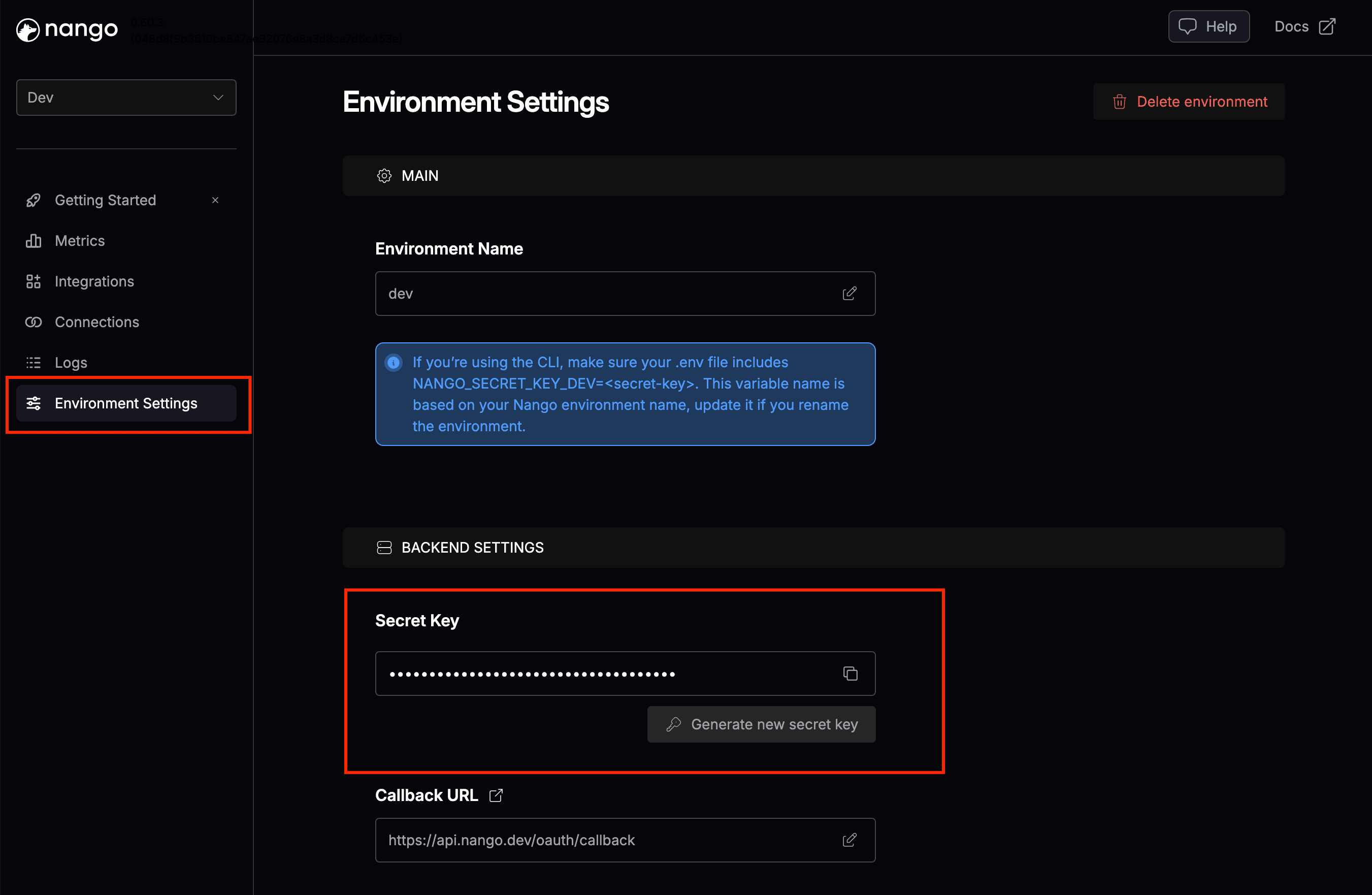
Then open Environment Settings in Nango and copy the Secret Key:
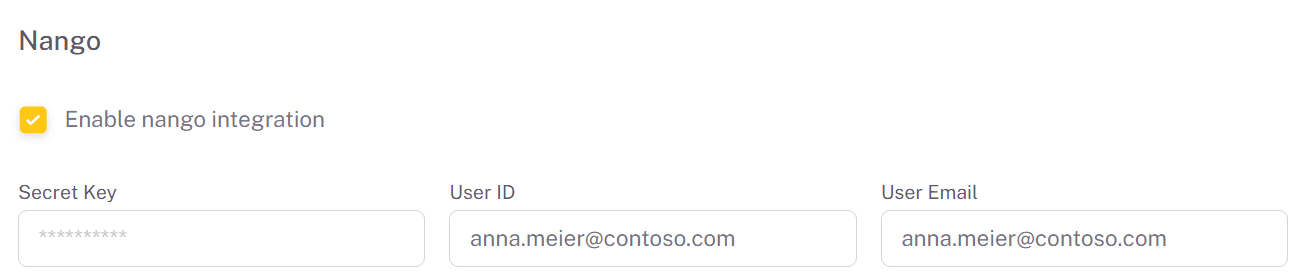
In the Embedsy Portal, open the user menu at the bottom of the navigation and select Global Settings. In the Nango section, check Enable nango integration, enter the Secret Key, User ID and User Email, and click Save Changes. Emails sent through Gmail show the User Email as the sender.
Step 7: Check the Integrations page
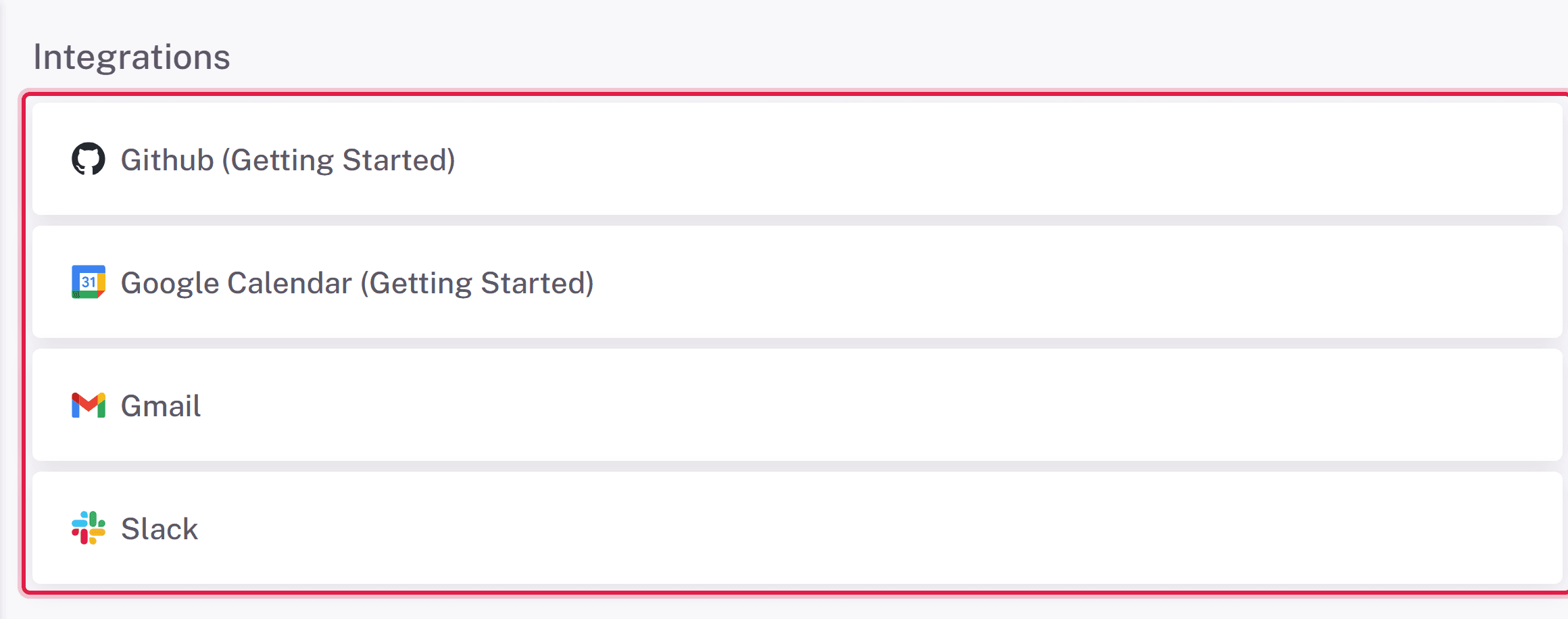
Open the user menu again and select Integrations. If the integration you set up is listed, everything is configured correctly. If a value is missing in Global Settings, the page names it and links back there.
The page lists every integration in the connected Nango environment, so you may see entries besides Slack and Gmail. Only Slack and Gmail can be used to send data from a report.
Sending data from a report
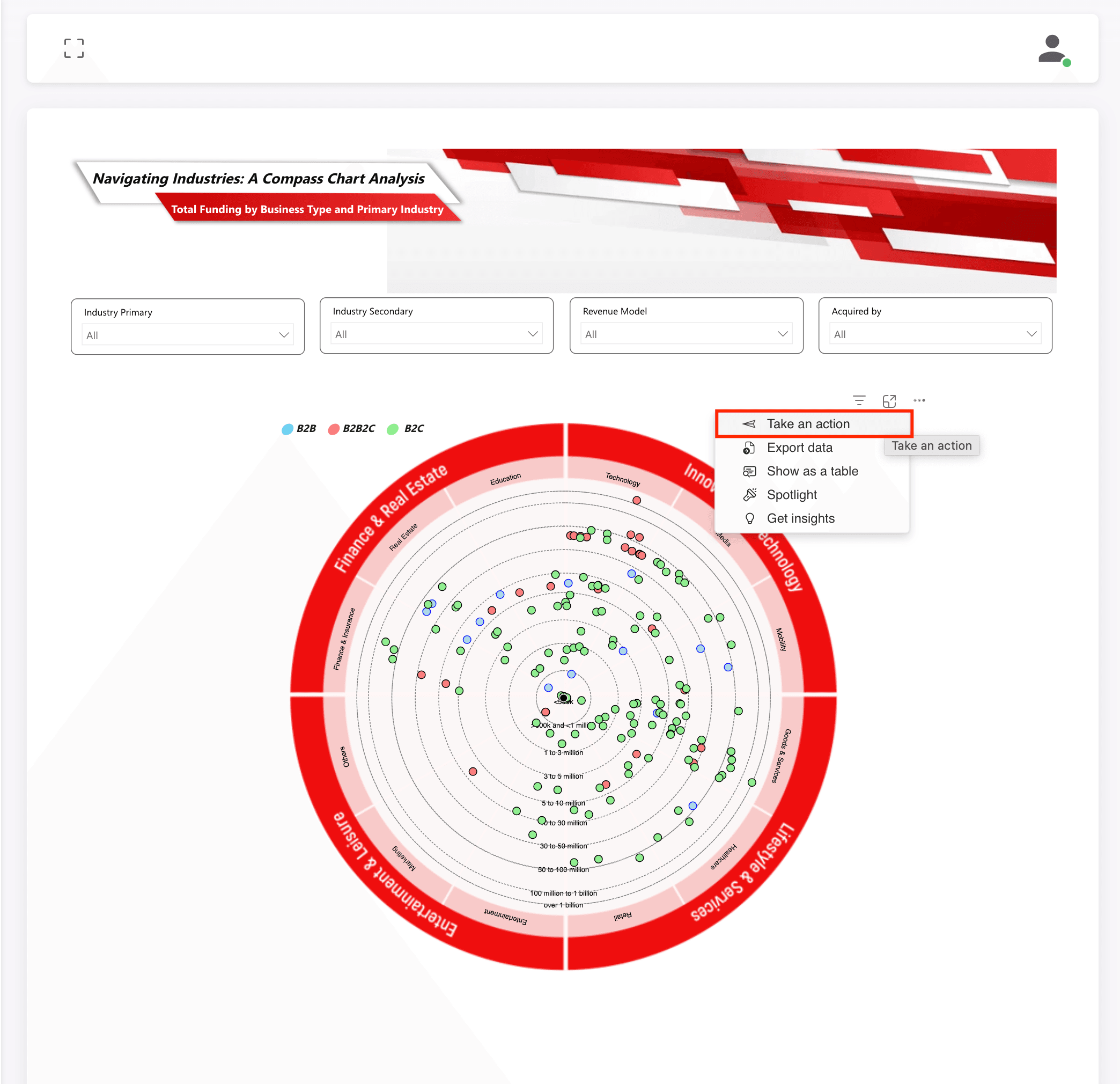
- Hover over a visual, click the three dots in its top-right corner and choose Take an action. The option is not available on paginated reports, or on text boxes, images and shapes.
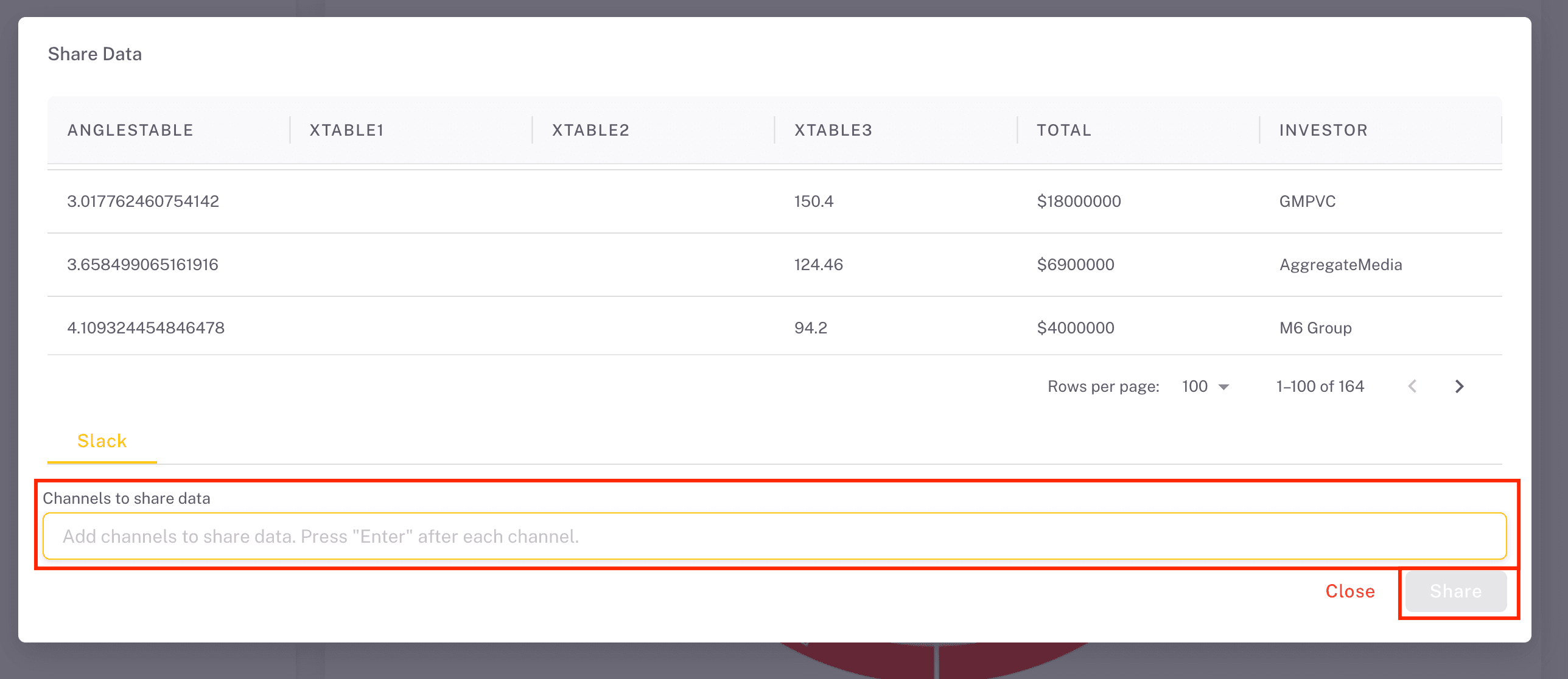
- The Share Data dialog shows the visual's data as a table. Columns you hide in the table are left out of the message. Below the table there is a tab for each connected service.
- On the Slack tab, add channels or people in Channels to share data, pressing Enter after each, and click Share. A long table is split into several messages.
- On the Gmail tab, enter the recipients and a Subject and click Share. If the data contains email addresses, Use column offers them as recipients.
The data arrives as a table, for example in Slack: