
Adding Pages
The Embedsy Portal's navigation is built from pages. A page can be a Power BI report, a paginated report, an embedded website, an Embedsy Studio app, a hyperlink or a PDF - and each page is shown only to the roles you assign it to. This article covers how to add a page and the settings for every page type.
On this page
How to add a page
The flow is the same for every page type:
- Open Roles/Pages/Users and switch to the Pages tab.
- Click Add Page.
- Choose a Page Type and fill in the fields for that type (described below).
- Under Roles, click Add Role + and add the role(s) that should see the page in their navigation menu. At least one role is required.
- Click Save.

To change a page later, click Edit Page on its card. The same form opens, with Delete Page at the bottom; for report pages it also shows the semantic model's last refresh status and date.
Once pages exist, you can arrange their order and group them into sections in Menu Configuration.
Power BI Report
The most common page type - a live Power BI report.
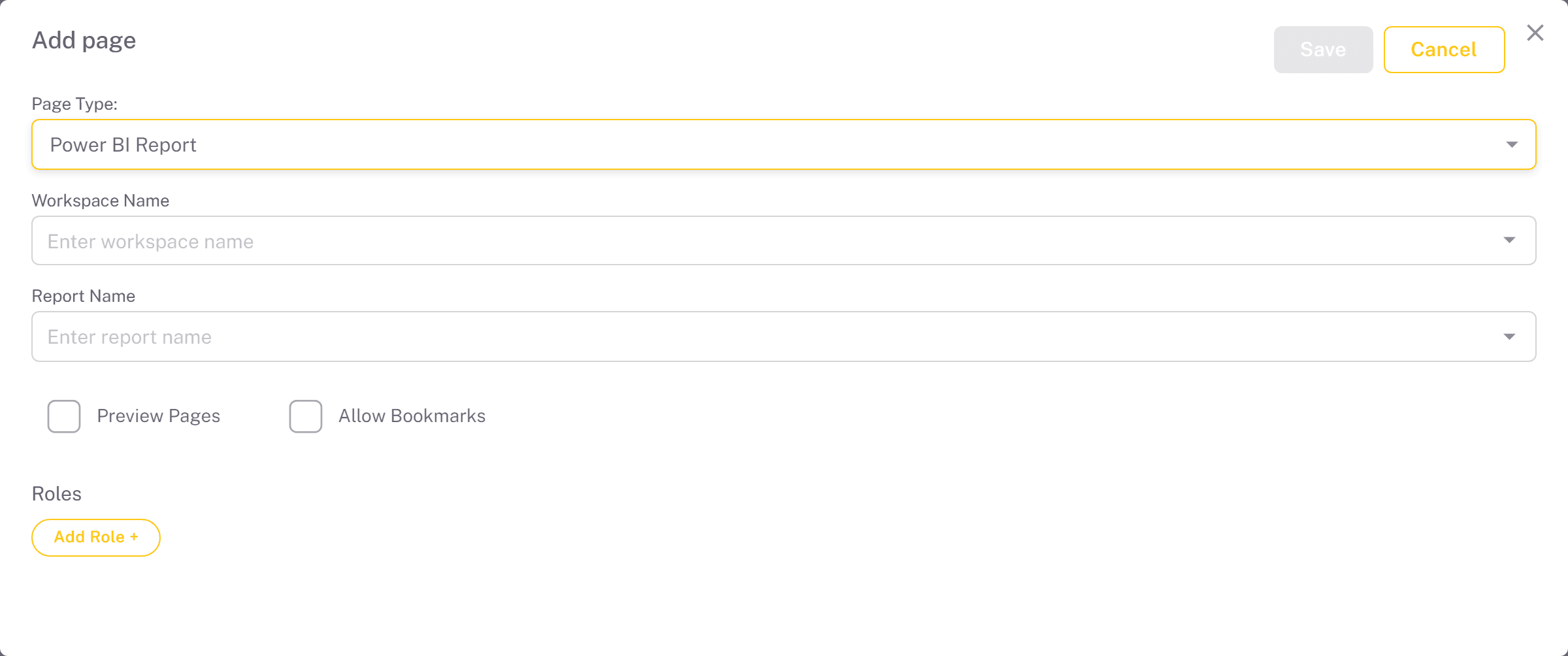
- Workspace Name - the Power BI workspace the report lives in.
- Report Name - the report to embed, chosen from that workspace.
- Row Level Role - if the report's semantic model has row-level security (RLS) defined, this field appears and is required: enter the RLS role to apply, so users on this page only ever see that role's slice of the data.
- Preview Pages - list the report's individual pages under it in the navigation, so users can open a specific page directly.
- Allow Bookmarks - let users save and reuse their own views of the report; see Report Bookmarks.
- Allow scheduling to other recipients - shown when Report Scheduling is enabled; lets users email this report to people other than themselves. See Report Scheduling.
Power BI Paginated Report
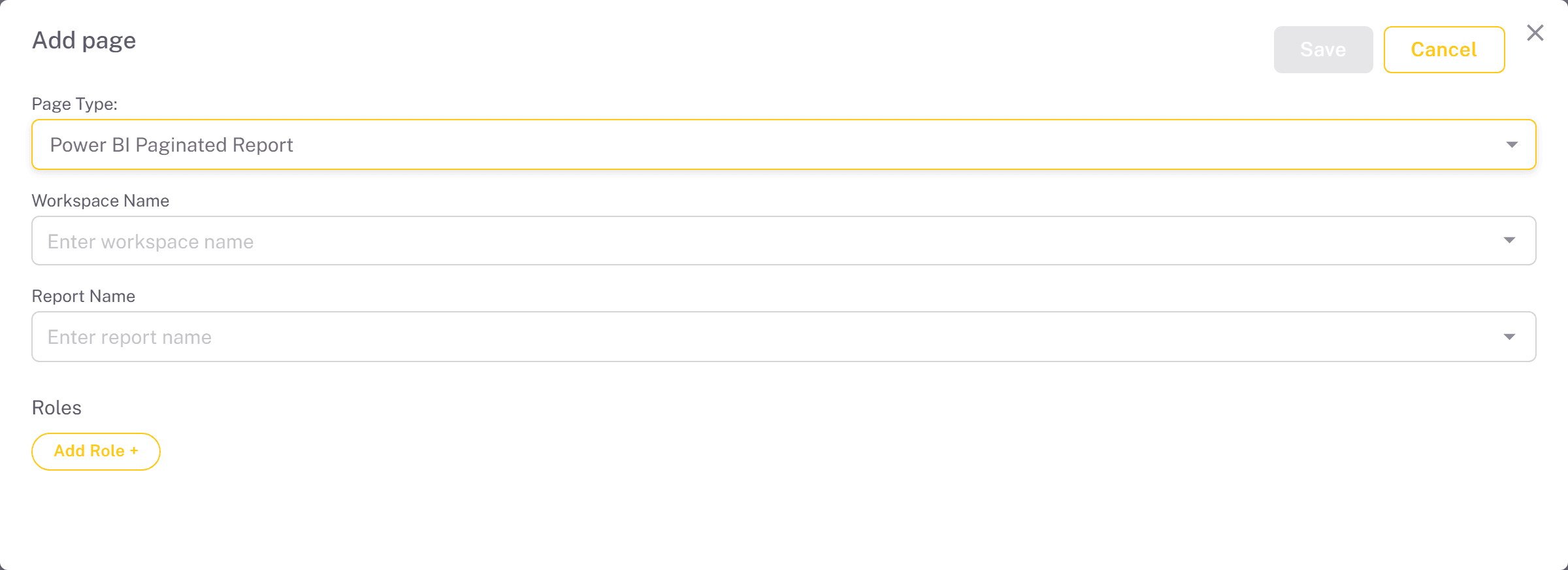
Embed a Power BI paginated report - the pixel-perfect, print-ready report format.
- Workspace Name - the workspace the paginated report lives in.
- Report Name - the paginated report to embed.
- Row Level Role - as with a standard report, if the underlying model uses RLS, enter the role to apply.
- Allow scheduling to other recipients - as with a standard report. Preview Pages and Allow Bookmarks are not available for paginated reports.
Iframe/Website
Embed external content - another dashboard, an internal tool or any website that allows iframe embedding - as a page inside the portal. For Embedsy Studio apps, use the Studio App page type instead.
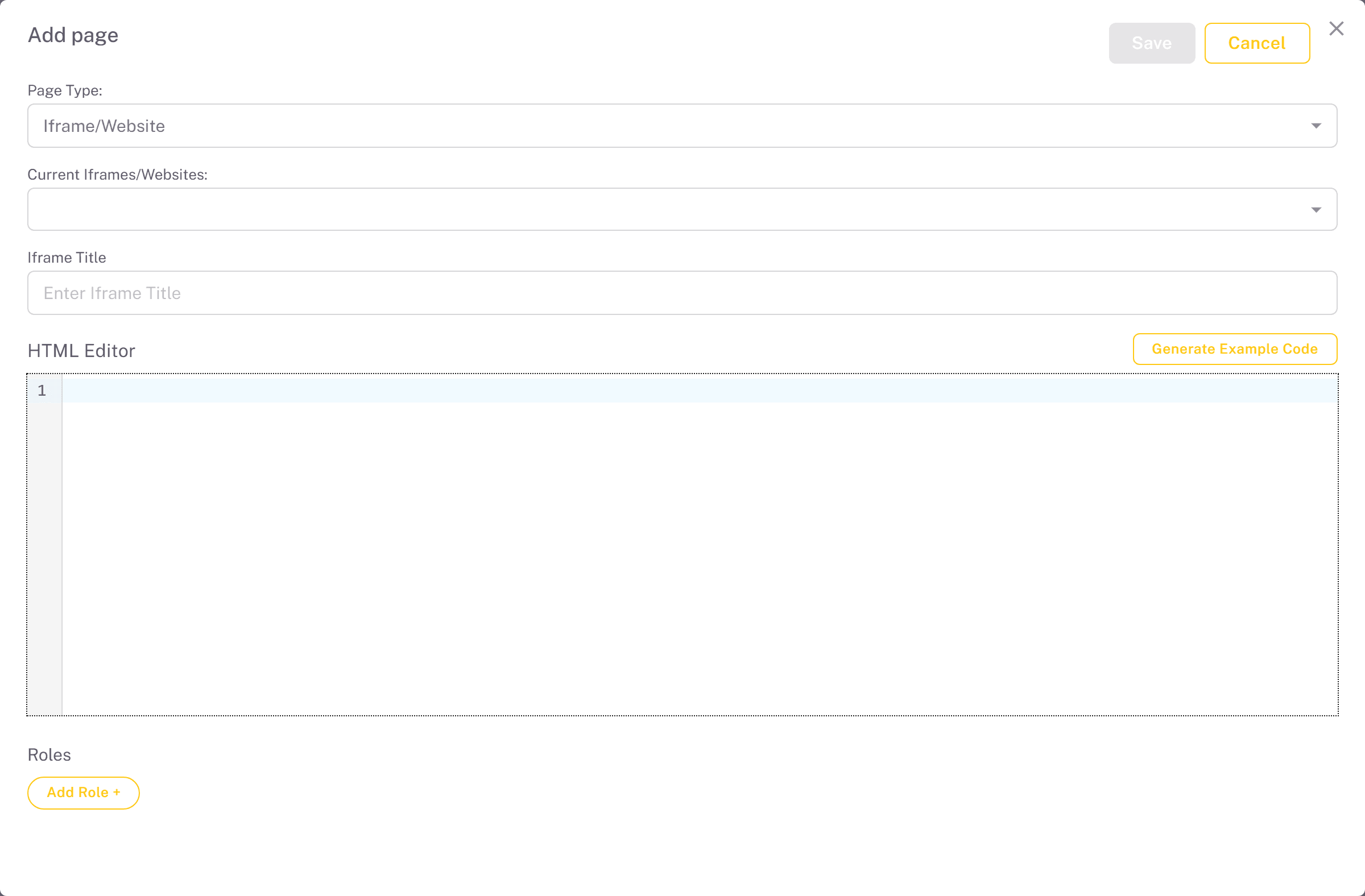
- Iframe Title - the text shown in the navigation menu.
- Current Iframes/Websites - reuse the content of an iframe page you already created.
- HTML Editor - the iframe embed code for the content. Generate Example Code drops in a responsive iframe snippet you can adapt to your own URL.
Studio App
Show an app built in Embedsy Studio as a page in the portal navigation.
- Pick a Studio app - choose the app. This fills in the page title and the embed code for you.
- Page Title - the text shown in the navigation menu; defaults to the app's name.
- HTML Editor - the generated embed code. Adjust it only to change the look, such as the height.
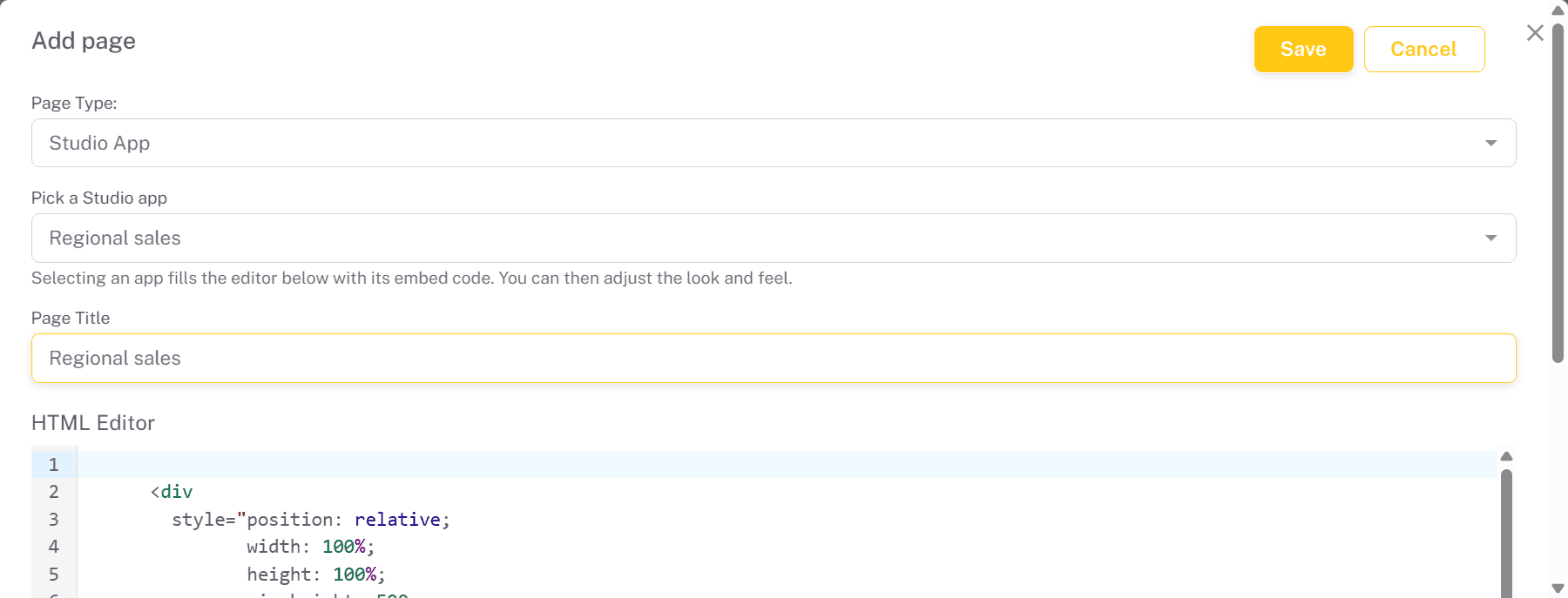
The page shows the app's published version, so publish the app in Studio first and publish again after changes. A private app is shown only to signed-in users whose role has the page or Studio access to the app; see Sharing Studio apps.
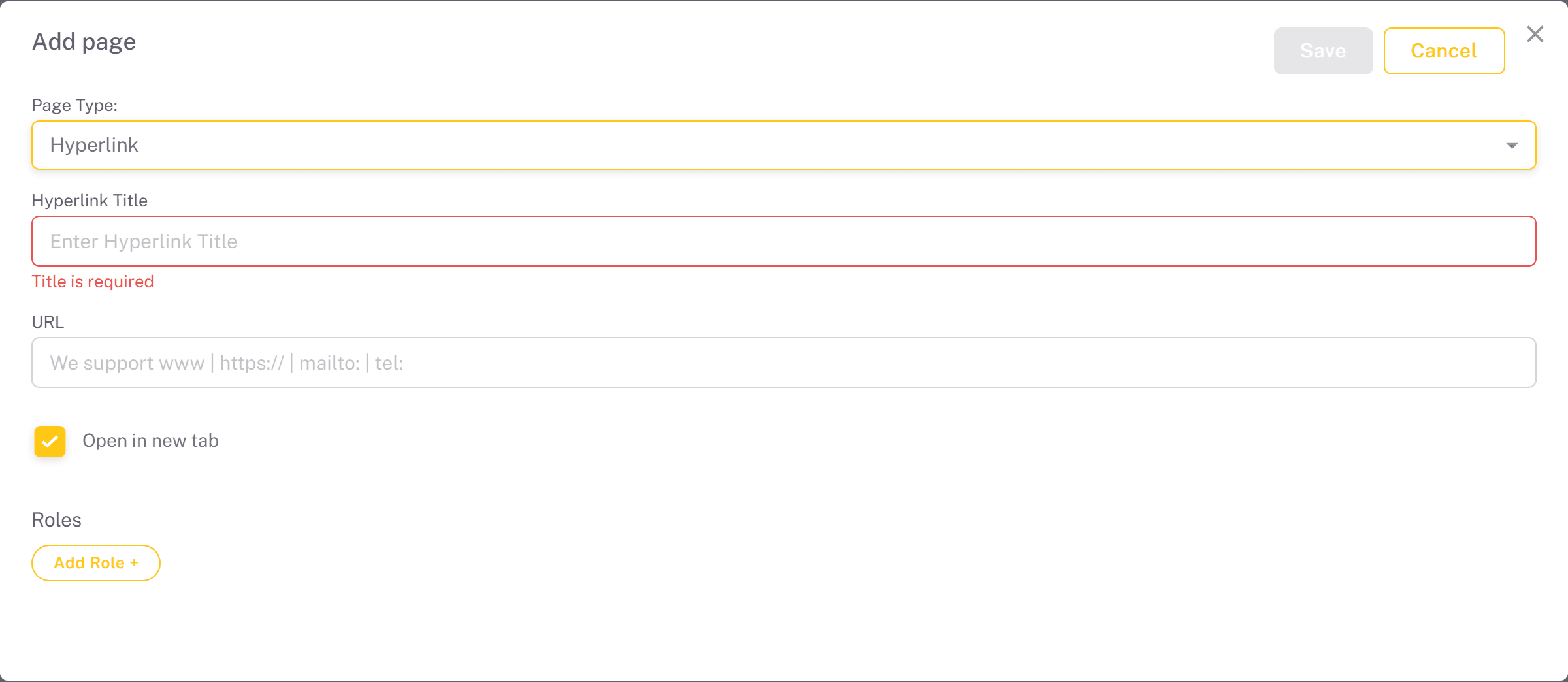
Hyperlink
Add a link to an external website in the navigation menu. Unlike an iframe page, a hyperlink opens the site rather than embedding it.
- Hyperlink Title - the text shown in the menu.
- URL - the address to open. Web addresses,
mailto:andtel:links are supported; an address withouthttps://gets it added. - Open in new tab - on by default. When off, the link replaces the portal in the current tab.
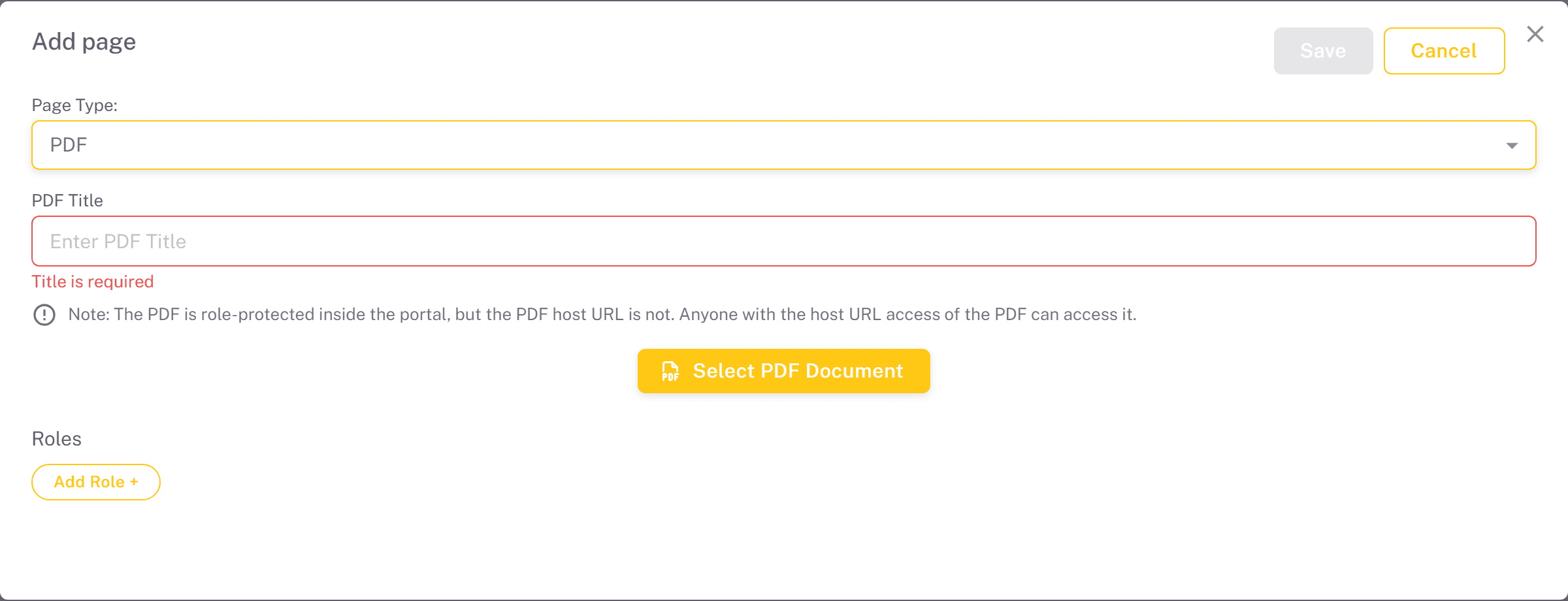
Embed a PDF document as a page users can read directly in the portal.
- PDF Title - the text shown in the menu.
- Select PDF Document - pick a PDF you have already uploaded, or upload a new one.
Note on access. The PDF page is role-protected inside the portal, but the file's host URL is not - anyone who has that direct URL can open the PDF. Only embed PDFs whose contents are safe to expose that way.