


Connecting the Embedsy Portal to a Custom Domain
A new Embedsy Portal runs on an address like https://yourname.azurewebsites.net. To use your own address instead, such as https://portal.yourname.com, you add it as a custom domain to the portal's Web App in the Azure Portal, create two DNS records with your domain provider and secure the domain with a free certificate, so the portal is served over HTTPS.
The DNS records are created wherever your domain is managed. This is usually done by your website or server admin, and the steps depend on your provider. Microsoft describes the records in its custom domain documentation.
How to configure a Custom Domain
- Before you start, contact your Embedsy contact person or use our contact page. The portal also has to be switched to the new address on our side, so tell us the domain you plan to use and when you would like to switch.
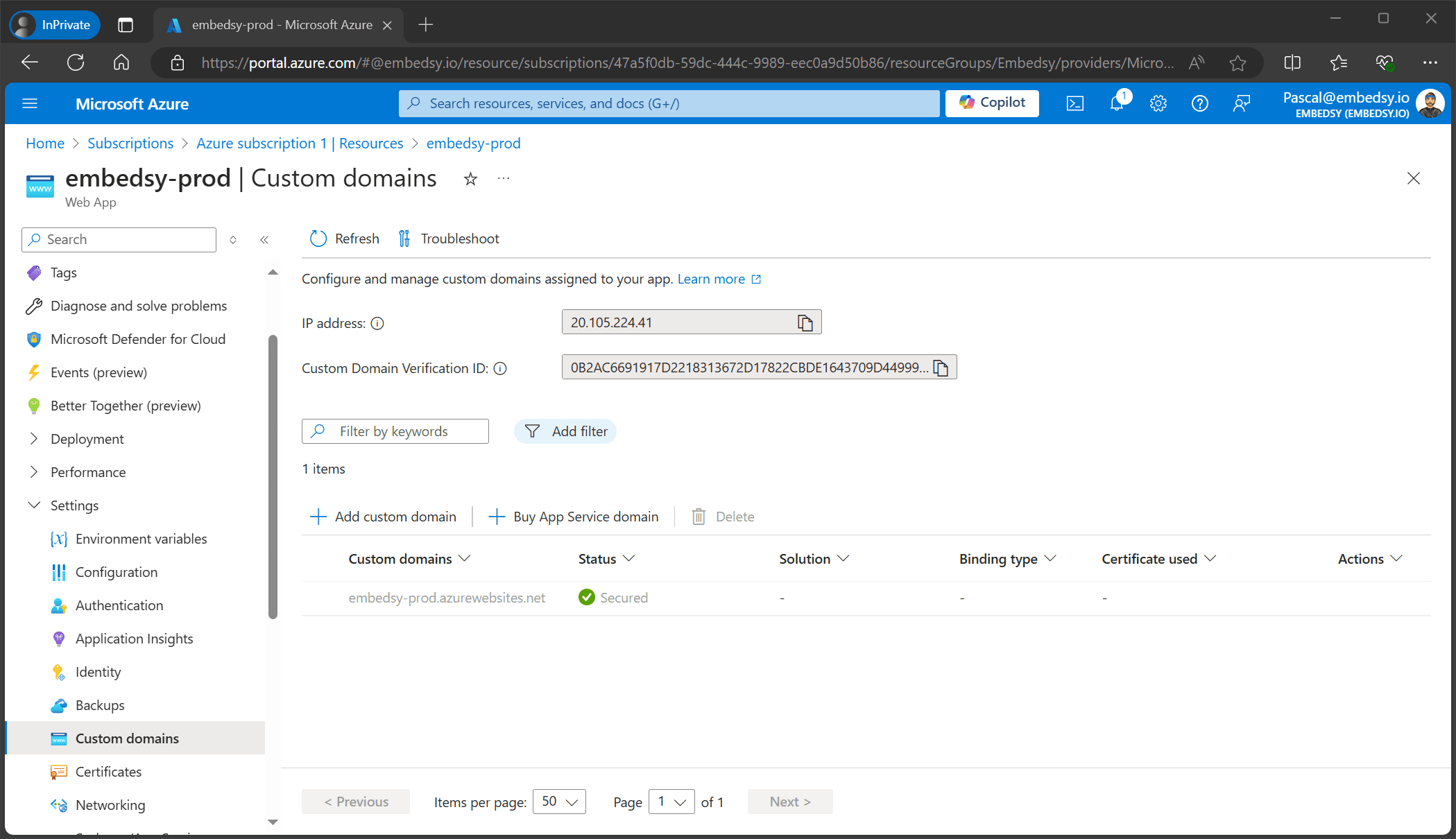
- Sign in to the Azure Portal and open the Web App of the Embedsy Portal. You chose its name during installation, and it is in the resource group created for the portal. Under Settings, select Custom domains, then Add custom domain.
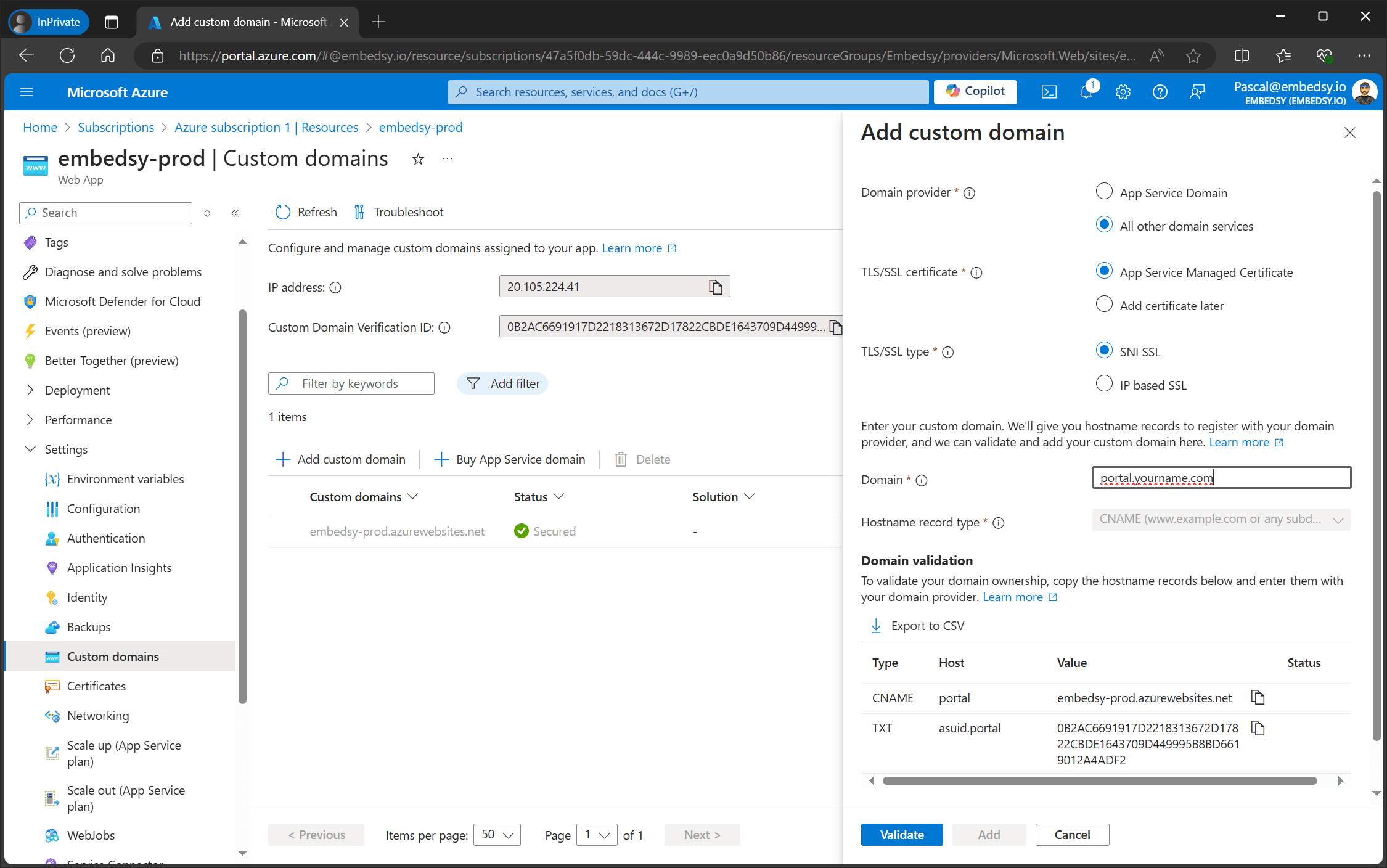
- Set Domain provider to All other domain services, TLS/SSL certificate to App Service Managed Certificate and TLS/SSL type to SNI SSL, and enter your domain. Under Domain validation, Azure shows two records (a CNAME and a TXT record): create both with your domain provider, as described in the Microsoft documentation. Then select Validate and, once both records show a green check mark, Add. After a few minutes the domain's status changes to Secured.
- Add the custom domain to the redirect URIs of the Service Principal. In the Microsoft Entra admin center, go to Entra ID > App registrations, open the Service Principal of the Embedsy Portal and select Authentication. Under Single-page application, add your domain including
https://and followed by/login/auth-callback, for examplehttps://portal.yourname.com/login/auth-callback, and save. Keep the existing URI.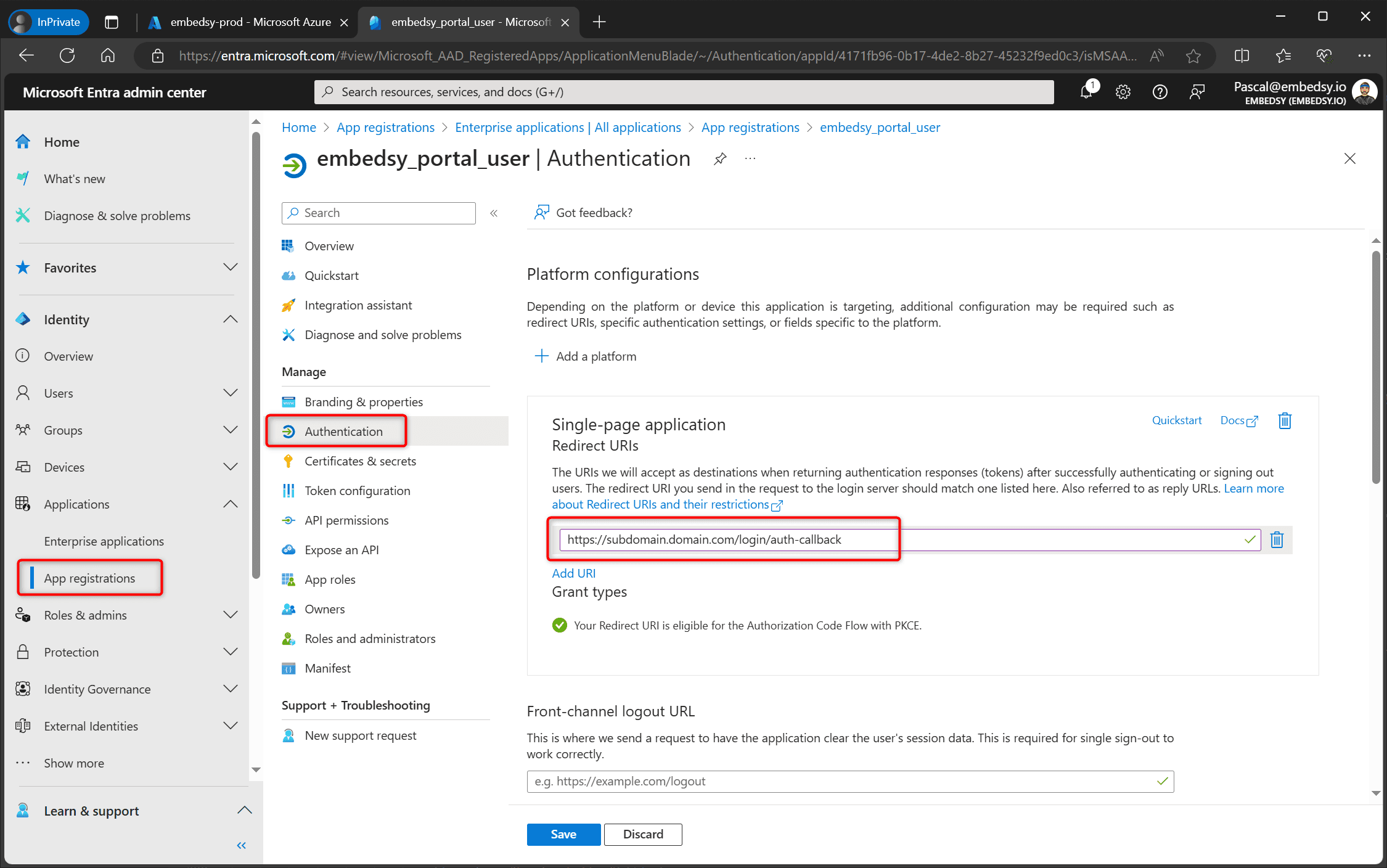
- Open the custom domain in a new browser window to test it. DNS changes can take a while to take effect.