


Updating the Client Secret in the Embedsy Portal
The Embedsy Portal connects to Power BI, Fabric and Microsoft Graph with the client ID and secret of the Service Principal. You enter them in Global Settings once at the end of the installation, and again whenever you replace the secret before it expires.
Creating a new client secret
Skip this when you are installing the portal: use the secret you created with the Service Principal. To replace a secret that is about to expire, open the app in the Microsoft Entra admin center under Entra ID > App registrations, go to Certificates & secrets and create a new client secret, as in steps 4 to 6 of the Service Principal setup. Copy its Value and note its expiry date.
Entering the details in Global Settings
- Sign in to the Embedsy Portal as a super admin and open Global Settings from the user menu at the bottom of the navigation.
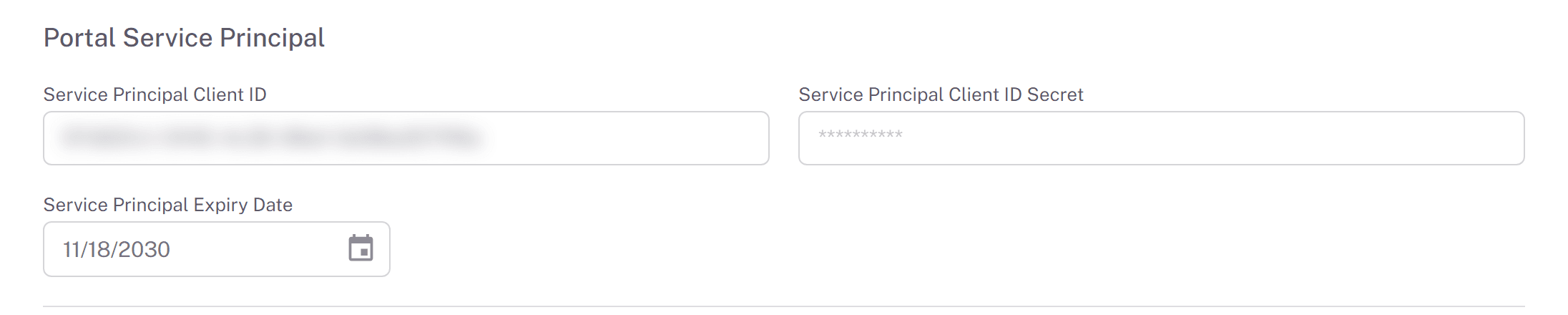
- Under Portal Service Principal, fill in:
- Service Principal Client ID: the Application (client) ID
- Service Principal Client ID Secret: the secret's Value (not the Secret ID)
- Service Principal Expiry Date: the secret's expiry date
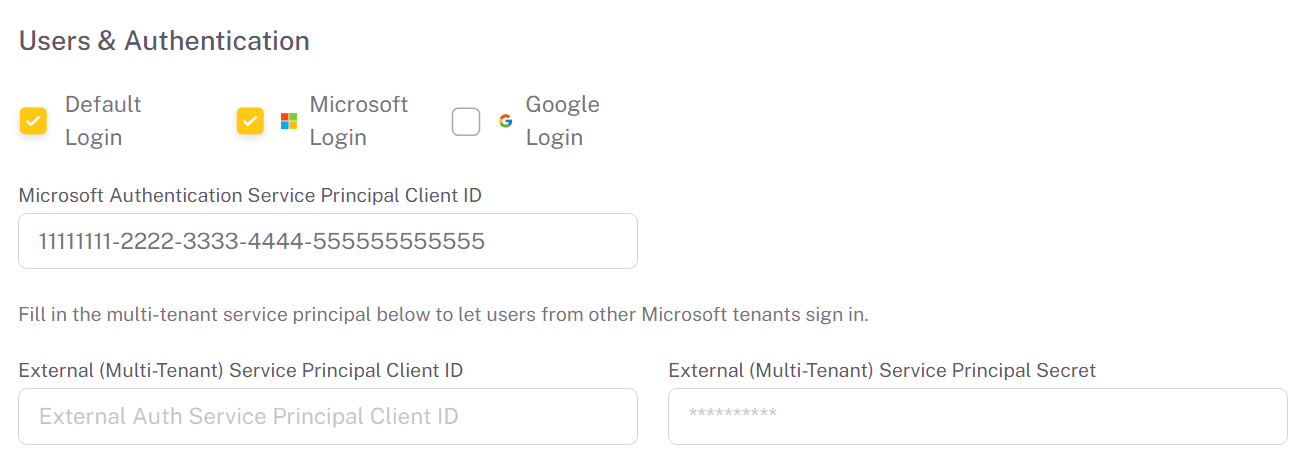
- During installation, if users sign in with Microsoft: under Users & Authentication, check Microsoft Login and enter the same Application (client) ID in Microsoft Authentication Service Principal Client ID.
- Select Save Changes.
The secret field always shows asterisks, even when a secret is saved. Leave it empty to keep the saved secret. The expiry date is required as soon as a client ID is entered and can't be in the past.
Delete the old secret only after the portal works with the new one. Open a few reports in the portal first, then remove the old secret under Certificates & secrets in Entra.