


View As Role
With View As Role, super admins and admins see the Embedsy Portal the way another role sees it: its pages, its reports and its branding. Use it to check a role's setup without signing in with a test account.
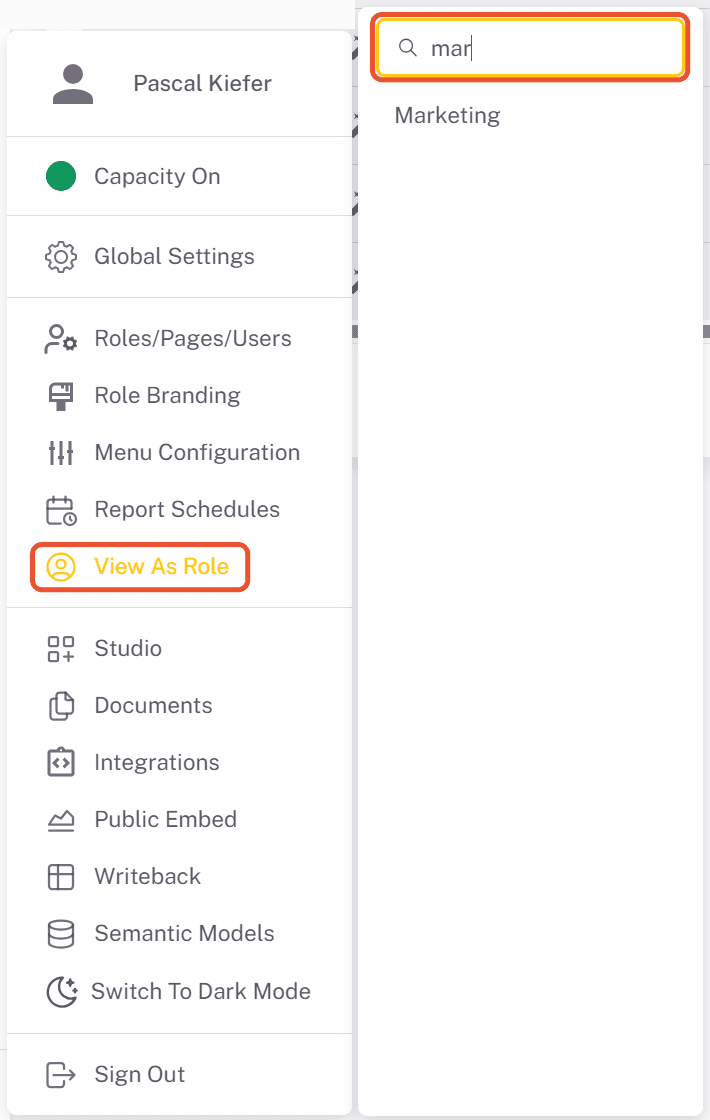
- Open the user menu at the bottom of the navigation on the left and click View As Role.
- Type in the search field to find the role, then click it. Roles based on Entra groups are marked (Entra). Admins don't see the super_admin role in the list.
- The portal reloads on its start page and shows that role's navigation, reports and branding. A bar at the top shows which role you are viewing.
- Click Stop Role View to return to your own view.

The role view stays on, even after you close the browser, until you click Stop Role View or sign out.
View As Role shows a role's pages, not its permissions. You keep your own user menu and permissions while viewing, so admin options such as Global Settings still appear. To check what a role may do, look at its permissions in Roles, Pages and Users.